How to Sign Up for AWWRT and Verify Your Account
Quick Answer
Getting started shouldn’t feel like paperwork. To sign up for AWWRT, choose an Artist or Gallery account, enter your full name and email, and click Sign Up. AWWRT emails you a 4-digit code. Enter it, set a password, and log in. Some email addresses need a quick approval first, and you’ll get an email when you’re in.
Keep the following ready
- Gmail address (fastest)
- Full name
- Account type
- Strong password
Step-by-Step Guide
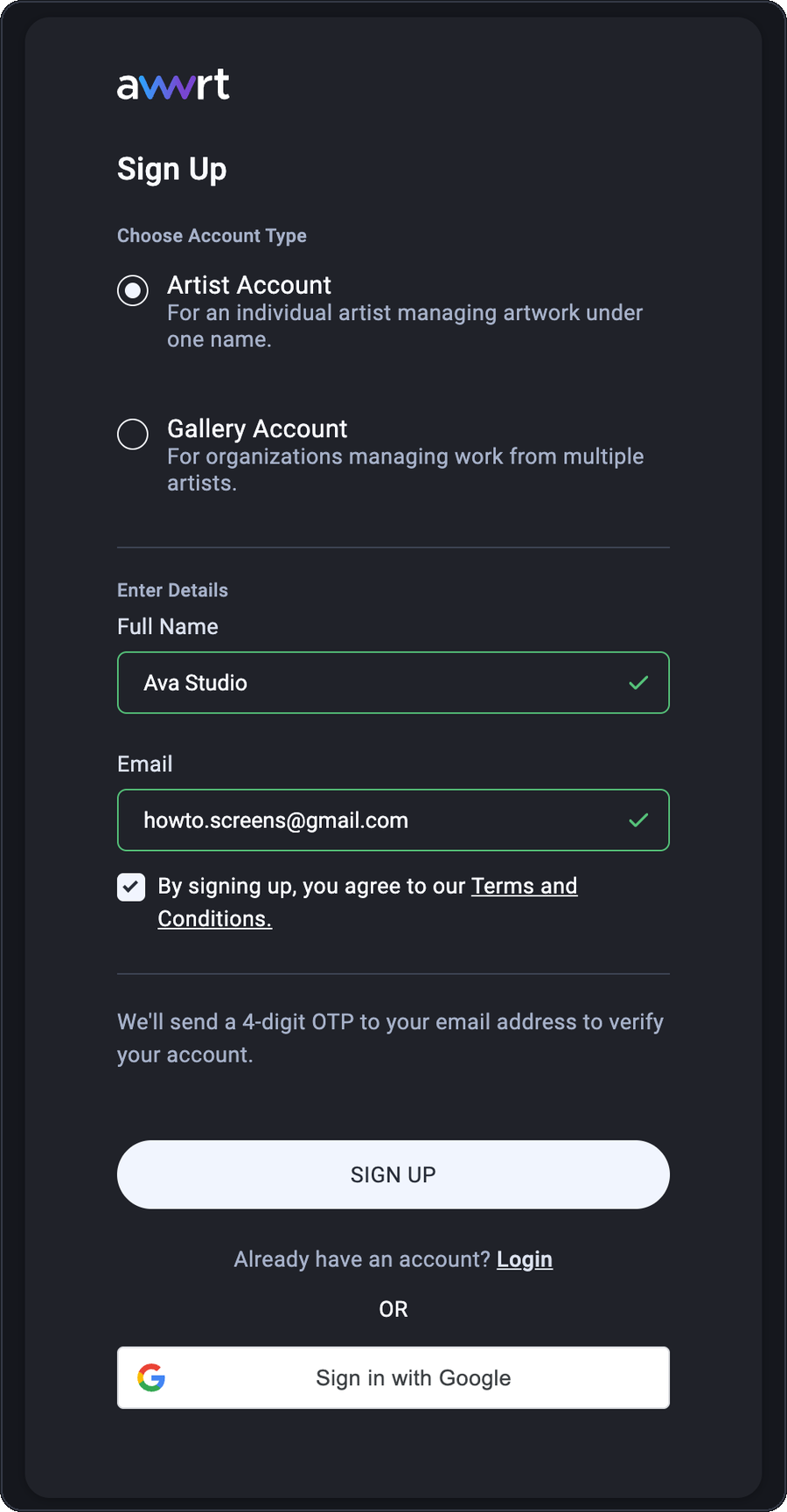
Step 1: Go to the AWWRT login page and click Sign Up under “Don’t have an account?”.
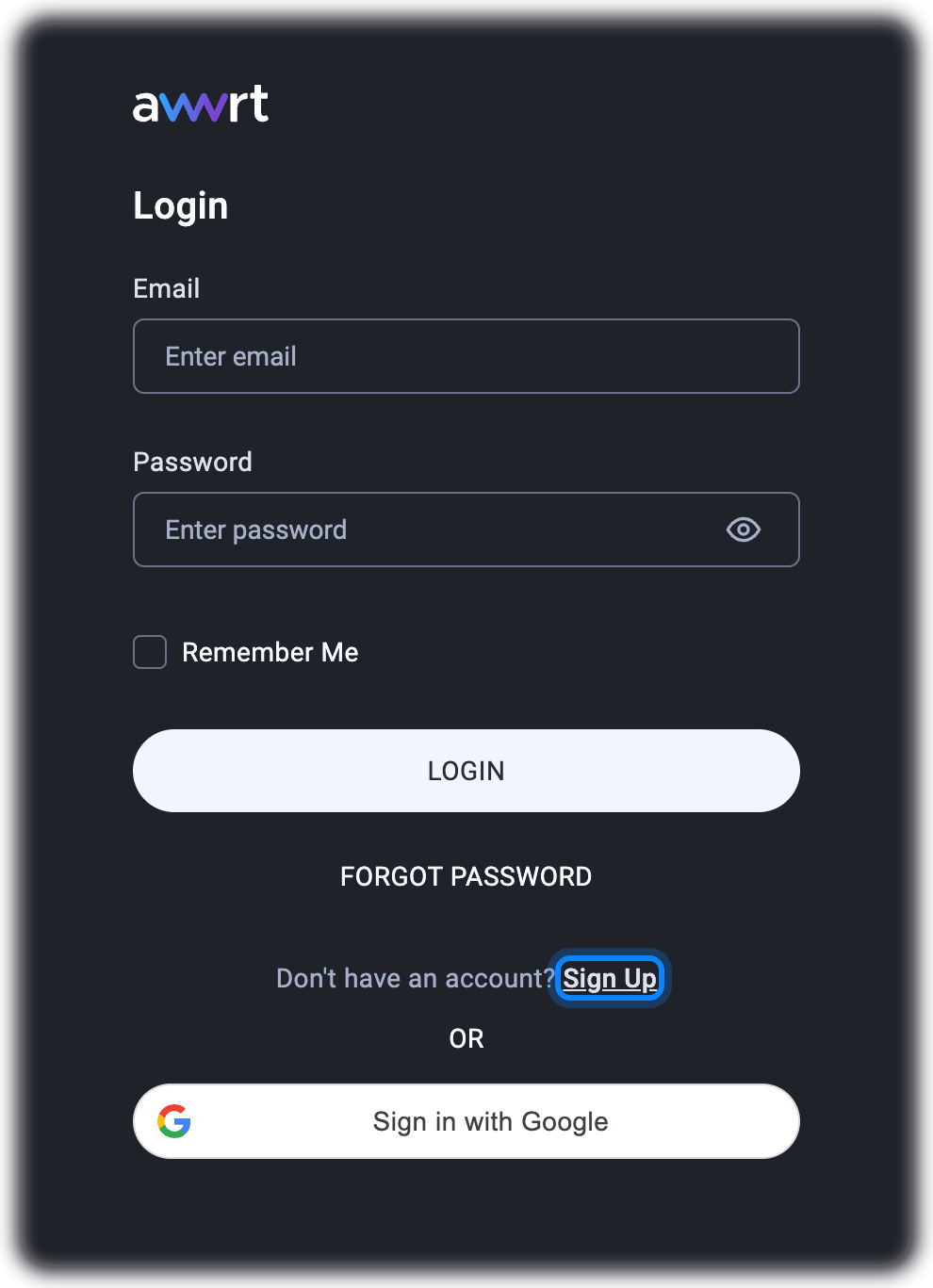
Prefer Google? Click Sign in with Google and choose your Google account instead. There’s no code to enter; a new account goes straight to Set Password (Step 7).
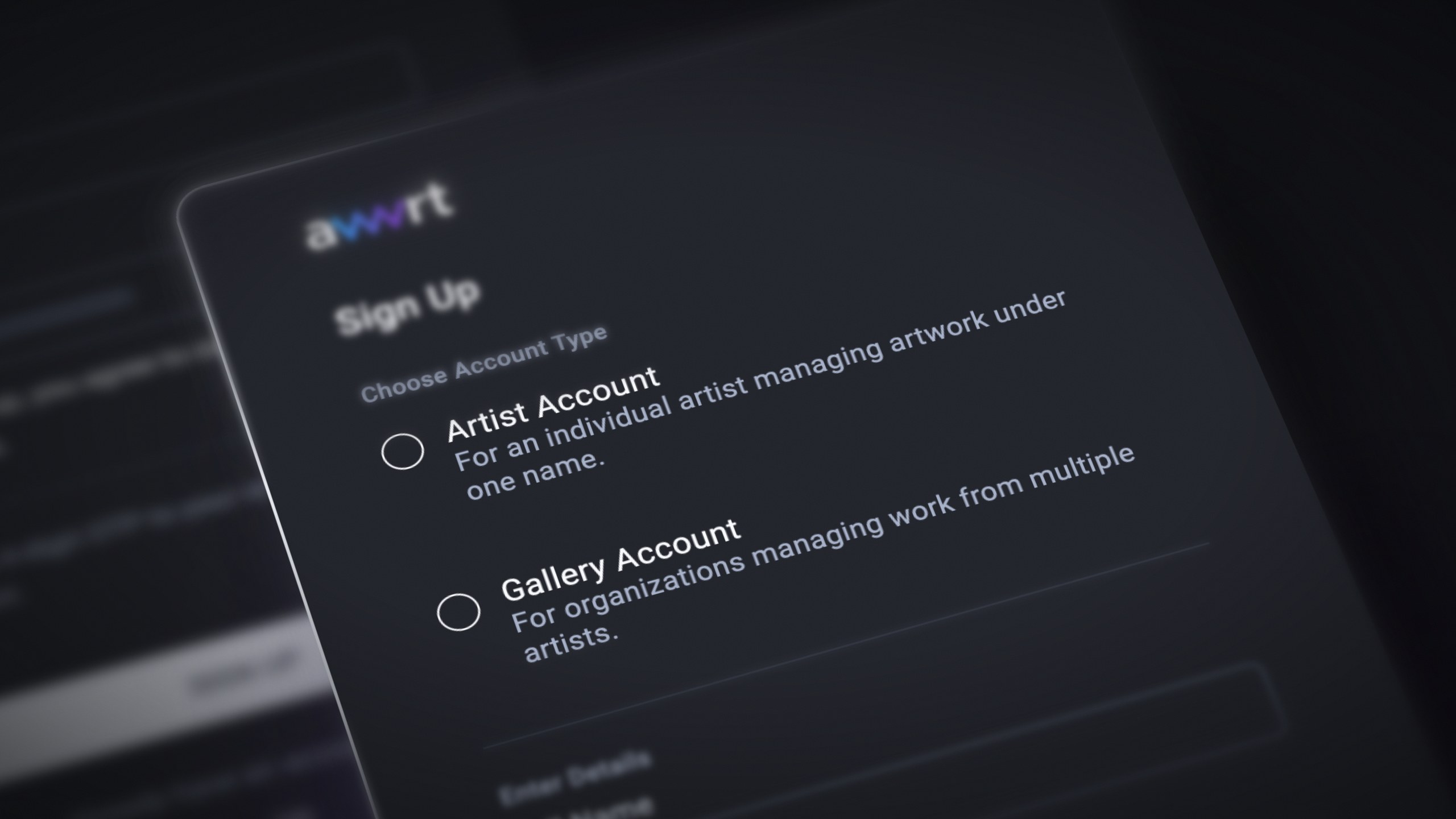
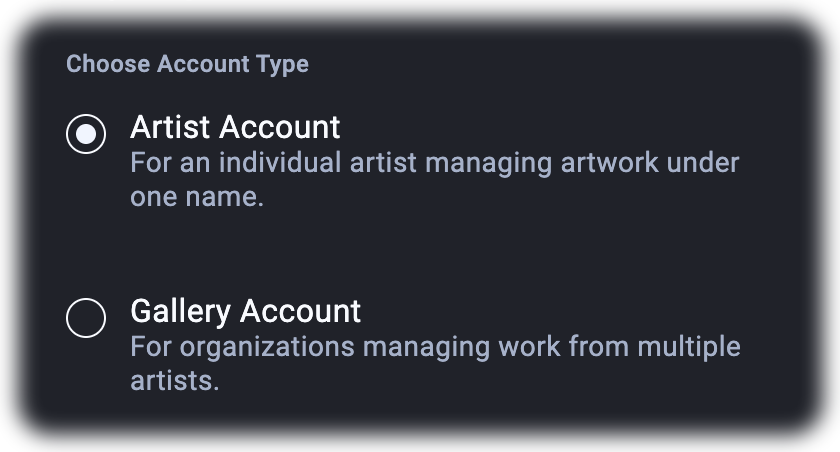
Step 2: Under Choose Account Type, pick the one that fits you:
- Artist Account: for an individual artist managing artwork under one name.
- Gallery Account: for organizations managing work from multiple artists.
Independent curators and institutions (museums, foundations, residencies, auction houses) should choose Gallery Account too. Staff can share one gallery account by using the same login; there are no separate staff logins. Each device that signs in counts toward your plan’s device limit.
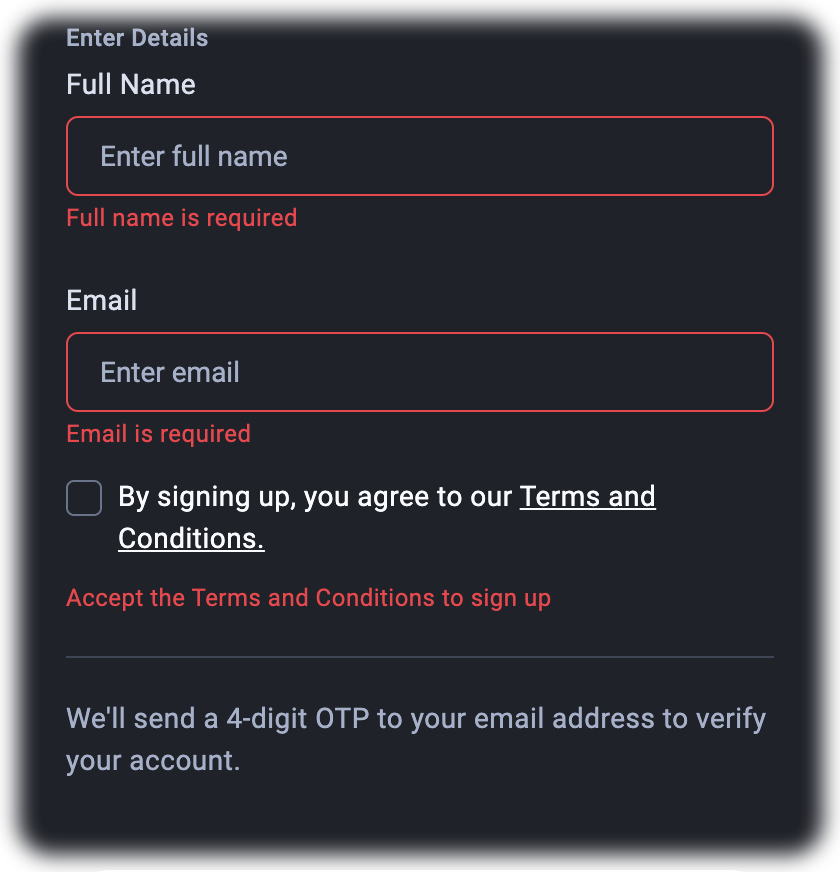
Step 3: Under Enter Details, type your Full Name and Email.
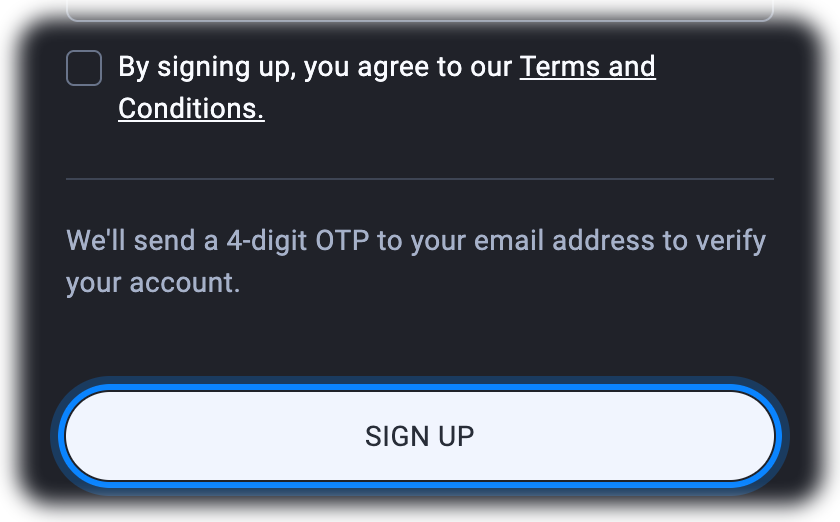
Step 4: Tick the box to agree to the Terms and Conditions, then click  . AWWRT sends a 4-digit code to your email.
Missed something? A red message shows under any empty field, and “Accept the Terms and Conditions to sign up” until the box is ticked.
Step 5: On the Enter OTP screen, type the 4-digit code from your inbox and click  .
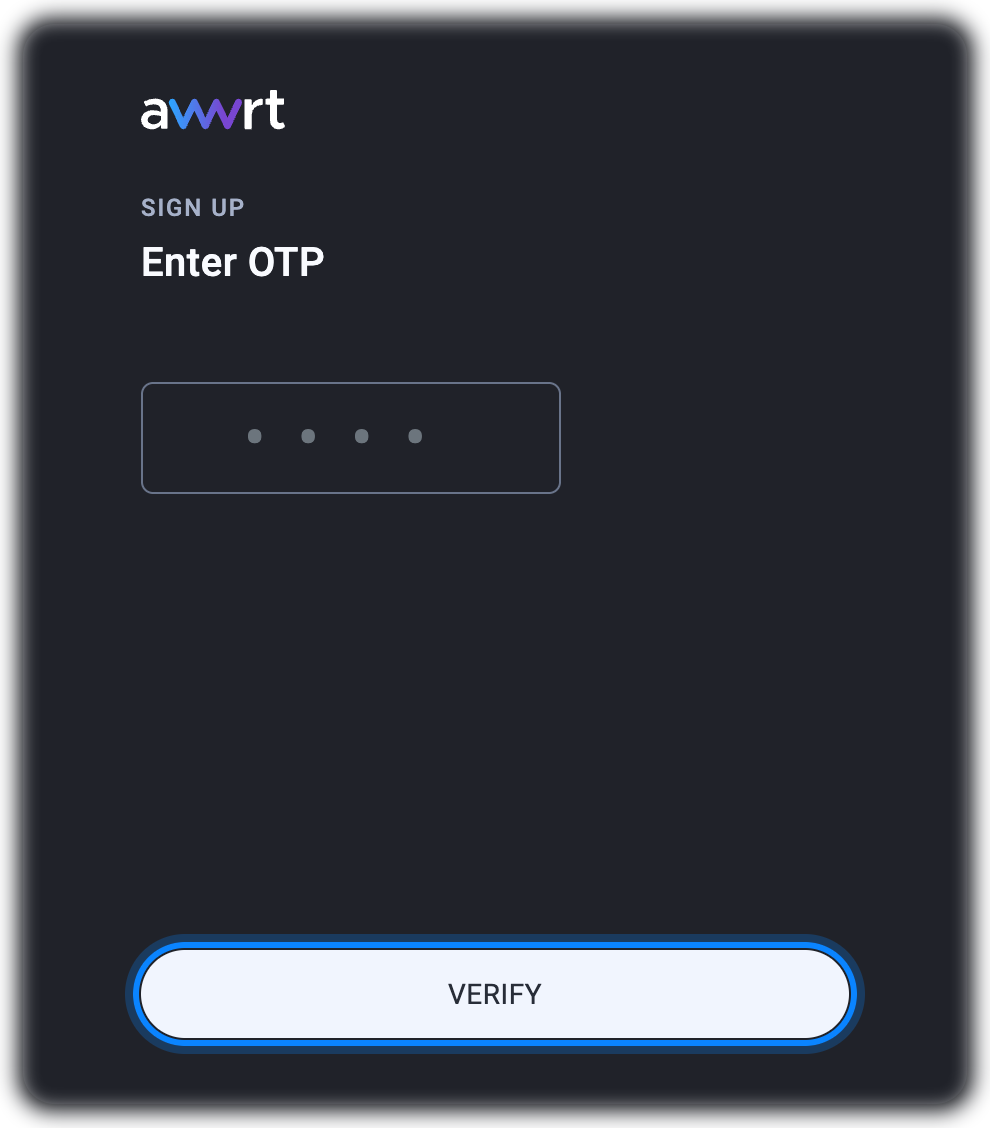
Step 6: What you see next depends on your email address:
- Gmail or Yahoo address: you go straight to Set Password. Continue to Step 7.
- Any other address (for example, your gallery’s own domain): you’ll see Access Pending: “Your access request is waiting for approval.” Work emails are checked by the AWWRT team before you get access. Click
 to leave the screen.
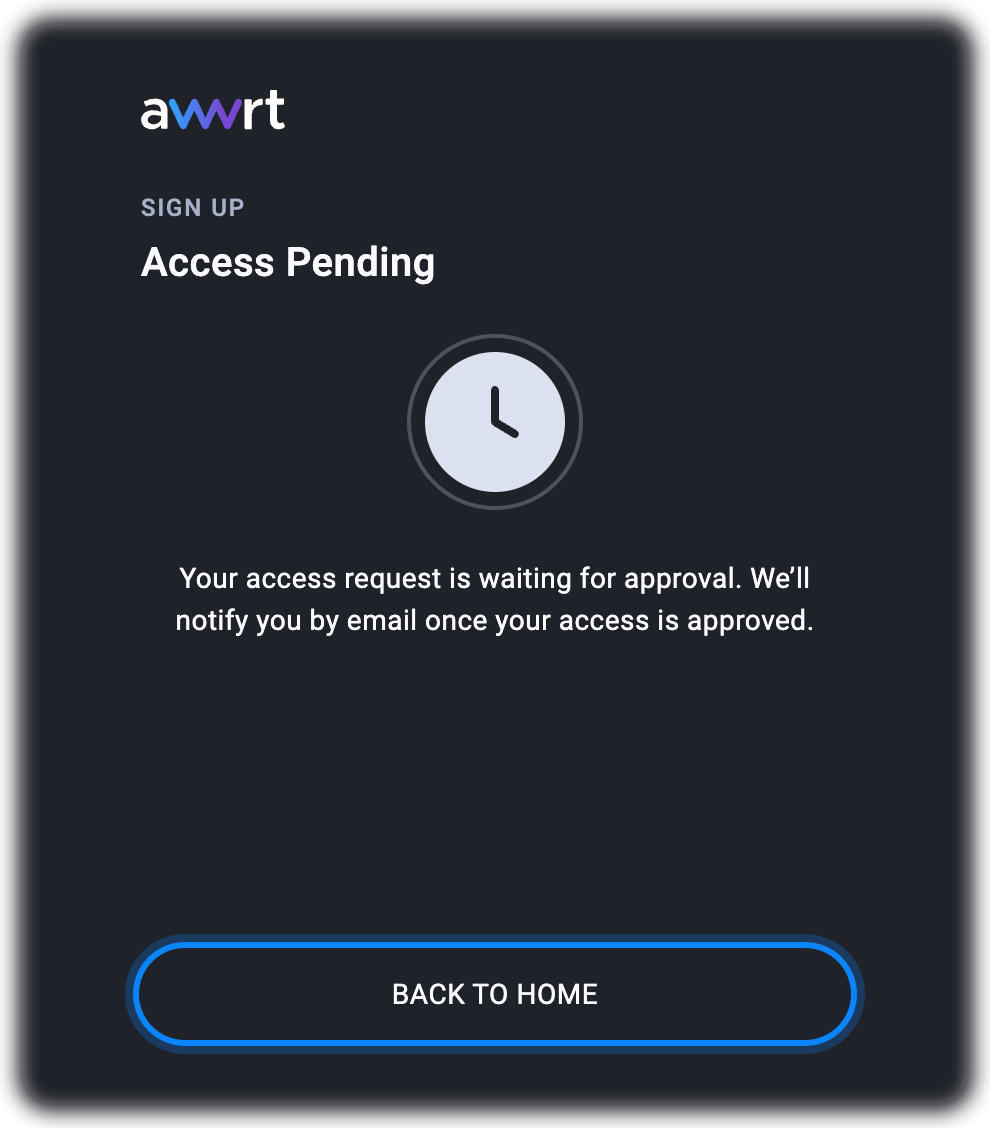
Waiting for approval? Watch for a “Welcome to Awwrt!” email. Its link takes you back to Sign Up. Follow Steps 2 to 5 again, then carry on to Step 7.
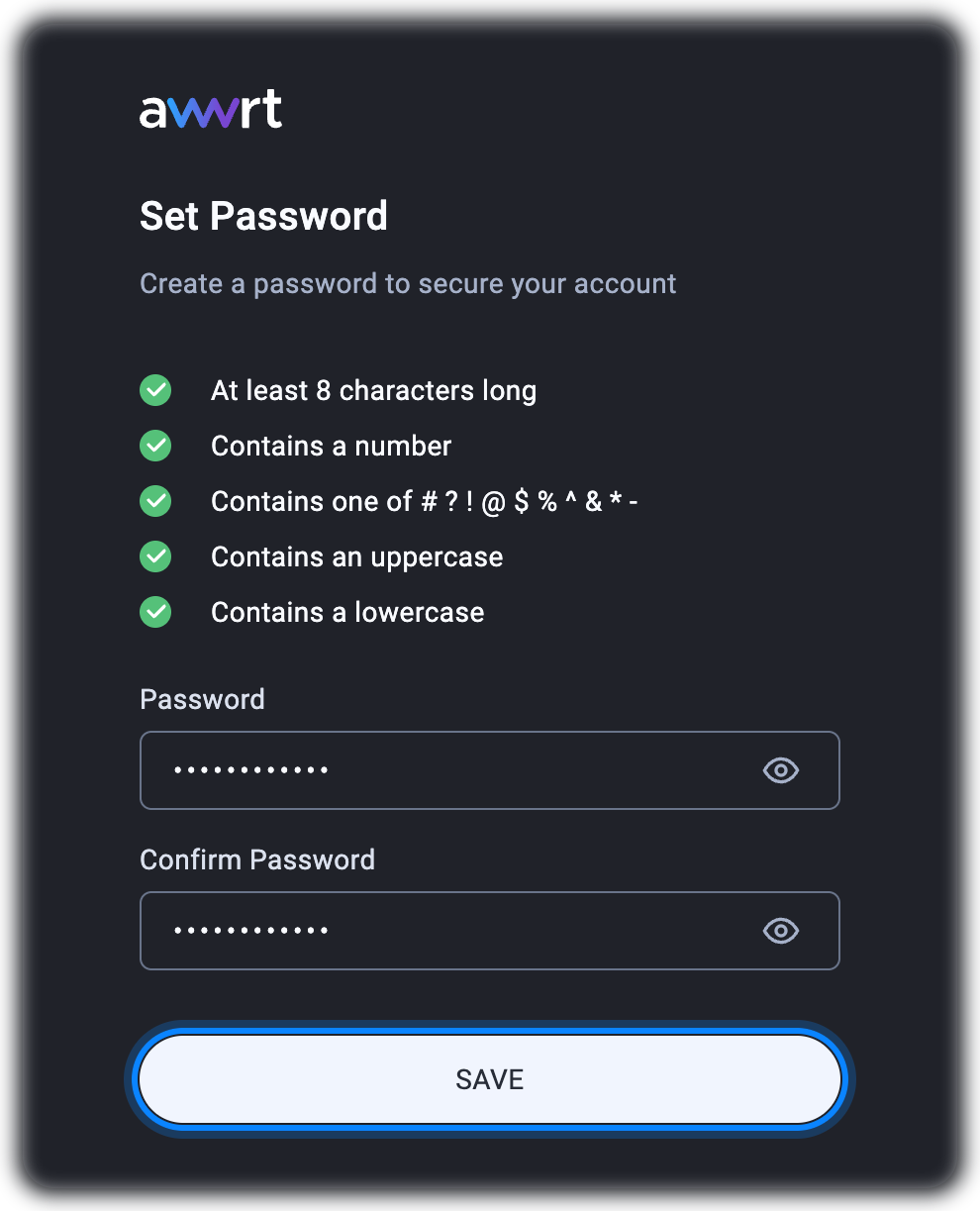
Step 7: On Set Password, type a password and type it again to confirm. It needs:
- at least 8 characters
- a number
- one of # ? ! @ $ % ^ & * –
- an uppercase letter
- a lowercase letter
Each rule is ticked off as you type. Click  .
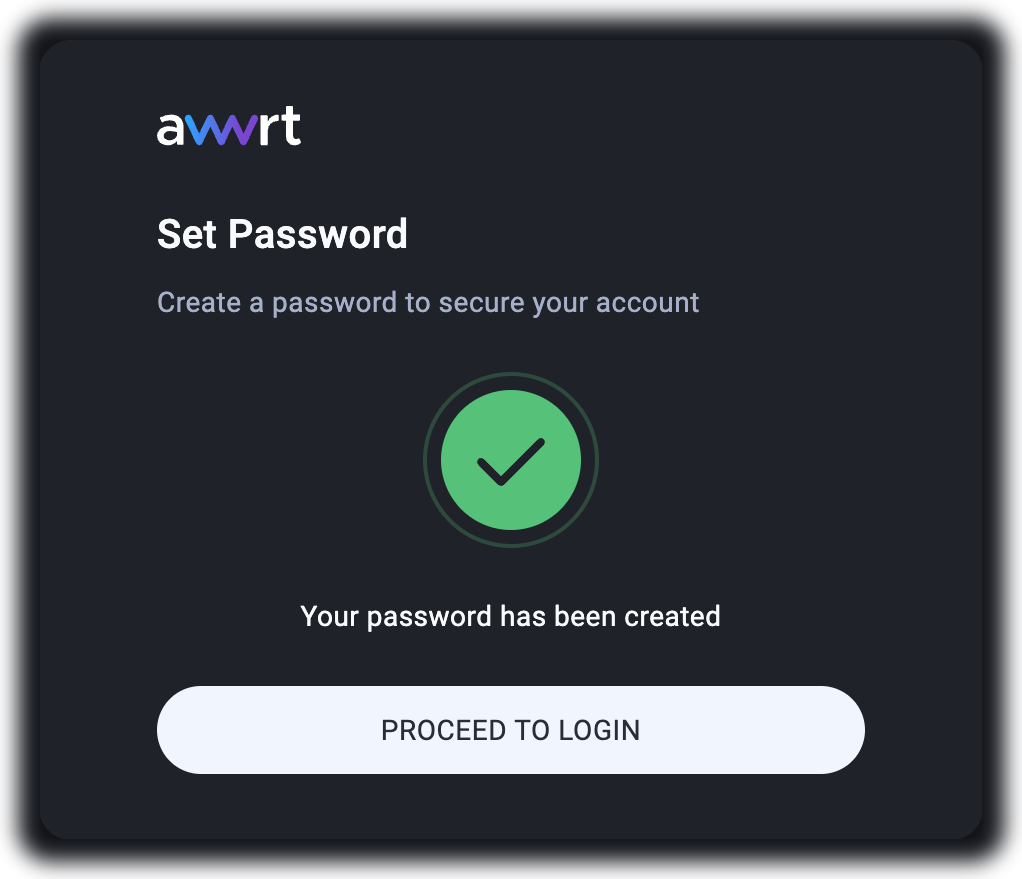
Step 8: You’ll see “Your password has been created”. Click  , then log in with your email and new password.
Step 9: On the web, the first screen after logging in asks you to link your Google Drive. AWWRT stores your artwork images, photos and PDFs there, so nothing else opens until it’s linked.
Key Fields Explained
Common Mistakes to Avoid
- Picking the wrong account type. Artist is for one person’s work; Gallery is for work from many artists. Choose before you sign up.
- Signing up again while waiting for approval. If you’ve already verified a work email, your request is in the queue; signing up again only shows “You’ve already requested access”.
- Using an email that’s already registered. AWWRT won’t create a second account; it tells you the account is ready to use, or that a setup link is waiting in your inbox.
FAQ
I didn’t get the 4-digit code. What should I do?
Check your spam or promotions folder first. The code goes to the email you entered on the Sign Up screen.
Why does my account say “Access Pending”?
Email addresses outside Gmail and Yahoo need approval. Once approved, a “Welcome to Awwrt!” email links you back to Sign Up to finish creating your account.
Can I change my account type later?
There’s no option for it in the app, so choose carefully when you sign up.
Is Sign in with Google the same as linking Google Drive?
No. Sign in with Google only logs you in. On the web, you still link a Google Drive next.
Do I need Google Drive to use AWWRT?
On the web, yes. Your images and files are stored in an AWWRT folder in your own Drive. The desktop app can link it from there instead.
Next Steps
(Underlined below as placeholders: link to the live articles only in the final version.)
- How to Link Google Drive: the first screen after you log in on the web.
- How to Set Up Your Account Settings: your name and city appear on invoices; your currency and unit on reports.
- Getting Around the Dashboard