How to Customize Your Artwork’s QR Code Widget in AWWRT
Quick Answer
Scan an artwork’s QR code and land on a page that’s either blank or shows the wrong details? The QR page editor is where you fix that. Choose which details to show, add a description, a YouTube video and a social media link, and switch on an enquiry form, with an option to send enquiries to your WhatsApp. Check it with Preview, then click SAVE.
Before You Start
- Changes go live straight away. The QR code always opens the latest version of the page. Set it up before a show, and update it whenever a price changes or a piece sells. There’s never a need to reprint the code.
- About work is shared. It’s the same text as the About-Work card on the artwork’s page, and the catalogue report prints it. Write it for the public.
- Know which SAVE does what. Each section’s own SAVE saves just that section. The SAVE at the bottom saves everything, and it’s the only one that saves the ticked details and the enquiry options.
- WhatsApp needs your mobile number. Send to WhatsApp opens a chat to the mobile number in your Settings. Add it there first.
- Every enquiry becomes a record. Enquiries from the page are saved in Records → Enquiries, whether or not WhatsApp is on.
Keep the following ready:
- The artwork added, with its details filled in
- A short public description (up to 500 characters)
- A YouTube link (optional)
- A social media link (optional)
- Your mobile number in Settings (for WhatsApp)
Step-by-Step Guide
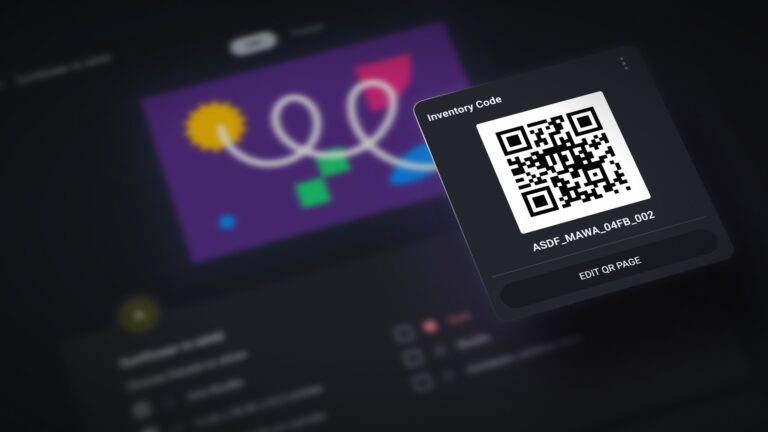
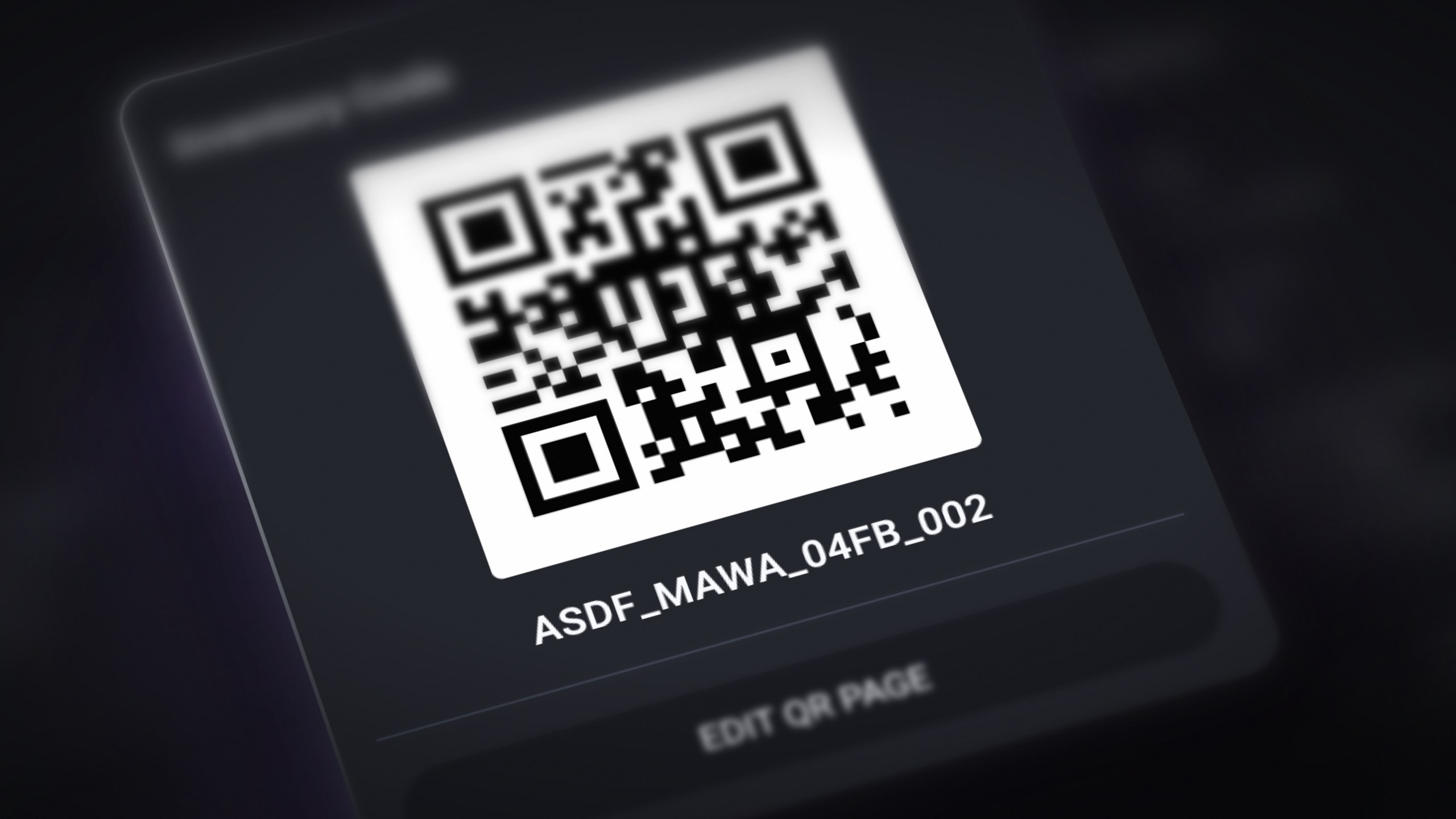
Step 1: Open the artwork. On its Inventory Code card, click  .
Step 2: Use the Edit / Preview switch at the top: Edit to set things up, Preview to see exactly what a visitor will see.
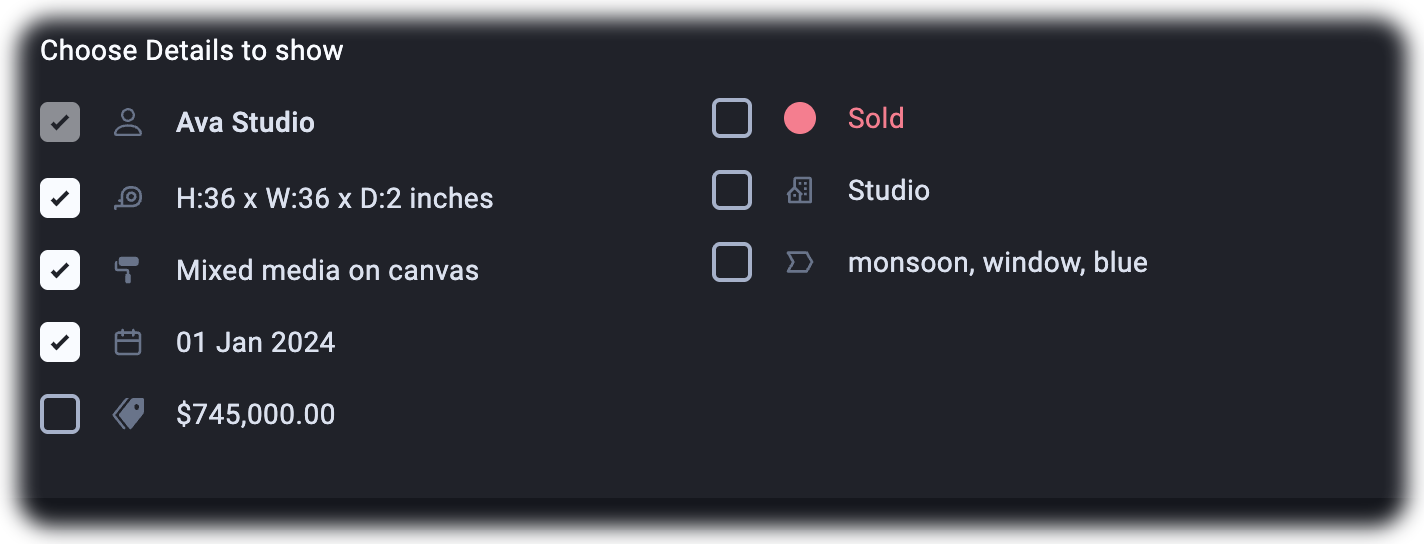
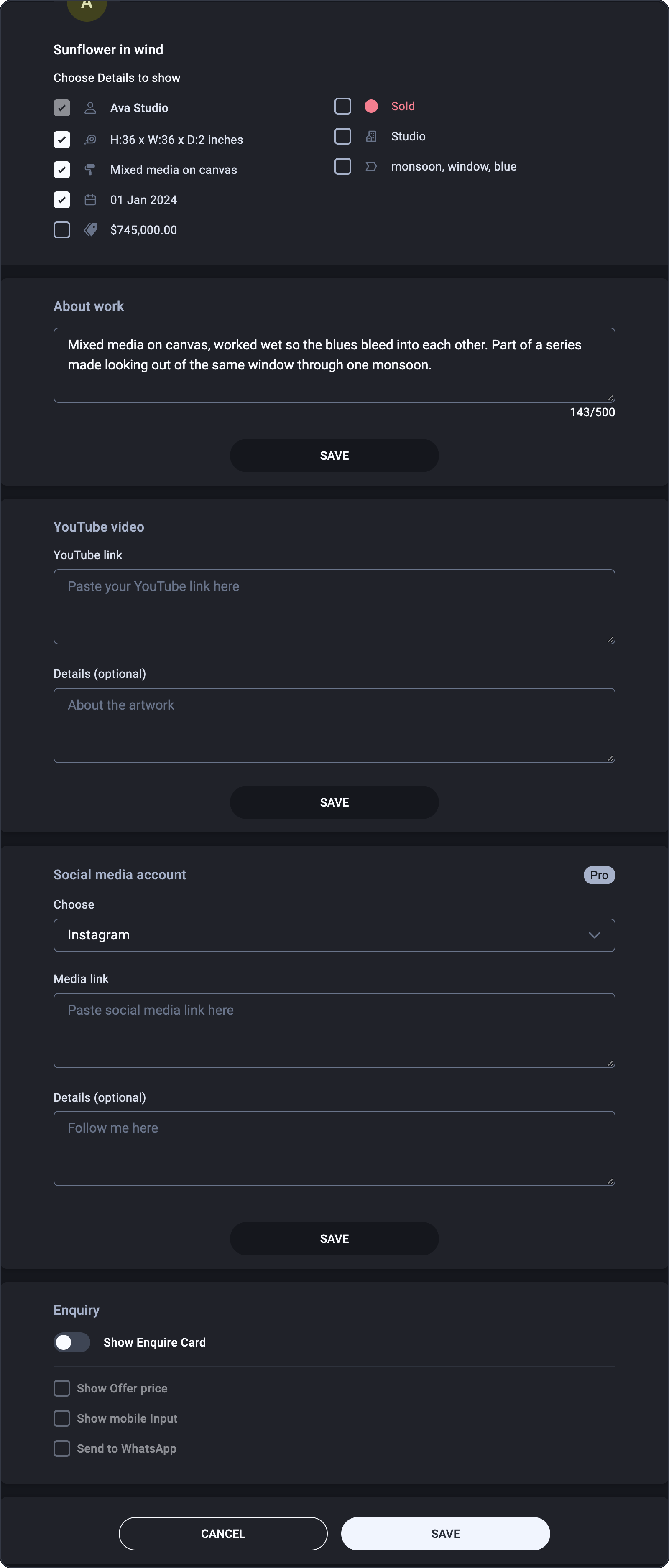
Step 3 (Choose Details to show): Tick each detail you want on the page. The artist always shows. Size, medium and date start ticked; price, status, location and tags start unticked. Show any combination.
Step 4 (About work): Write a short description, up to 500 characters, and click this section’s  .
Step 5 (YouTube video, optional): Paste a YouTube link and an optional line of details, then click this section’s . Only YouTube links are accepted.
Step 6 (Social media account, optional): Choose a platform (Instagram, Facebook, Twitter or LinkedIn), paste the Media link, add optional Details like “Follow me here”, and click this section’s .
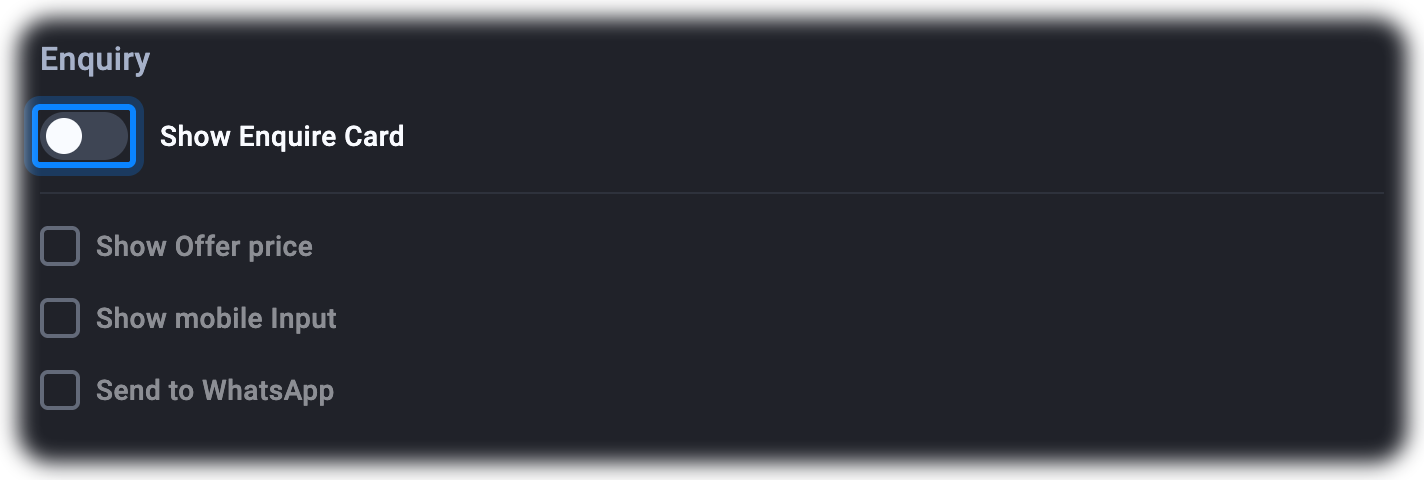
Step 7 (Enquiry): Turn on Show Enquire Card to add an enquiry form to the page. Then tick any extras:
- Show Offer price: visitors can add an offer, in your currency.
- Show mobile Input: visitors can leave a mobile number.
- Send to WhatsApp: after a visitor sends an enquiry, WhatsApp opens with the message ready to send to your mobile number from Settings. Visitors see “This will save your enquiry and open a WhatsApp chat to send it.”
Step 8: Switch to Preview and check the page. Then click at the bottom to save everything.  goes back to the artwork, and anything you haven’t saved is lost.
Key Fields Explained
What Visitors See
| On the page | When |
|---|---|
| The artwork’s image and title | Always |
| The artist | Always |
| Size, medium, date, price, status, location, tags | Each one you’ve ticked |
| About work | When it has text |
| The YouTube video, playing on the page, with its details line | When a link is saved |
| The social media link, with its details line | When a link is saved |
| An enquiry form with Full name and Email (required), a description, plus Mobile and Offer price if you ticked them | When Show Enquire Card is on |
If the QR is hidden (from the artwork’s Inventory Code card), visitors see only “This artwork’s page isn’t available.”
If Something Goes Wrong
| What you see | What to do |
|---|---|
| “Enter a YouTube video link” | The video section only takes YouTube links. Paste the video’s YouTube address. |
| “The QR page could not be saved” | Check your connection and click SAVE again. |
| A detail you ticked isn’t on the page | Ticked details only save with the SAVE at the bottom. Tick it again and click that SAVE. |
| The enquiry form isn’t showing | Turn on Show Enquire Card and click the SAVE at the bottom. |
| The video or social link disappeared | The box was empty when you saved. Paste the link again and SAVE. |
| WhatsApp doesn’t open a chat with you | Add your mobile number in Settings. The enquiry is still saved in Records. |
| Visitors say the page “isn’t available” | The QR is hidden. Choose Show QR on the artwork’s Inventory Code card. |
Example Scenario
A muralist sets up the QR page for a new public mural. They show the size, medium, date and location, while keeping the price hidden since the mural is a finished public commission. Under About work, they write a short note on the neighbourhood story behind the design, drop in a YouTube time-lapse of the painting process, and link their Instagram account.
They also turn on the Enquire Card, include the mobile field, and switch on Send to WhatsApp so curators or art institutions can ask about future commissions. After checking Preview, they click the bottom SAVE. From one scan, visitors see the story, the process, and an easy way to reach the artist.
FAQ
Can I show both the price and the status?
Yes. Every detail is its own checkbox.
Do I need to reprint the QR code after editing?
No. The code always opens the latest page, so changes show straight away.
Where do enquiries go?
To Records, under Enquiries, and to WhatsApp as well if Send to WhatsApp is on.
Where does WhatsApp send enquiries?
To the mobile number on your account. Add it in Settings first.
How do I remove the video or social link?
Clear the link box and click that section’s SAVE (or the SAVE at the bottom).
Can I add more than one social media account?
No, one account per artwork page.
Does About work appear anywhere else?
Yes. It’s the artwork’s About-Work card, and the catalogue report prints it.
Does Send to WhatsApp send the message automatically?
No. WhatsApp opens with the message ready, and the visitor taps send.
Next Steps
(Underlined below as placeholders: link to the live articles only in the final version.)
- How to Use an Artwork’s QR Code: print the code, copy its link, or hide the page.
- How to Add a Record: follow up enquiries that arrive from the page.
- How to Create a Report: Artwork Labels with QR codes for a whole show.
Before you start, if you haven’t yet: How to Describe an Artwork: Creation Date, Dimensions and About the Work · How to Set Up Your Account Settings: add your mobile number there for WhatsApp.
Final Takeaway
Tick the details, add your story, switch on enquiries. Preview, then SAVE. Your QR page is ready for the wall, and it updates whenever you do.