How to Set Up Your AWWRT Account Settings
Quick Answer
A blank profile shows up later in places you’d rather it didn’t, like an invoice with empty lines. To set up AWWRT, click your picture at the top right, choose Profile, and fill in your details and address. Then open Preferences to pick your currency and measurement unit. It takes a few minutes.
Why It Matters
Your settings feed other parts of AWWRT:
- Your address fills the “From address” on consignments.
- Your name, email and city print on sale invoices.
- Your currency and measurement unit are used for prices and sizes, including on reports.
Keep the following ready
- Mobile number
- Full address
- Logo file
- Currency
- Inches or cm
Step-by-Step Guide
Open Settings
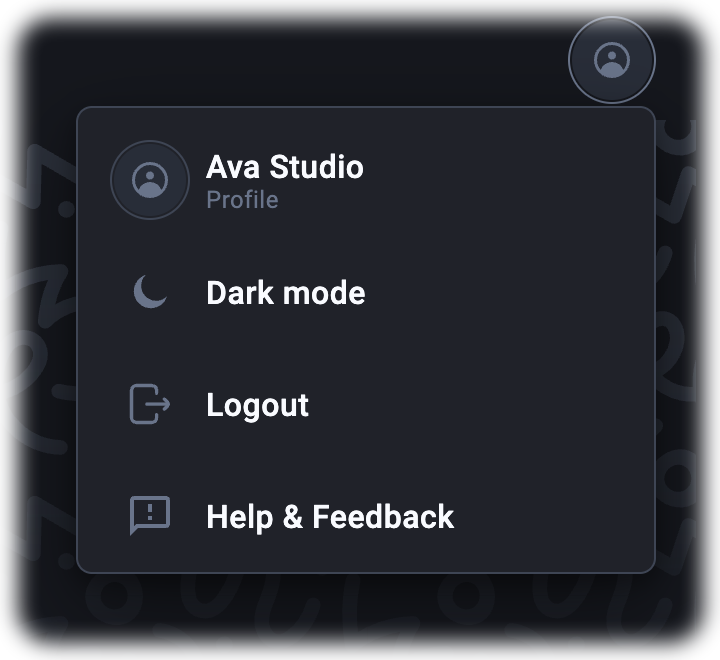
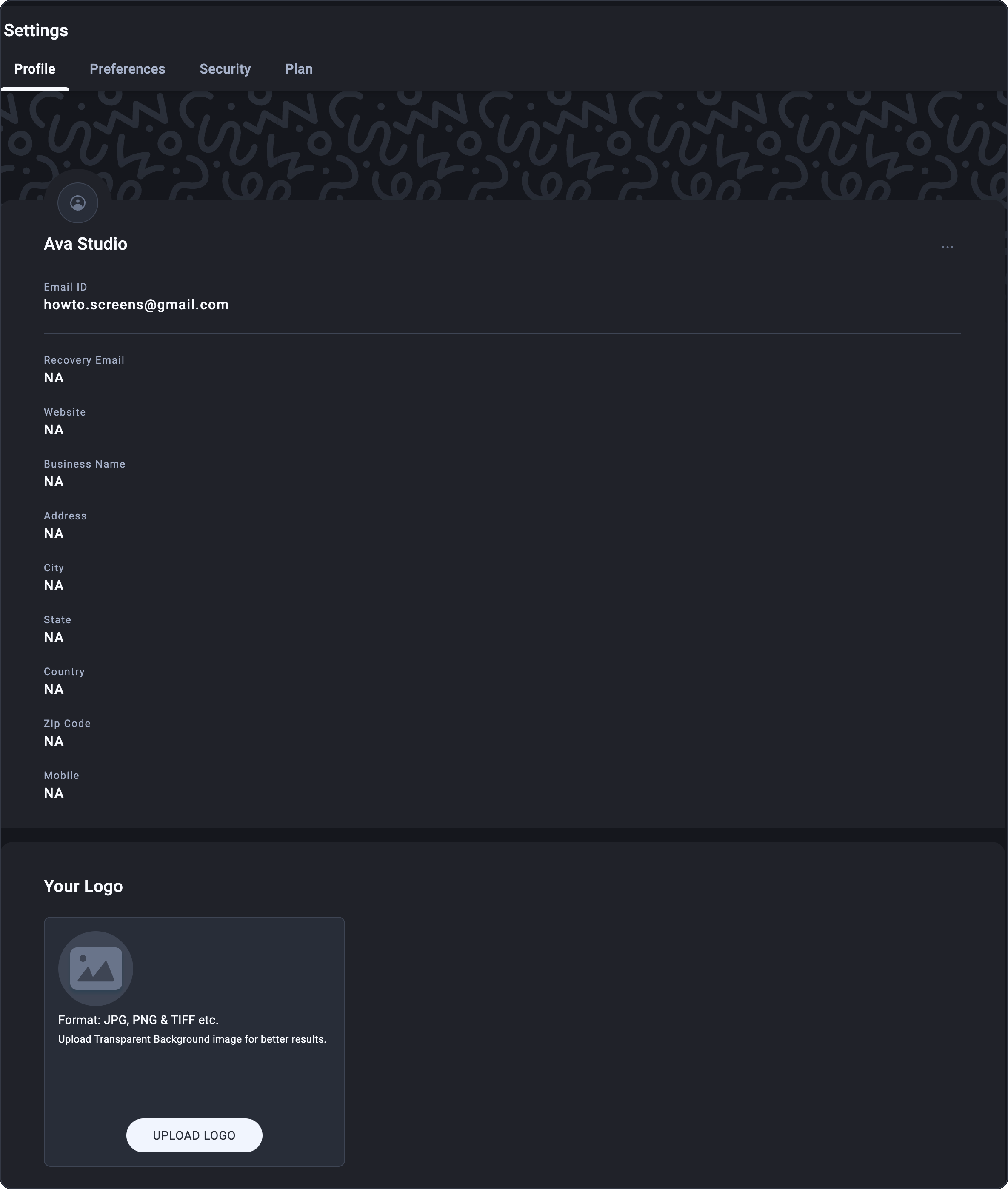
Step 1: Click your picture (or the person icon) at the top right, then click your name (it says Profile underneath). Settings opens with four tabs: Profile, Preferences, Security and Plan.
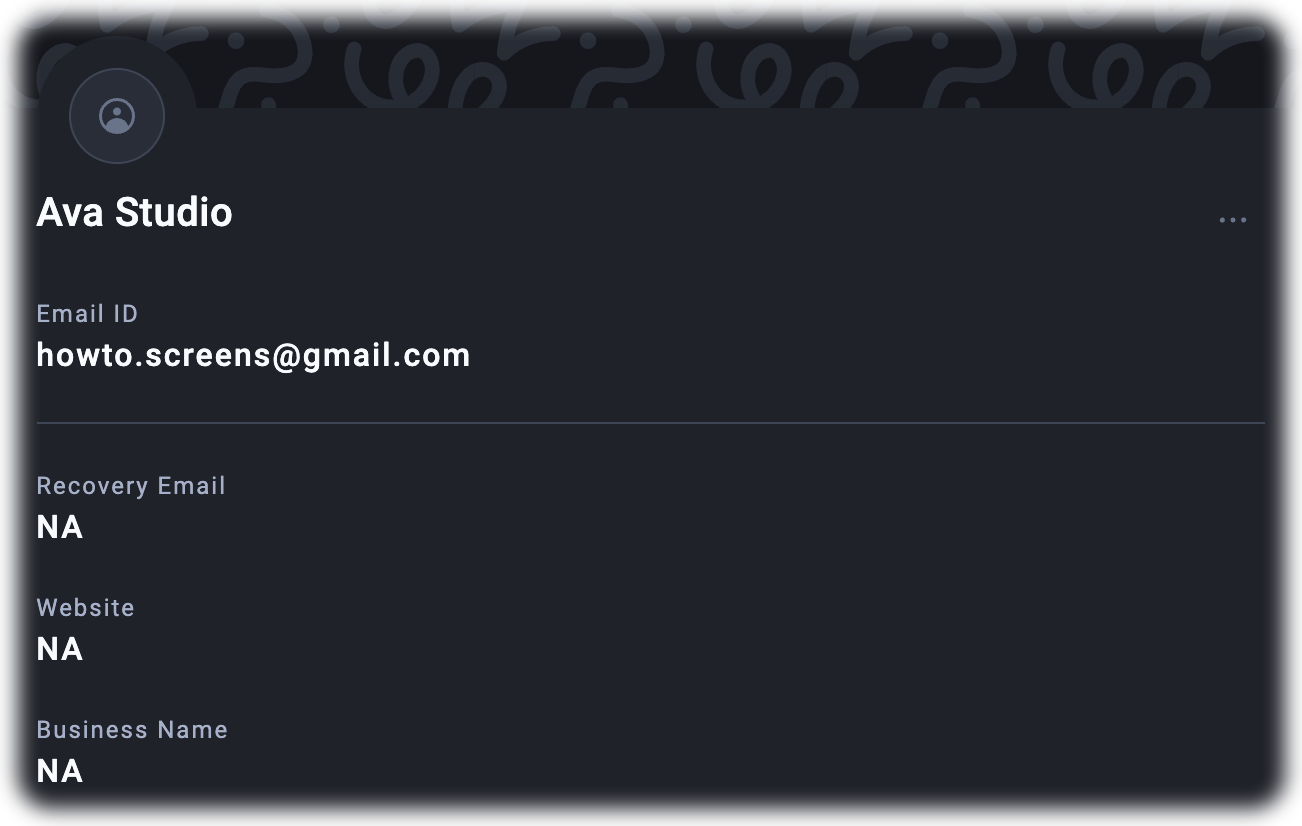
Profile: your details and address
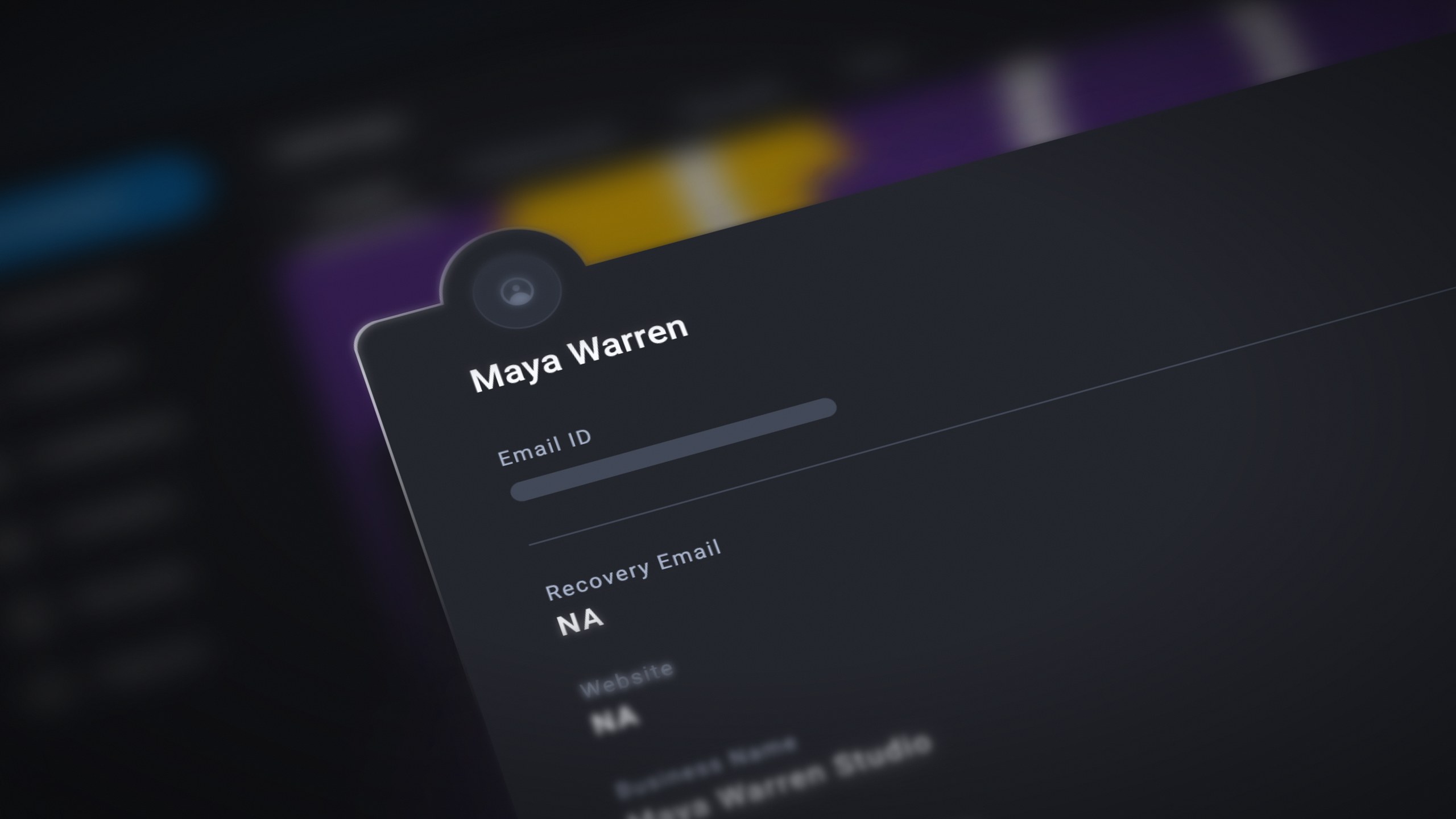
Step 2: The Profile tab shows your details. Anything not filled in shows “NA”.
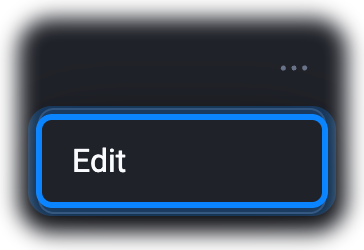
Step 3: Click the ⋯ menu next to your name and choose Edit.
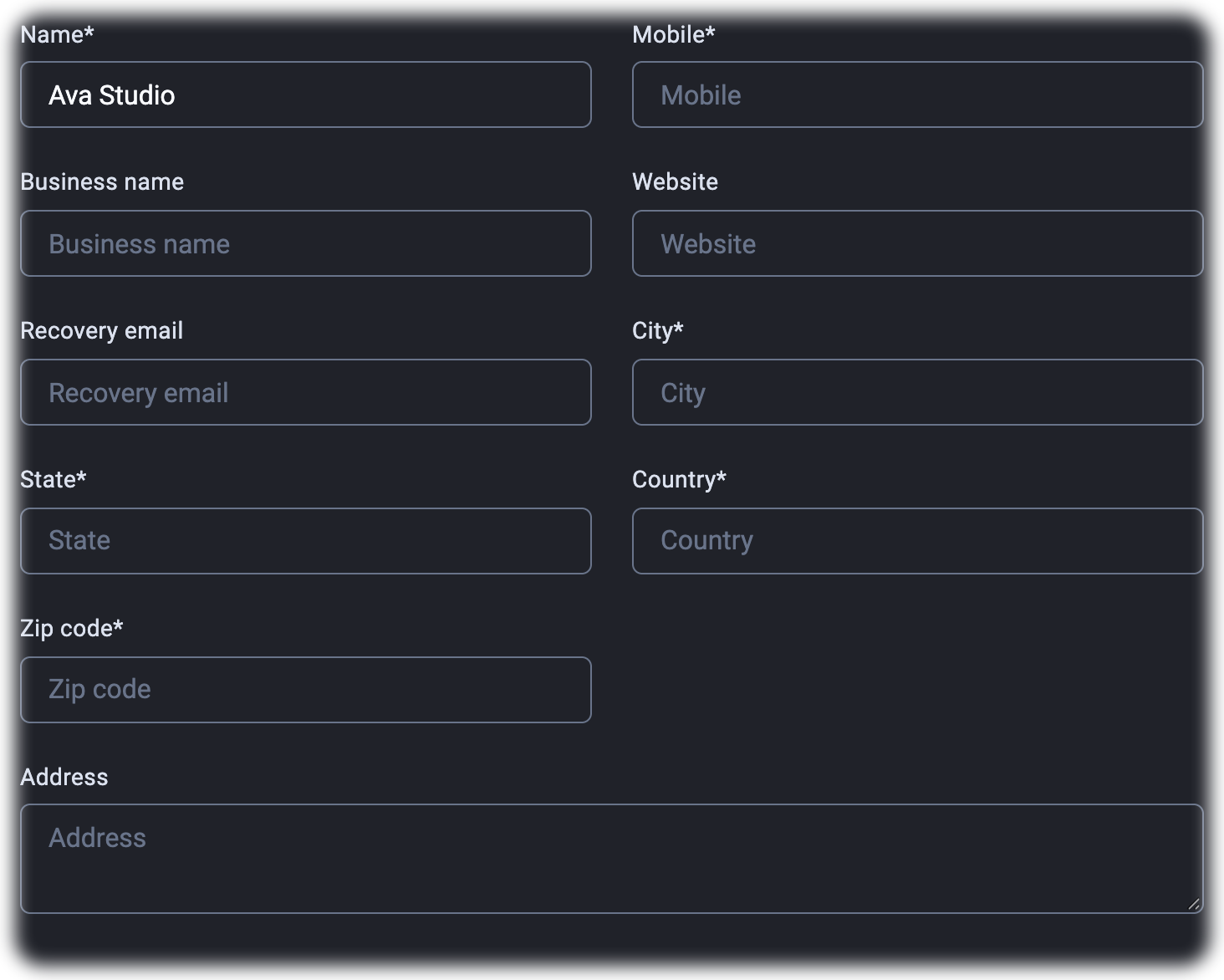
Step 4: Fill in the Edit Profile form and click  :
- Required: Name, Mobile (10 digits, not starting with 0), City, State, Country and Zip code.
- Optional: Business name, Website, Recovery email and Address.
- Name is your own name; Business name is your gallery’s or studio’s name.
- Mobile outside India: enter your local 10-digit number without the country code. Mobile is required here, and AWWRT accepts 10-digit numbers only for now.
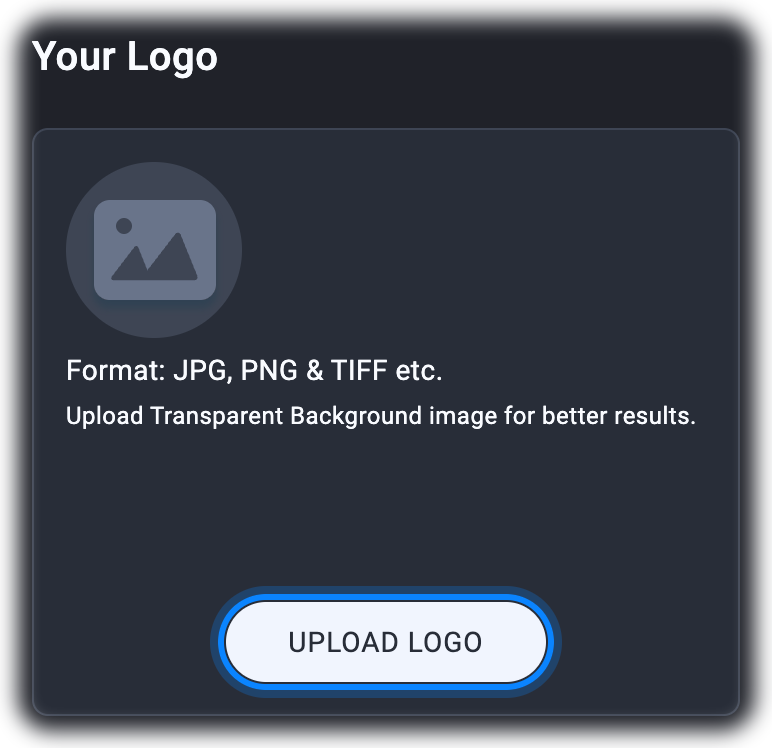
Step 5: Under Your Logo, click  and pick a JPG, PNG or TIFF. A transparent background looks best. It becomes your account picture at the top of AWWRT. It isn’t printed on invoices or reports.
Preferences: currency and measurement unit
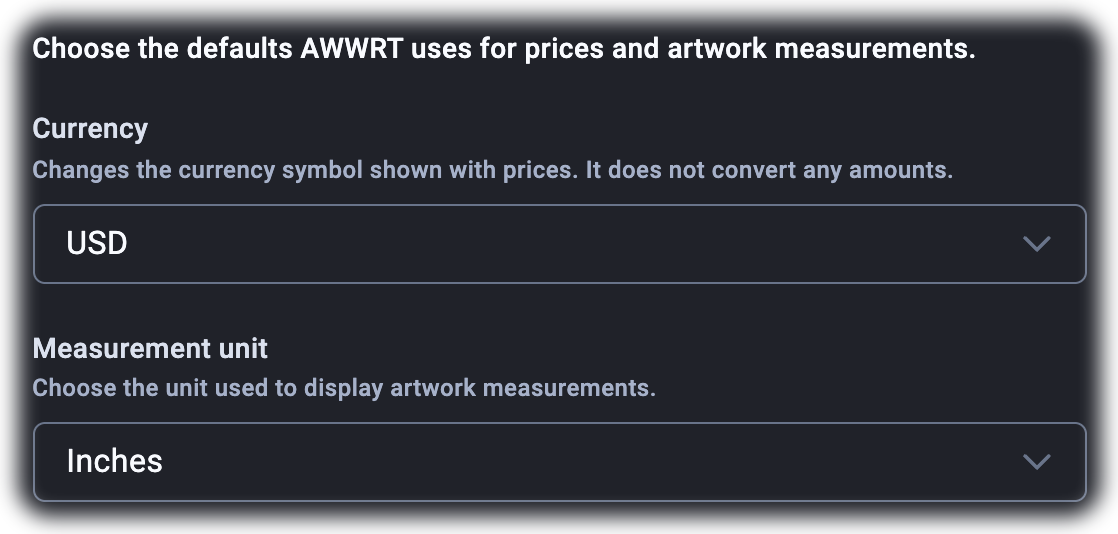
Step 6: Open Preferences and pick your Currency and Measurement unit (Inches or Centimetres). Each change saves as soon as you pick it.
- Currency only changes the symbol shown with prices; it doesn’t convert amounts.
- Measurement unit sets how sizes are shown. Artworks entered in the other unit are converted for you.
Further down this tab:
- Storage: where Google Drive is linked (see How to Link Google Drive).
- Sample data: new accounts start with a few items marked SAMPLE. When you’re done exploring, click
 . Anything you created stays, and you can bring the samples back any time with
 .
Security and Plan
Step 7: The Security tab is for your password, login alerts and active sessions (see How to Reset or Change Your Password).
Step 8: The Plan tab shows your plan’s name, start date and amount paid, with a status label such as Free.
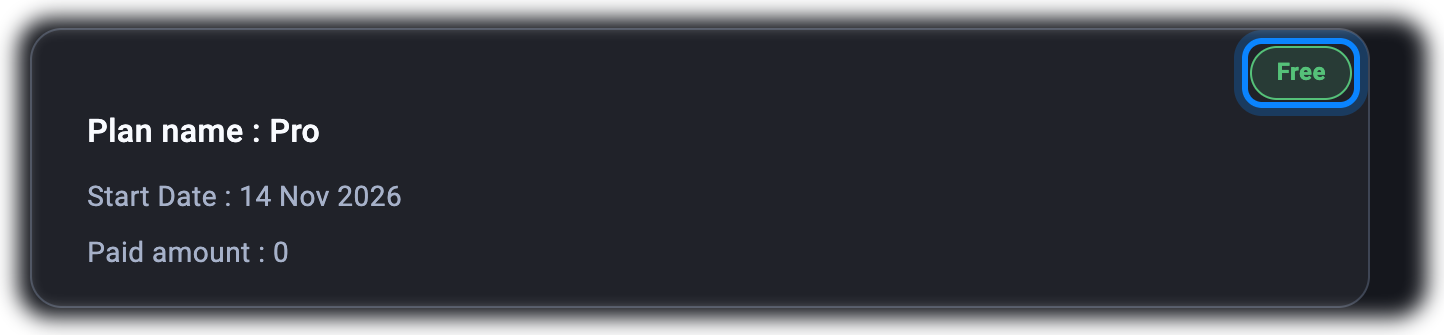
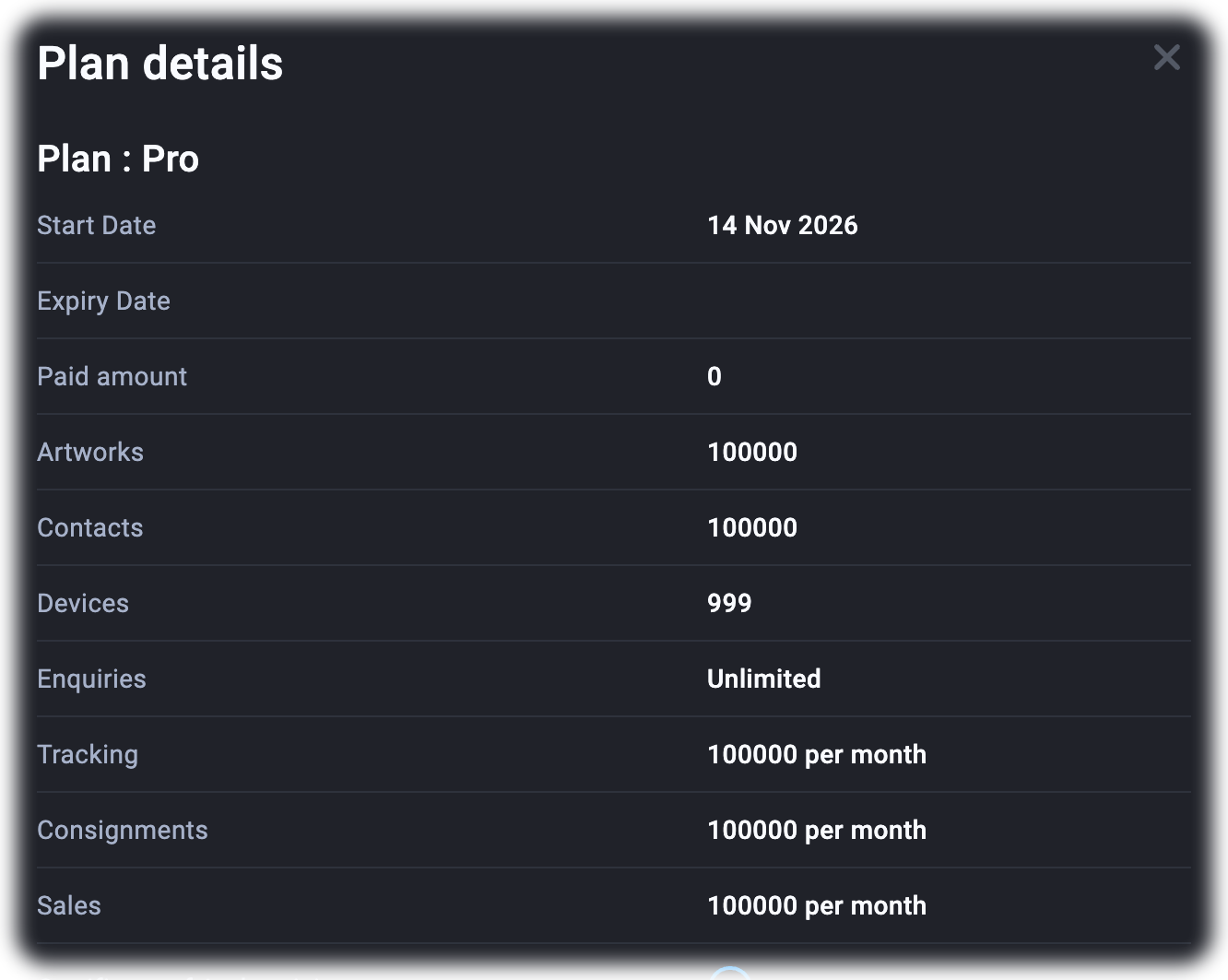
Click the label to open Plan details, which shows what your plan includes, like how many artworks, contacts and devices.
Key Fields Explained
Example Scenario
A new contemporary-art gallery sets up AWWRT before adding its first collection. The manager fills in the gallery’s Business name, Name, Mobile and full street address, then uploads the gallery logo. Under Preferences, they pick the currency they sell in and set the measurement unit to Centimetres, which their artists use.
Later, when the team makes invoices, consignments and reports, the gallery’s details, address, currency and units are already there. Setting this up once keeps all of the gallery’s paperwork consistent.
Common Mistakes to Avoid
- Expecting a currency change to convert prices. It only swaps the symbol, so update prices yourself if needed.
- Keeping sample data forever. Sample items mix in with your own work. Remove them from Preferences once you’ve explored.
- Uploading a logo with a solid background. It can look boxy as your account picture. Use a transparent PNG.
FAQ
Does changing the measurement unit convert my sizes?
Yes. Sizes are shown in your chosen unit, and artworks entered in the other unit are converted.
Can I change my sign-in email?
Not here. Your sign-in email stays as the address you signed up with; it isn’t on the Edit Profile form. You can add a Recovery email there instead.
Can different artworks use different currencies?
No. Currency is one setting for your whole account. Sizes are different: each artwork keeps the unit it was entered in.
Where can I see what my plan includes?
Open the Plan tab and click your plan’s status label, such as Free. Plan details lists its limits.
What happens if I reach a plan limit?
The limit you’ll notice is devices. When too many devices are signed in, a new login is refused with “You have reached the maximum number of Devices access allowed for your subscription plan.” On a device that’s still signed in, go to Settings → Security → Active sessions and sign out the ones you no longer use.
Next Steps
(Underlined below as placeholders: link to the live articles only in the final version.)
- Getting Around the Dashboard: a quick tour of where everything lives.
- How to Add a Contact: the people your sales, shipments and consignments need.
- How to Reset or Change Your Password