How to Set an Artwork’s Price and Editions in AWWRT
Quick Answer
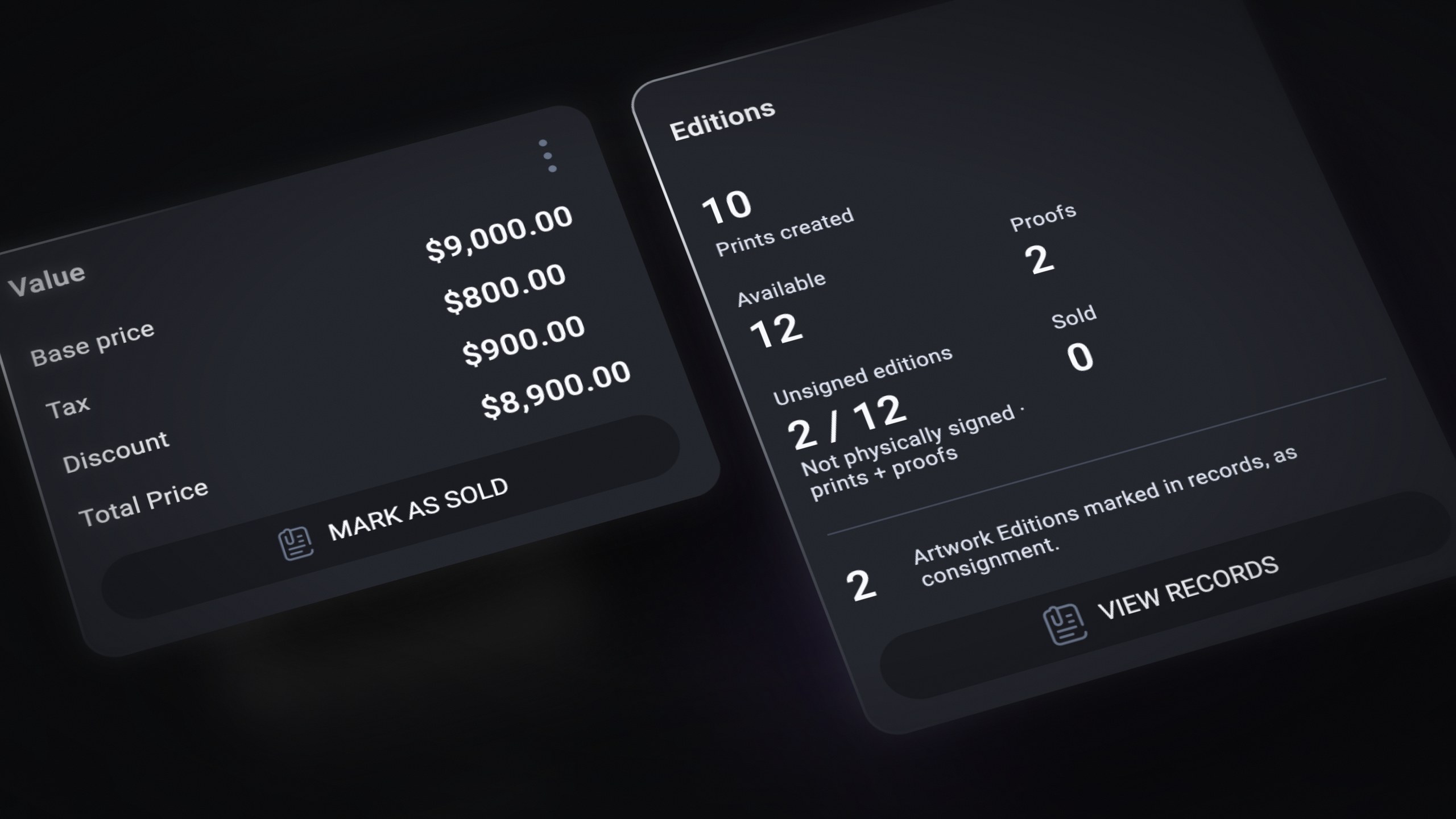
Working out a final price by hand, or losing count of which prints are left? Two cards on the artwork’s page do it for you. On Value, enter the price, discount and tax, and AWWRT works out the net price. On Editions, enter how many prints and proofs exist and how many are sold, and AWWRT works out what’s available. Selling a one-off work? MARK AS SOLD sets its status in one click.
Before You Start
- These cards are your own working numbers. The Value total and the edition counts show only on the artwork’s page. Price lists, catalogues, labels and the QR page print the artwork’s own price (the one from when you added it). To change that, edit the artwork (⋯ → Edit on its details panel).
- Discount is an amount; tax is a percentage. For 10% off 50,000, the discount is 5000.
- MARK AS SOLD is for one-off works. It sets the whole artwork to Sold, with no confirmation, and can’t be undone from the card. For prints and casts, update the Sold count on Editions instead.
- Nothing updates by itself. Recording a sale in Records doesn’t change these cards or the artwork’s status. Update them after each sale.
Keep the following ready:
- An artwork already added
- Base price, discount amount and tax %
- Number of prints and proofs
- How many are sold, consigned or unsigned
Step-by-Step Guide
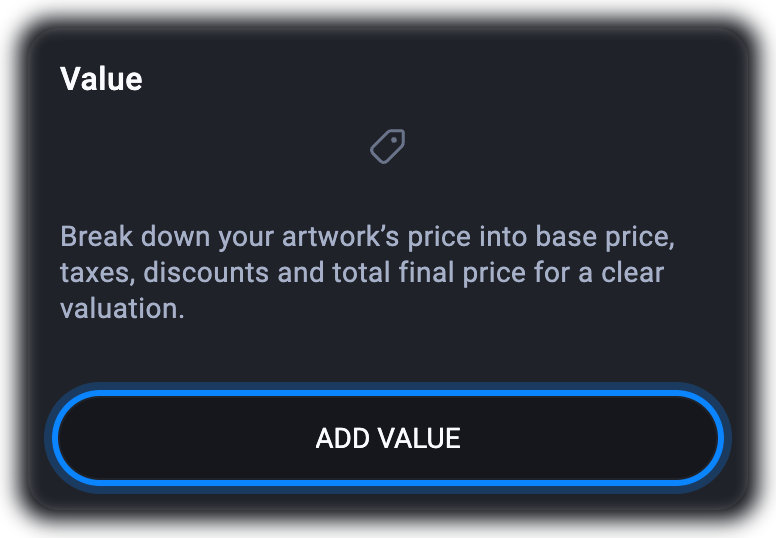
Step 1: Open Artworks and click the artwork. The Value and Editions cards are on the Details tab.
Value: price, discount and tax
Step 2: On the Value card, click  .
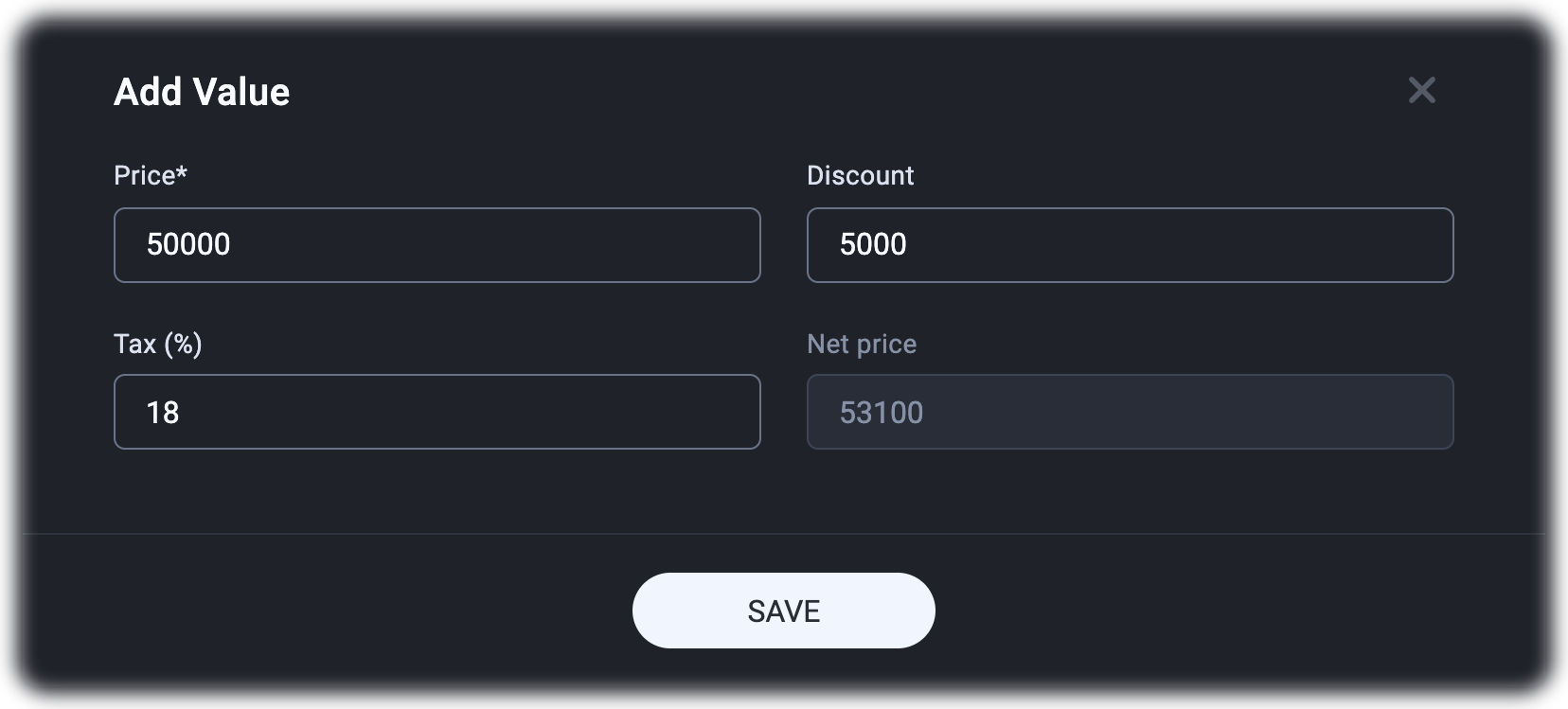
Step 3: Fill in the Add Value form:
- Price*: starts with the price you entered when adding the artwork. Change it if needed.
- Discount: an amount in your currency, not a percentage.
- Tax (%): a percentage from 0 to 100.
- Net price: worked out for you: price minus discount, plus tax.
Step 4: Click  .
Mark the artwork as sold
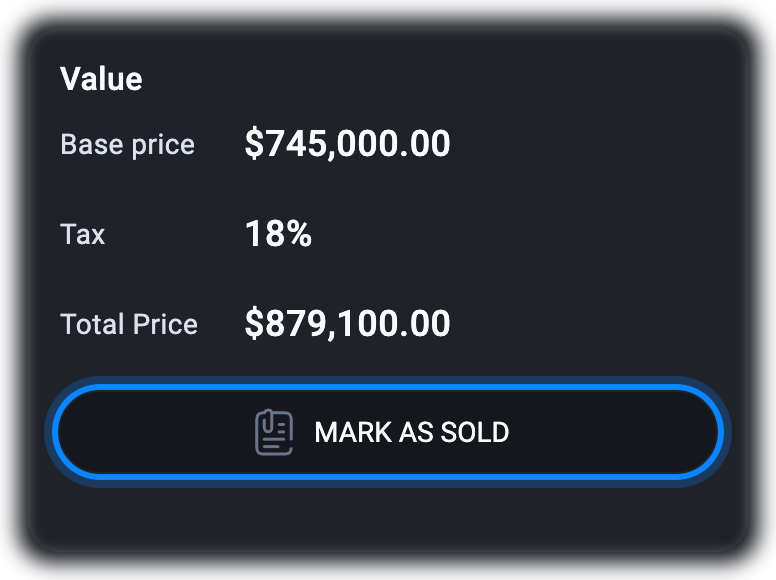
Step 5: At the bottom of the Value card, click  . The artwork’s status changes to Sold, and the button now reads SOLD.
Editions: prints, proofs and what’s left
Step 6: On the Editions card, click  .
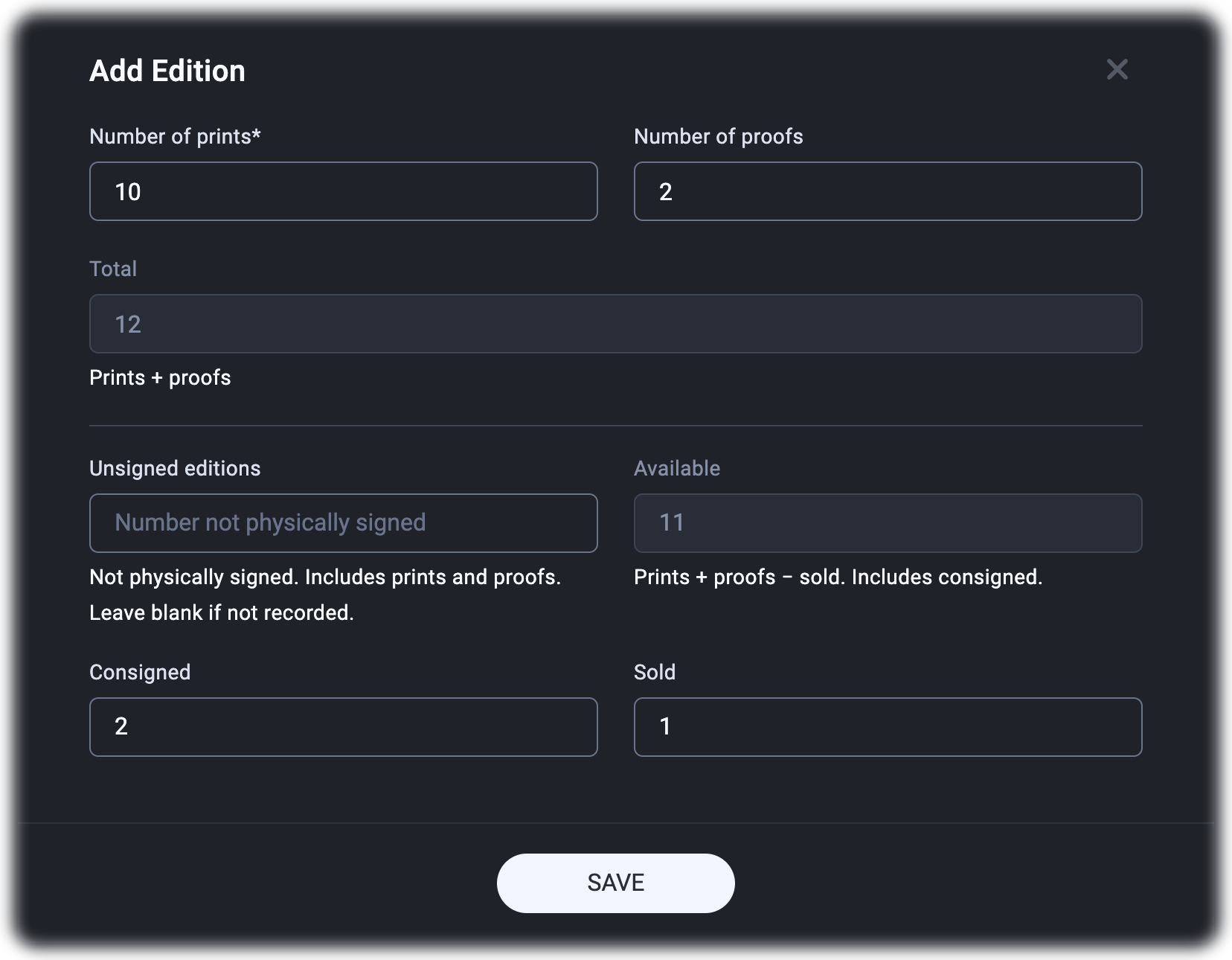
Step 7: Fill in the Add Edition form. Whole numbers only:
- Number of prints*: required.
- Number of proofs: artist’s proofs and similar. Total shows prints + proofs.
- Unsigned editions: how many aren’t physically signed. Leave blank if you don’t track this.
- Available: worked out for you: prints + proofs − sold. Consigned editions count as available.
- Consigned: editions out on consignment. Can’t be more than Available.
- Sold: can’t be more than the total.
Step 8: Click .
Key Fields Explained
Which Price Goes Where
An artwork can carry three prices. Each one is used in a different place:
| Price | Where you set it | Where it’s used |
|---|---|---|
| The artwork’s own price | When adding the artwork, or ⋯ → Edit | Artwork page, price list, catalogue, labels, inventory sheet, QR page |
| Value: Base price and Total Price | The Value card | Only the Value card |
| Sale price | The sale record | That sale’s invoice |
After You Save
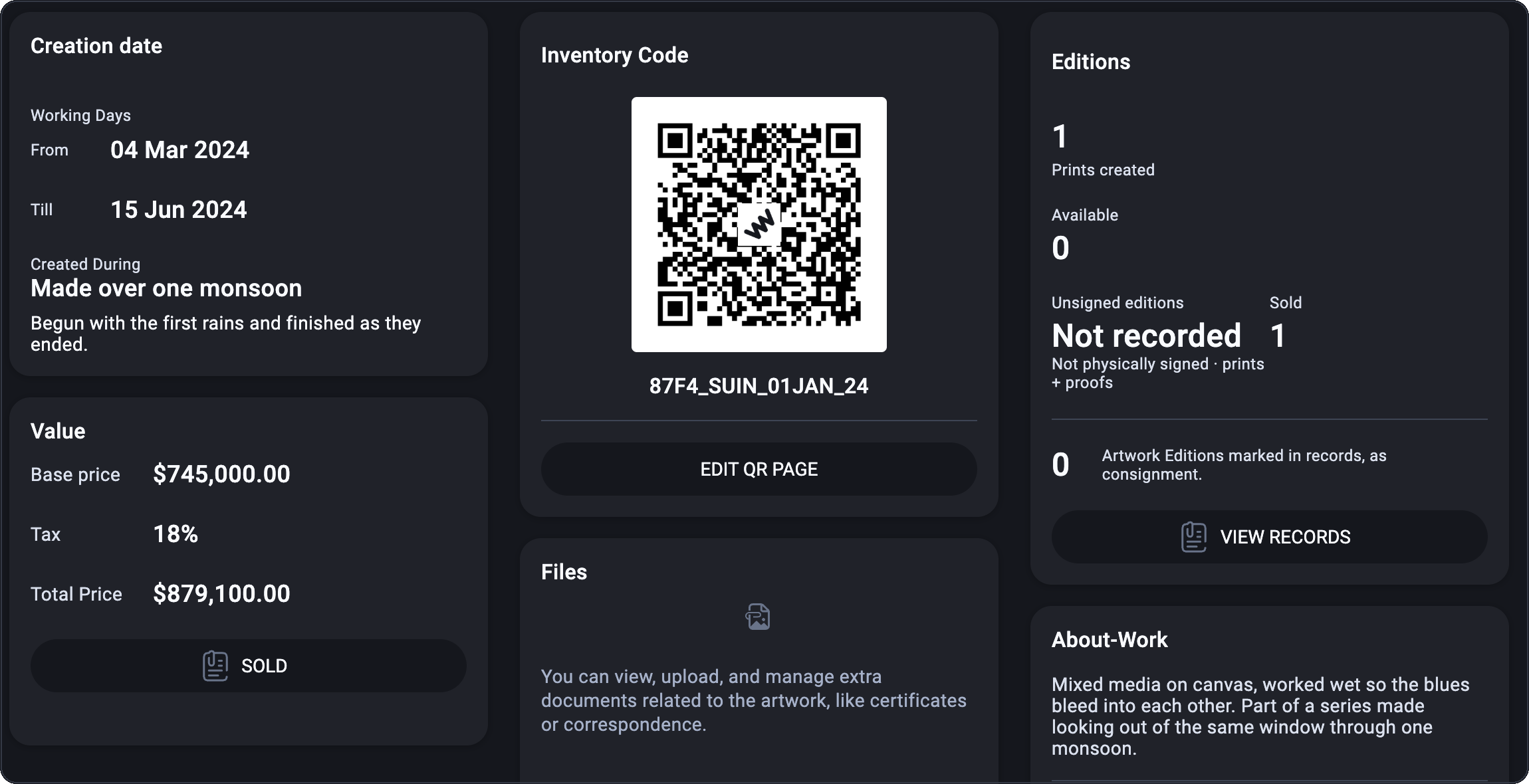
- Value shows the Base price, Tax and Total Price, plus Discount when you’ve entered one.
- Editions shows Prints created, Available, Proofs, Unsigned editions and Sold. VIEW RECORDS opens the artwork’s Records tab.
- To change or remove details, use the card’s ⋮ menu: Edit or Delete. On a computer, the ⋮ appears when you hover over the card. Delete asks you to confirm first.
- To undo MARK AS SOLD, edit the artwork (⋯ → Edit on its details panel) and change its Status.
If Something Goes Wrong
| What you see | What to do |
|---|---|
| “Discount must not take the net price below 0” | The discount is bigger than the price. It’s an amount, not a percentage, so check the number. |
| “Sold must be N or less (prints + proofs)” | Sold can’t be more than the total. Raise the prints or proofs, or lower Sold. |
| “Consigned must be N or less (available)” | You can’t consign more than are available. Check Sold and Consigned. |
| “… must be a non-negative whole number” | Edition counts take whole numbers only, with no decimals or minus signs. |
| You can’t type in Available or Net price | They’re worked out for you. Change the numbers they come from. |
| SOLD does nothing when clicked | The artwork is already Sold. To change it back, edit the artwork’s Status. |
| The price list still shows the old price | Reports print the artwork’s own price, not the Value total. Edit the artwork. |
Example Scenario
A fine-art printmaker sells from a numbered linocut edition. They log an edition of 20 prints plus 2 artist’s proofs under Editions. When a collector asks for a quote, they open Value, enter the base price, agreed discount and tax, and use the calculated Total Price.
Once a print sells, the artist records the sale and bumps Sold under Editions from 0 to 1, so the available count drops on its own. Since other prints are still up for sale, they leave the artwork’s status as Available. The price breakdown shows what this collector owes, while the edition count tracks how many are left for other buyers or galleries.
FAQ
How is the Total Price worked out?
Price minus discount, then tax added on top: (price − discount) × (1 + tax %).
I changed the Value price. Why does my price list show the old one?
Reports use the artwork’s own price. Saving the Value card doesn’t change it, so edit the artwork instead.
How do I undo MARK AS SOLD?
Edit the artwork from ⋯ → Edit on its details panel and choose another Status, like Available.
Do I need the Editions card for a one-off work?
No. Editions are for prints, photographs and casts. For a one-off work, the Status (or MARK AS SOLD) is enough.
Does a consignment record change the Consigned count?
No. Records don’t update this card, so change Consigned here yourself when editions go out or come back.
Is the discount taken off before or after tax?
Before. The discount comes off the price first, then tax is added on what’s left.
Can AWWRT track edition numbers like 3/20?
No. AWWRT keeps counts (prints, proofs, sold and consigned), not individual edition numbers.
A print came back or was damaged. What do I do?
Adjust the counts by hand on the Editions card, for example lower Sold if a sale was returned.
Next Steps
(Underlined below as placeholders: link to the live articles only in the final version.)
- How to Record a Sale and Create an Invoice: then come back and update the counts.
- How to Add a Record: consignments, enquiries and tracking.
- How to Create a Report: price lists and catalogues use the artwork’s own price.
- How to Log Maintenance for an Artwork: the next card on the same page.
Before you start, if you haven’t yet: How to Add an Artwork · How to Describe an Artwork: Creation Date, Dimensions and About the Work.
Final Takeaway
Enter the numbers once, and AWWRT does the maths. Just remember to update the counts and status yourself after each sale.