How to Reset or Change Your Password in AWWRT
Quick Answer
Locked out, or just want a stronger password? Forgot it: click Forgot Password on the login page, enter your email and click SEND, then follow the link in your email. Want to change it: go to Settings → Security, open Password, enter your current and new password, and click CHANGE PASSWORD.
Keep the following ready
- Your account email
- Access to that inbox
- Current password (to change it)
Step-by-Step Guide
Reset a forgotten password
Step 1: On the login page, click Forgot Password.
Step 2: Enter your registered email address and click  . You’ll see “A password reset link has been sent to your email address.”
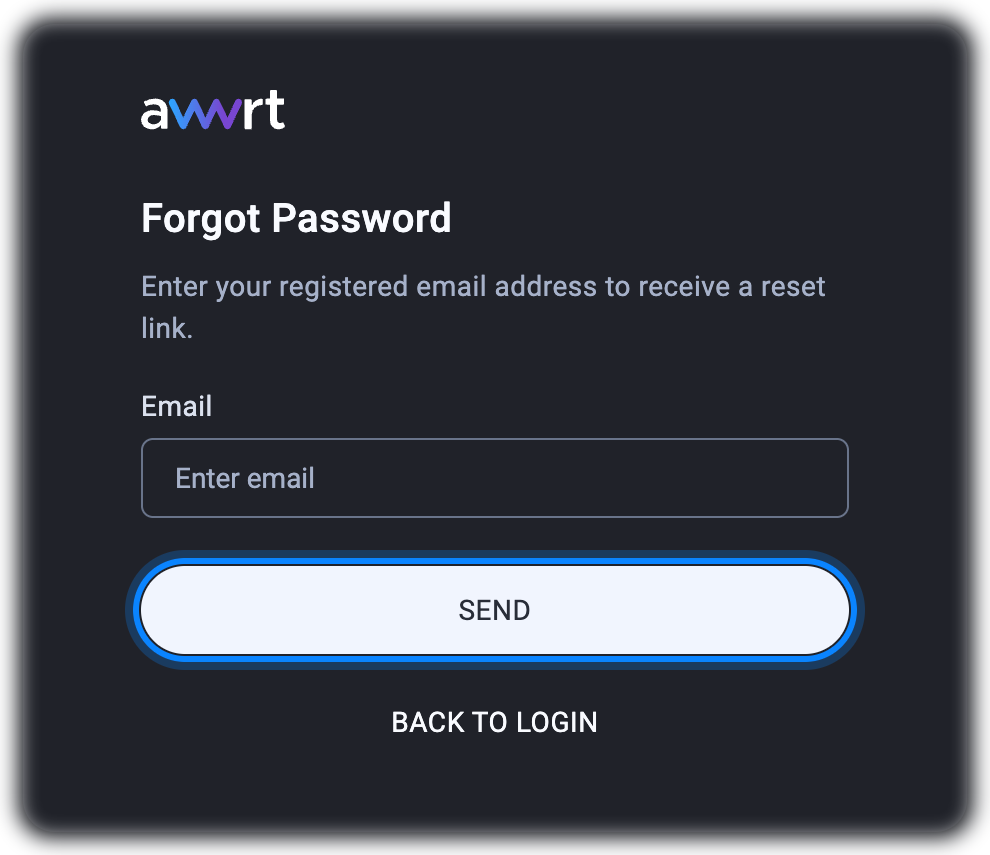
Step 3: Open the email and click the reset link.
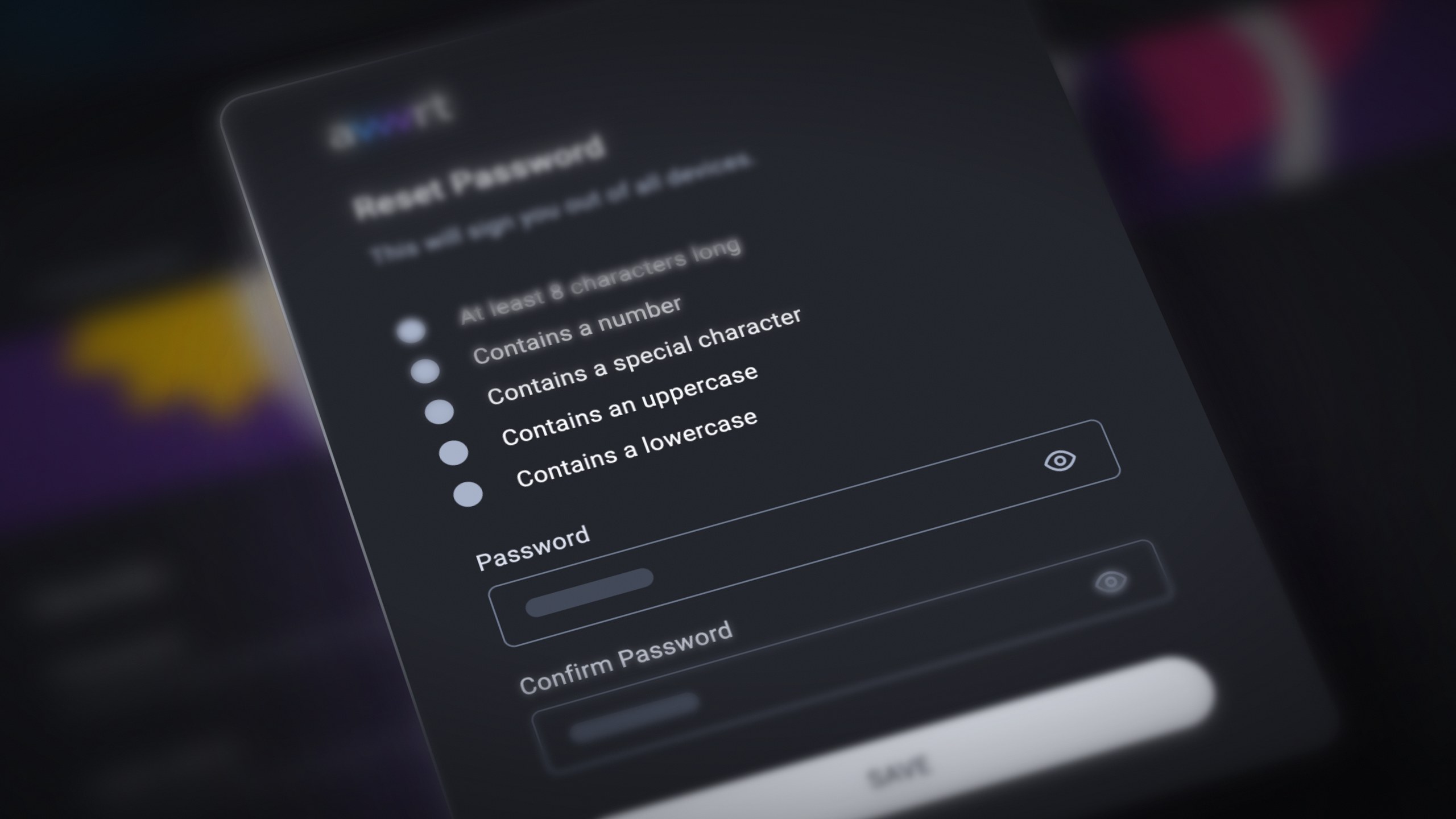
Step 4: Enter your new Password and Confirm Password. Your password needs:
- 8 or more characters
- An uppercase and a lowercase letter
- A number
- A special character: one of # ? ! @ $ % ^ & * –
Note: Resetting your password signs you out of all devices.
Step 5: Click  . When you see “Your password has been reset”, click Proceed to Login and sign in with the new password.
Change your password
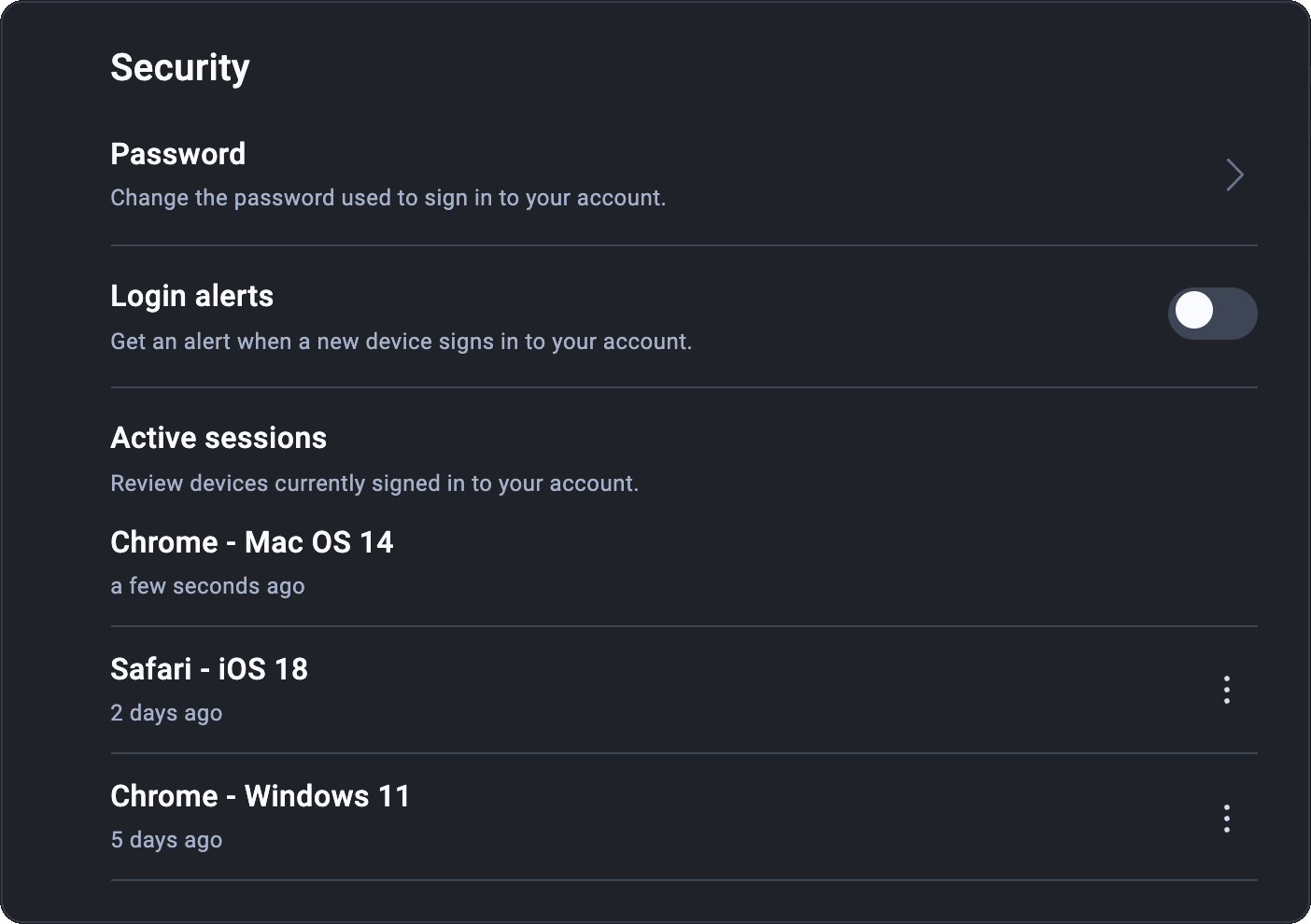
Step 6: Open Settings from your profile menu and go to the Security tab.
Step 7: Next to Password, click the arrow.

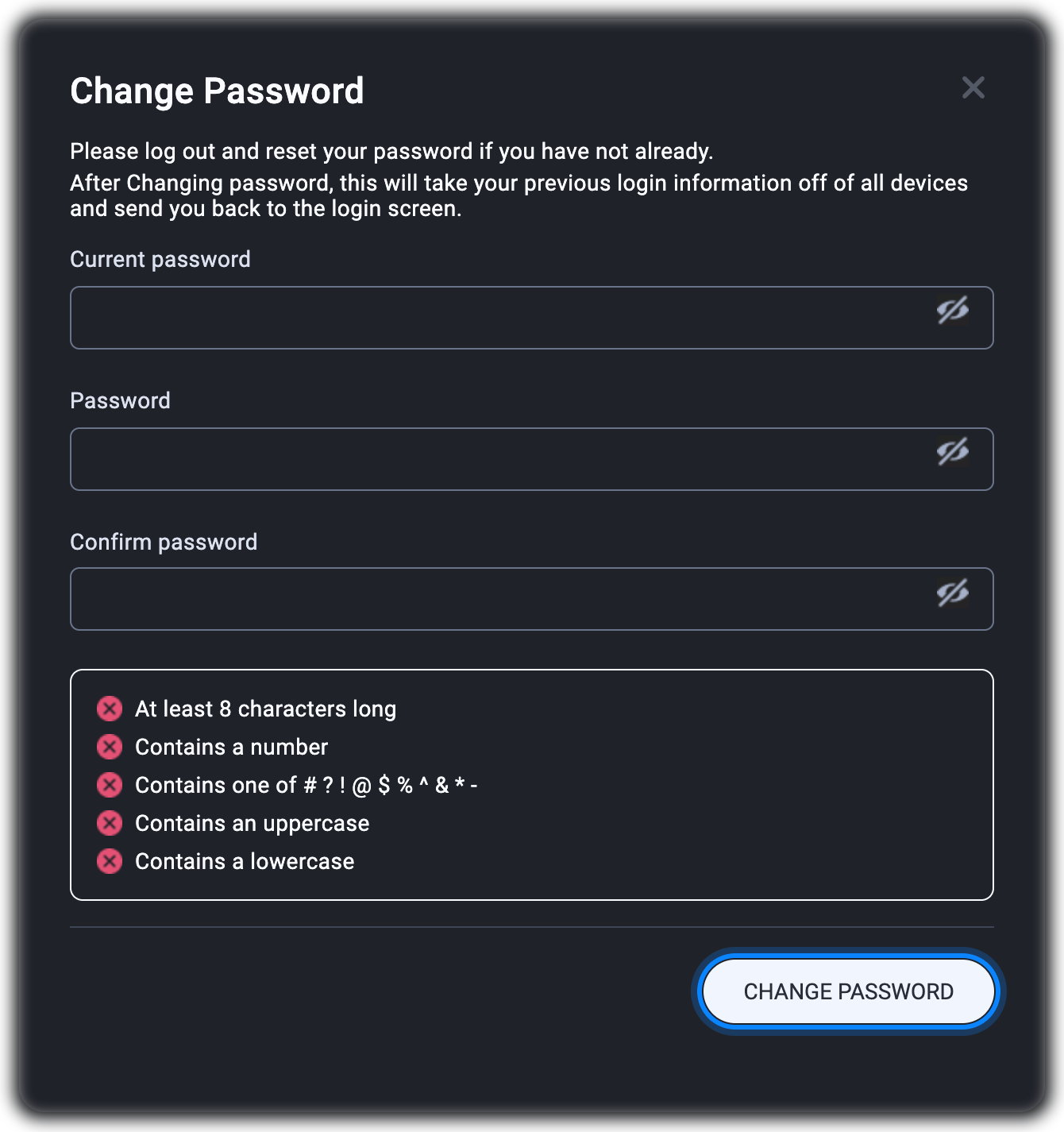
Step 8: In Change Password, enter your Current password, then the new Password and Confirm password. The same rules apply, and the pop-up ticks each one off as you type.
Step 9: Click  . You’re signed out of all devices and taken back to the login screen. Sign in with the new password.
Login alerts and active sessions
Step 10 (Login alerts): On the Security tab, turn Login alerts on. Each time someone signs in to your account, you get an email titled “Login Alert”.

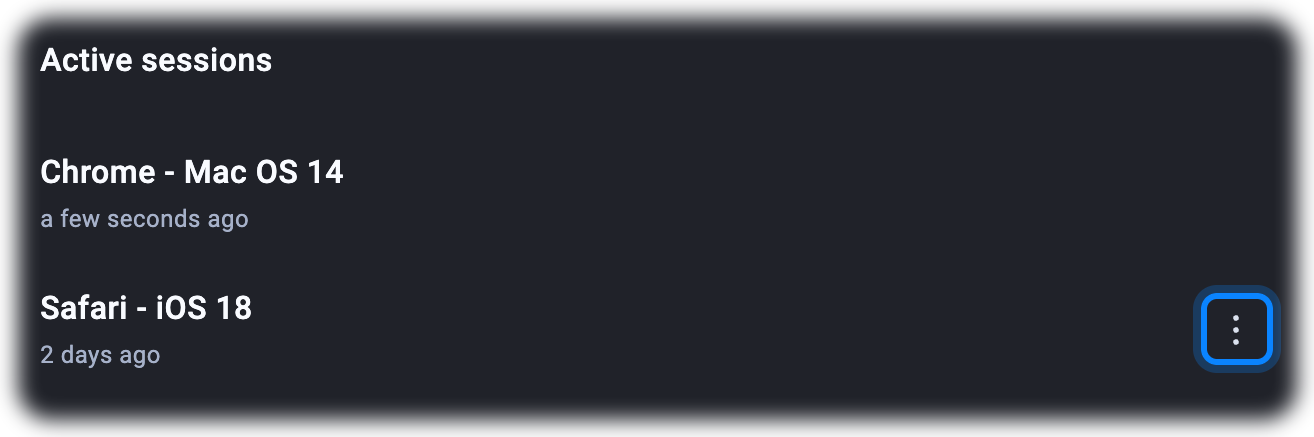
Step 11 (Active sessions): Under Active sessions, see every device signed in and when. To sign one out, open its ⋮ menu and choose Logout from this device. (The device you’re using now can’t be signed out from here.)
Key Fields Explained
Example Scenario
A gallery owner loses the laptop they usually use for AWWRT. On another computer, they go to Settings → Security, find the missing laptop under Active sessions, and click Logout from this device.
Next, they open Password, type their current password and a stronger new one, and click CHANGE PASSWORD, which signs the account out everywhere. They log back in with the new password and switch on Login alerts. The lost laptop is signed out, the old password won’t work anymore, and any new login sends an email alert.
Common Mistakes to Avoid
- Using an email you didn’t sign up with. The reset link only goes to your registered email; any other shows “User Not Registered”.
- Ignoring unknown sessions. If you don’t recognise a device, sign it out and change your password.
FAQ
I didn’t get the reset email. What now?
Check that you typed your registered email, and look in spam. Then try SEND again.
Do I need my old password to change it?
Yes, in Settings. If you’ve forgotten it, use Forgot Password on the login page.
What does a login alert look like?
An email titled “Login Alert”, sent to your account email each time someone signs in while Login alerts is on.
Next Steps
- How to Set Up Your Account Settings
- How to Sign Up and Verify Your AWWRT Account