How to Log Maintenance for an Artwork in AWWRT
Quick Answer
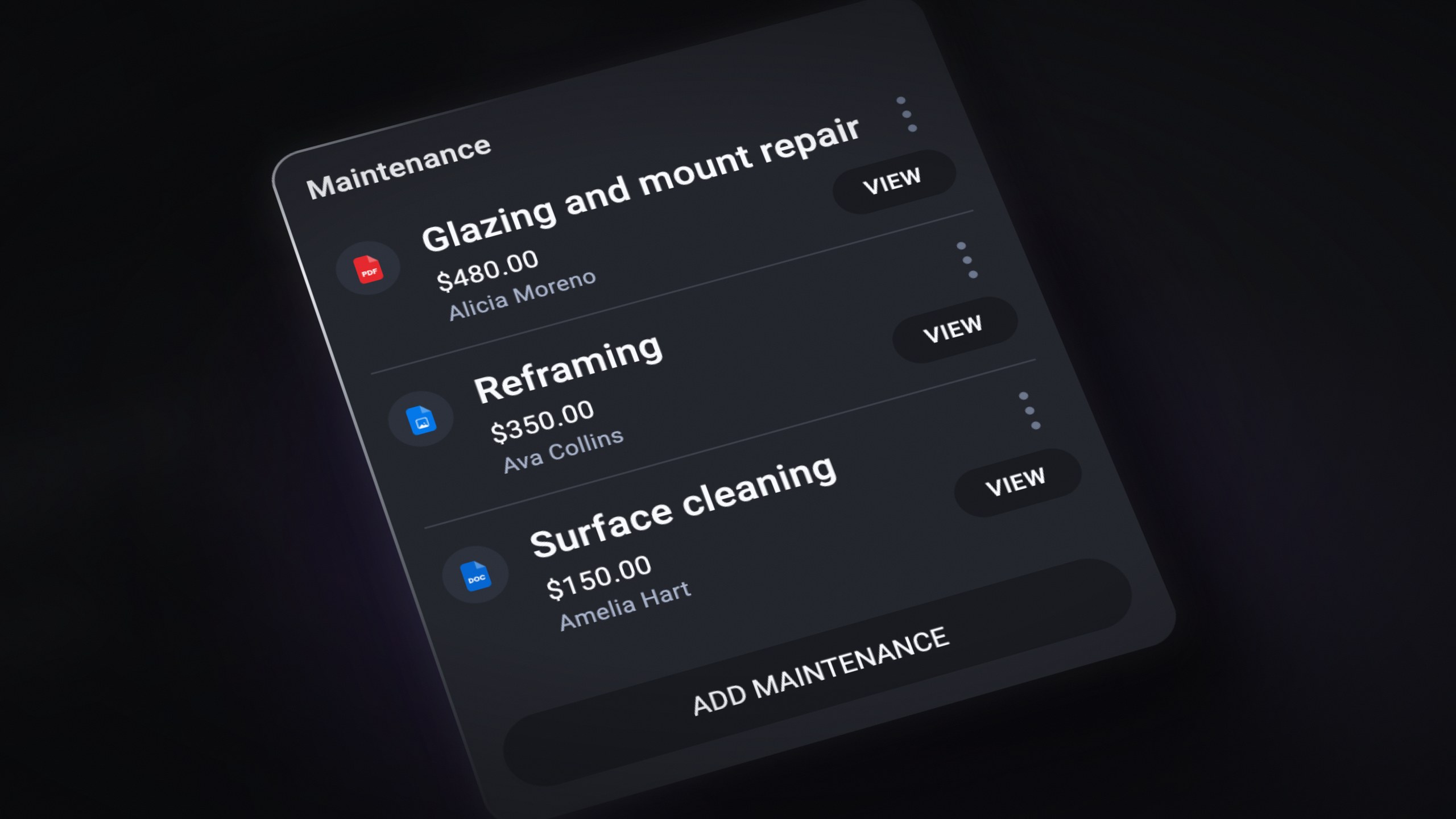
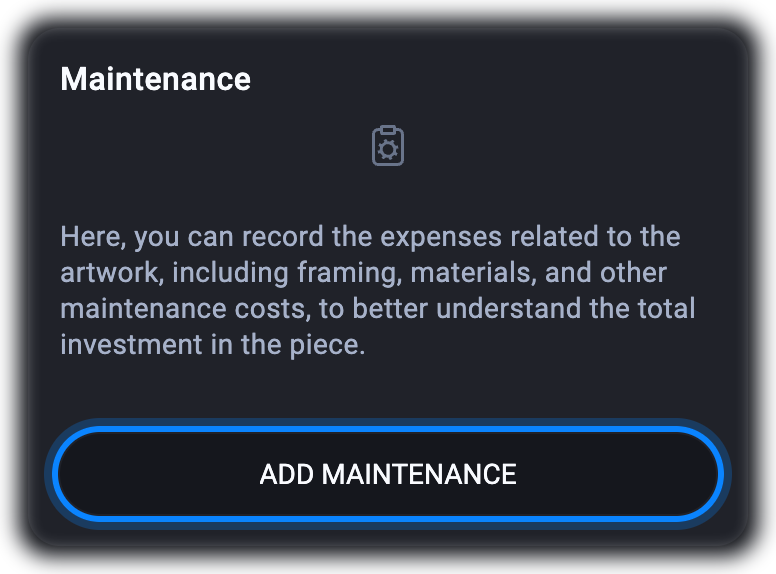
Can’t remember when a painting was last reframed, or what the restoration cost? Log it on the artwork. On the artwork’s page, click ADD MAINTENANCE on the Maintenance card. Enter a title, contact, cost and start date, attach a document if you have one, and click SAVE. Log it every time a piece is framed, restored, cleaned or repaired.
Before You Start
- Maintenance is your private care log. Entries show only on the artwork’s Maintenance card, and no report, contact page or record uses them.
- AWWRT lists each cost but doesn’t add them up. The card shows every entry’s cost; there’s no running total.
- Add the framer or conservator as a contact first. Contact is required, and the form only lets you pick from your existing contacts; there’s no way to add one from inside it.
- Log one entry per job. A reframe and a later varnish are two entries, each with its own cost, dates and document.
- One document per entry, up to 5 MB. Use it for that job’s receipt or condition report. Photos and other paperwork belong on the artwork’s Files card.
Keep the following ready:
- An artwork already added
- The framer or conservator, already in your contacts
- Cost and start date
- Receive date (optional, you can add it later)
- Receipt or report (optional)
Step-by-Step Guide
Step 1: Open Artworks and click the artwork. The Maintenance card is on the Details tab.
Step 2: Click  .
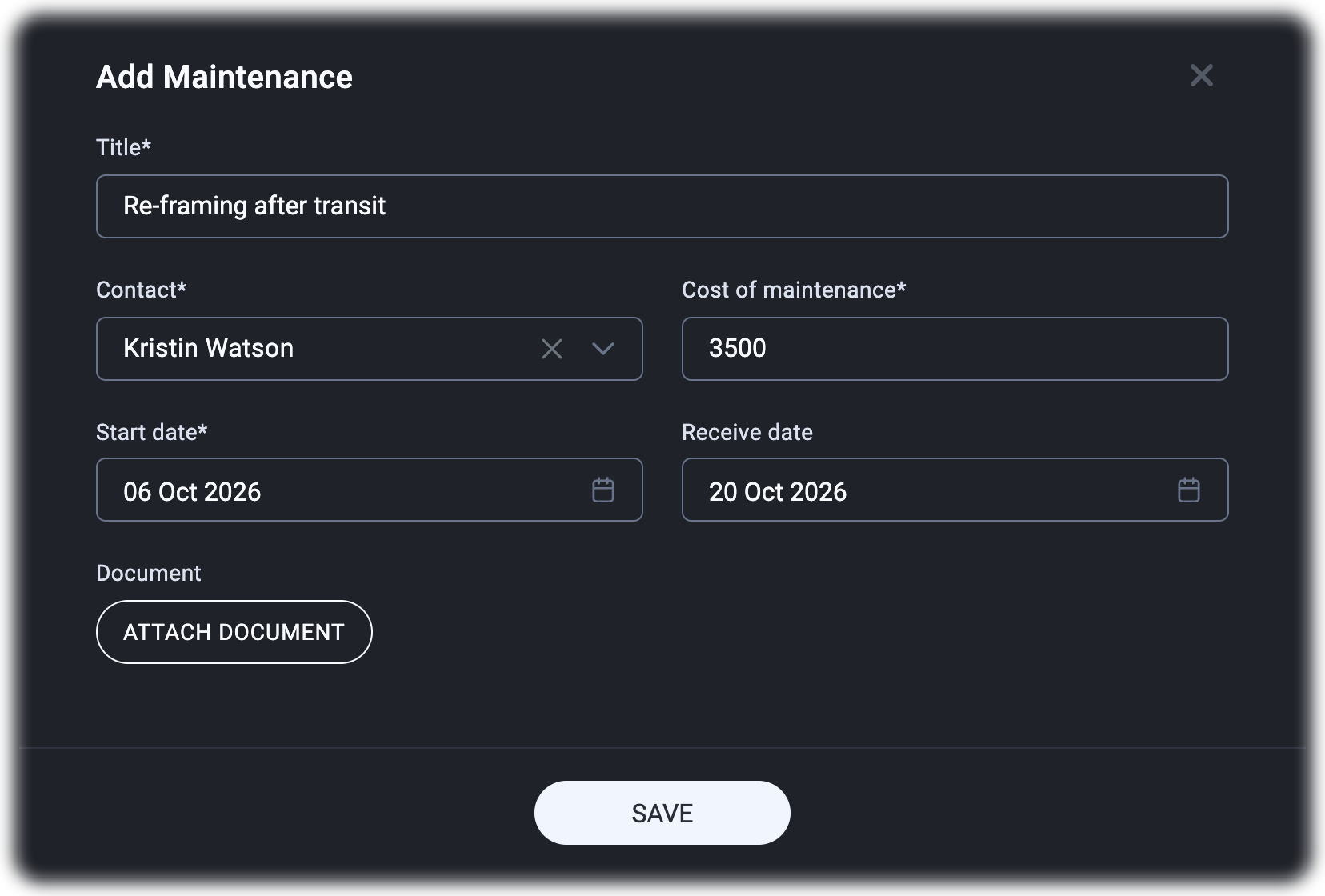
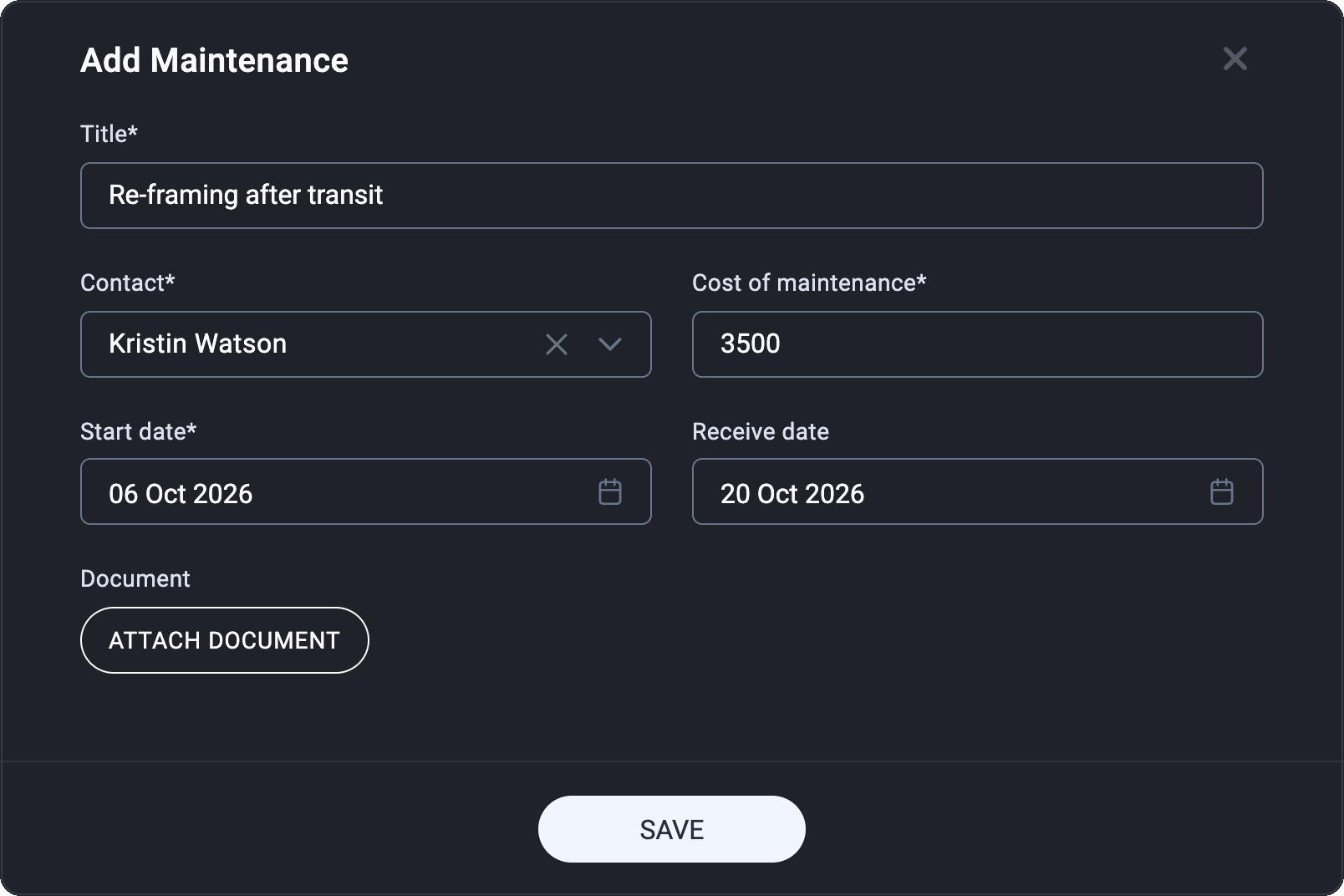
Step 3: Fill in the Add Maintenance form:
- Title*: what was done, like “Reframing” or “Varnish restoration”.
- Contact*: who did the work, picked from your contacts.
- Cost of maintenance*: what it cost, in your currency. Enter 0 for free work.
- Start date*: when the artwork went for maintenance.
- Receive date: optional. When it came back. Can’t be before the start date.
- Document: optional. Click
 to add a receipt, invoice or condition report, up to 5 MB.
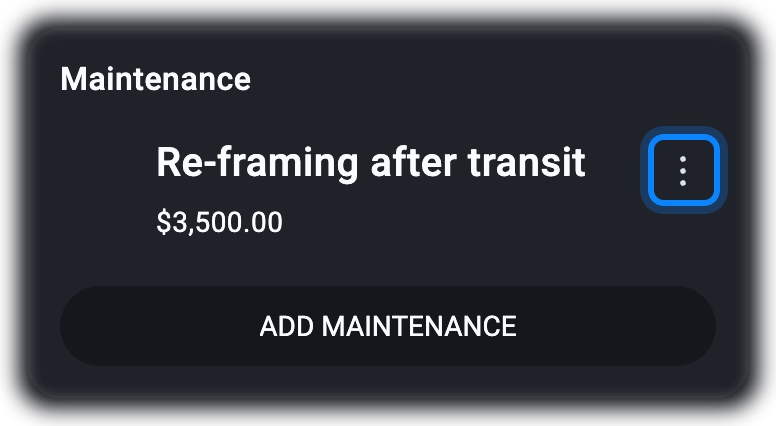
Step 4: Click  . The entry appears on the card.
Step 5: Add as many entries as you need. Click again for each one.
Step 6: To change or remove an entry, open its ⋮ menu (shown when you hover over the card) and choose Edit or Delete.
Key Fields Explained
After You Save
Each entry on the card shows only part of what you saved:
| Detail | On the card | Where to see it |
|---|---|---|
| Title and cost | ✓ | – |
| Contact | ✓ (name under the cost) | – |
| Document | A VIEW button | VIEW opens it |
| Start and receive dates | – | ⋮ → Edit on the entry |
- To change or remove an entry, use its ⋮ menu: Edit or Delete. On a computer, the ⋮ appears when you hover over the card. Delete asks you to confirm first.
- To log another job, click ADD MAINTENANCE again. Entries are listed on the card one under another.
If Something Goes Wrong
| What you see | What to do |
|---|---|
| “Title is required”, “Contact is required”, “Cost is required” or “Start date is required” | Fill in the field; all four are needed to save. |
| The framer or conservator isn’t in the Contact list | They aren’t in your contacts yet. Close the form with the ×, add them in Contacts, then come back. |
| “Receive date must not be before the start date” | Fix the date order. |
| “Cost must be a number” | Numbers only, up to 2 decimals, with no currency symbol. |
| “file name is over 5MB” | Compress the document or save a smaller PDF, then attach it again. |
| An entry shows no contact name | That contact was deleted. Edit the entry and pick another contact. |
| You can’t see the dates | They aren’t shown on the card. Open ⋮ → Edit on the entry. |
| No ⋮ on the card | Hover over the card. The menu only appears then. |
Example Scenario
A works-on-paper gallery deals with damage after a touring show. A framed lithograph comes back with cracked glazing and a loose mount. The registrar opens the artwork, clicks ADD MAINTENANCE, types “Glazing and mount repair” as the title, picks the paper conservator from Contacts, and logs the estimated cost and the date it went out.
When the lithograph comes back, the registrar edits that same entry to add the receive date, final cost, and the conservator’s report. The gallery has one clean record showing what happened, who fixed it, and the paperwork to back it up.
FAQ
Can I log work that didn’t cost anything?
Yes. Cost is required, so enter 0.
Does AWWRT total the maintenance costs?
No. Each entry shows its own cost, but there’s no running total.
Can I add the receive date later?
Yes. Edit the entry from its ⋮ menu when the artwork comes back.
Can I log work I did myself?
Yes. In an Artist account, your own contact is in the Contact list, so pick yourself.
Can I see maintenance for all my artworks in one place?
No. Each artwork’s log is on its own Maintenance card.
Does attaching a document need Google Drive?
Yes. Documents are stored in your linked Google Drive, like artwork images.
Next Steps
(Underlined below as placeholders: link to the live articles only in the final version.)
- How to Attach Files: photos, certificates and documents not tied to one job.
- How to Set an Artwork’s Price and Editions: the next cards on the same page.
- How to Use an Artwork’s QR Code
Before you start, if you haven’t yet: How to Add a Contact · How to Add an Artwork.
Final Takeaway
Log every job, every time. Your artwork’s care history is ready whenever a buyer, insurer or lender asks.