Getting Around the AWWRT Dashboard
Quick Answer
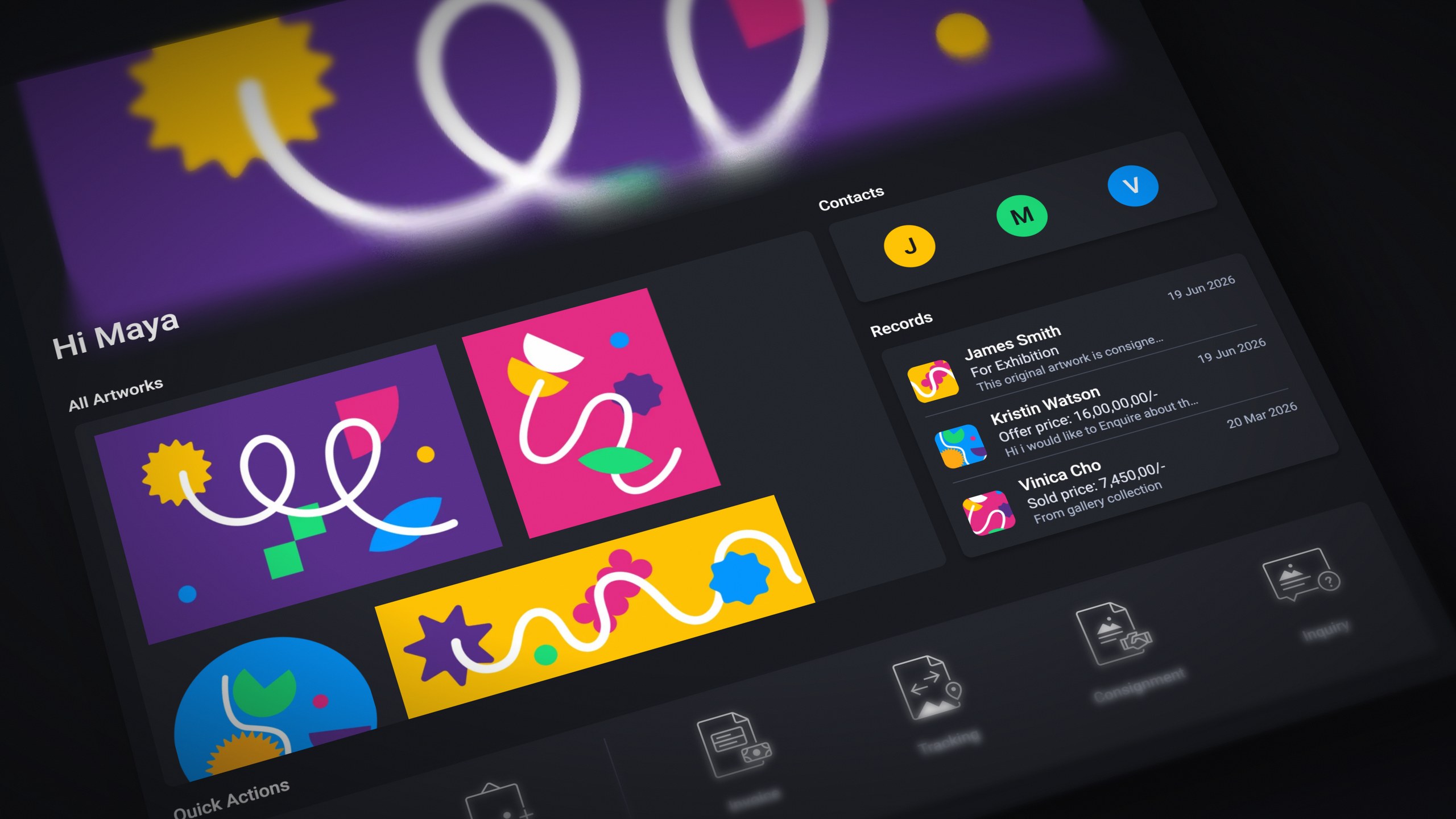
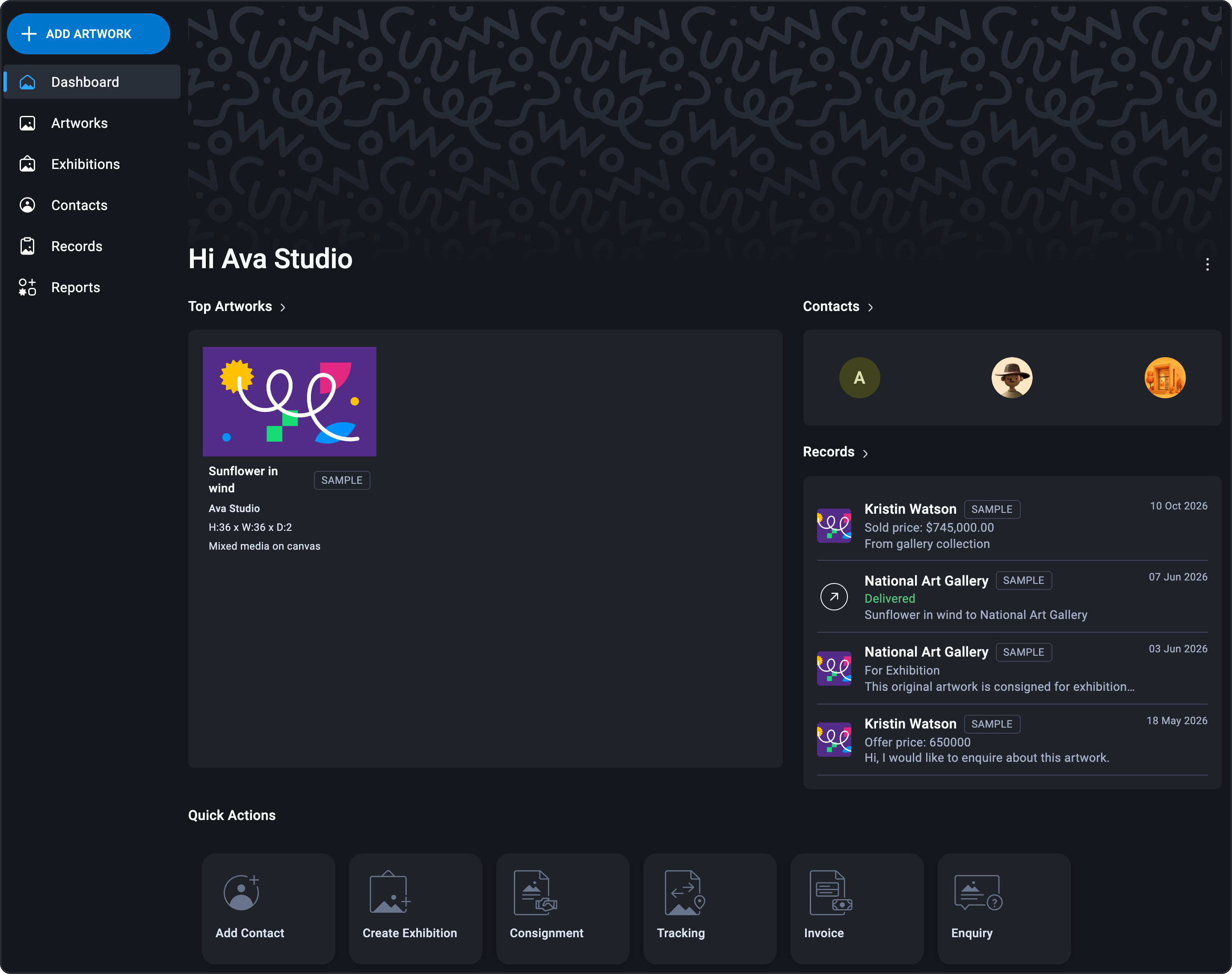
New to AWWRT and not sure where to start? The dashboard is your home screen. It shows your latest artworks, recently opened contacts and newest records, plus Quick Actions to add a contact, create an exhibition or start any record. The side menu takes you everywhere else.
First Time Here?
A record is anything that happens to an artwork: an enquiry, tracking (a shipment), a sale (the Invoice Quick Action) or a consignment.
A good setup order:
- Link your Google Drive.
- Fill in your account settings: name, address, currency and measurement unit.
- Add your contacts: artists (for galleries), buyers, framers, shippers.
- Add your artworks.
- Then exhibitions, records and reports.
Who sees what:
| What | Who sees it |
|---|---|
| An artwork’s QR page | Anyone who scans the code or has the link. You choose what it shows in the QR page editor |
| Reports and invoices | Whoever you give the PDF to |
| Everything else (contacts, records, maintenance, files) | Only you, and anyone using your login |
Step-by-Step Guide
Find your way around
Step 1: Log in. The dashboard opens with a greeting: “Hi” and your name.
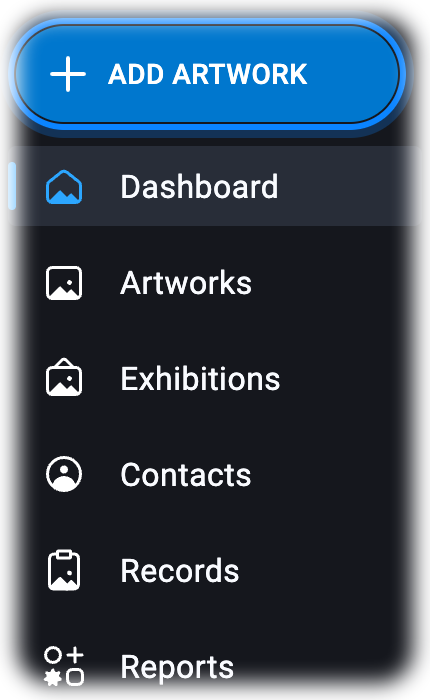
Step 2: Use the side menu to move between Dashboard, Artworks, Exhibitions, Contacts, Records and Reports. The blue  button at the top starts a new artwork from anywhere.
Read the dashboard
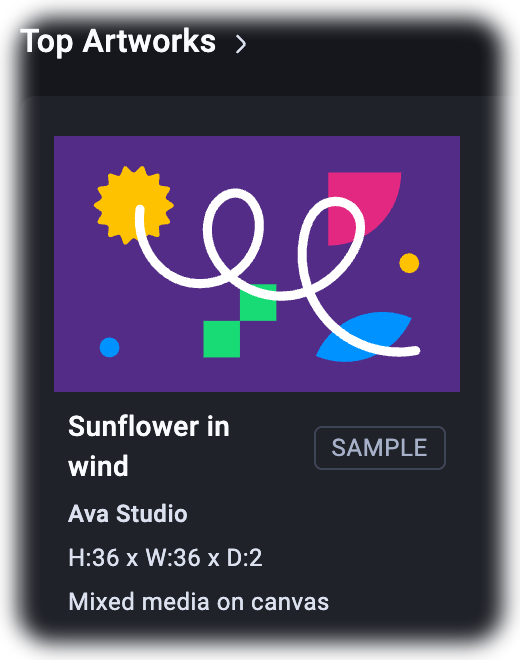
Step 3: Top Artworks shows your most recently added artworks. Click one to open it, or click the heading to see them all.
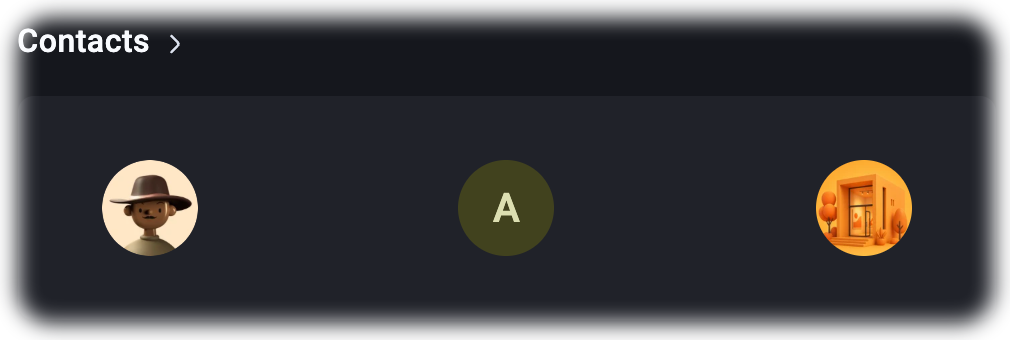
Step 4: Contacts shows the three contacts you opened most recently. Click one to open it, or click the heading to see them all.
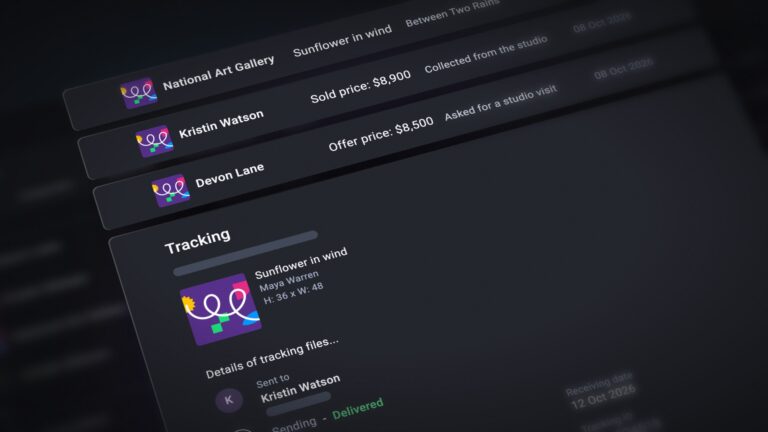
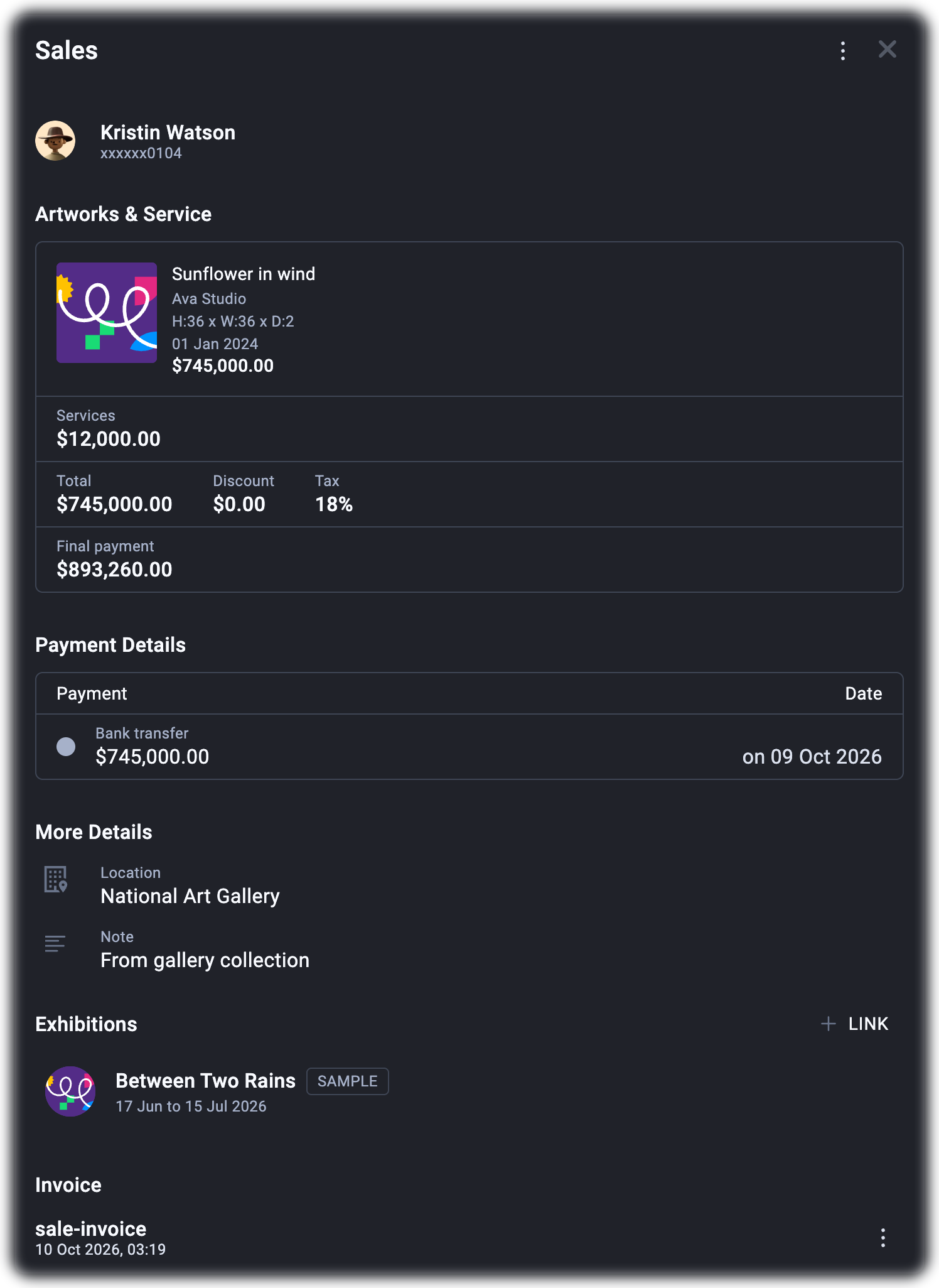
Step 5: Records lists your newest records: enquiries, sales, tracking and consignments together.
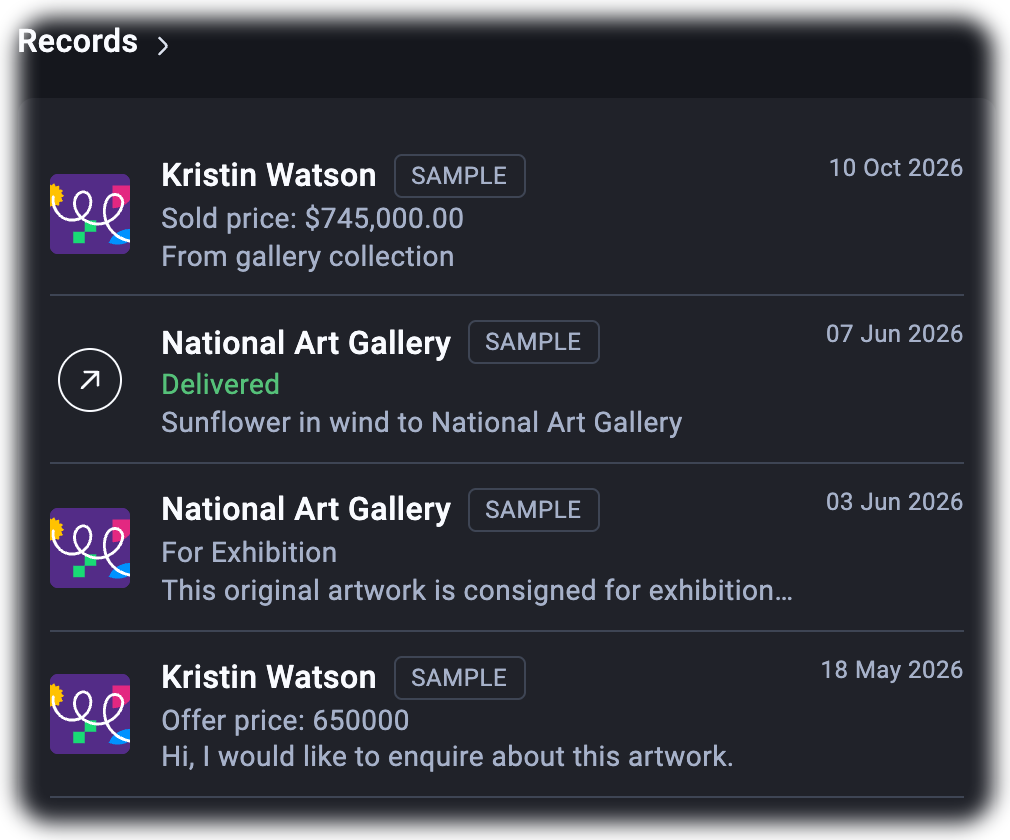
Click one to see its details in a panel, or click the heading to see them all.
Start something new
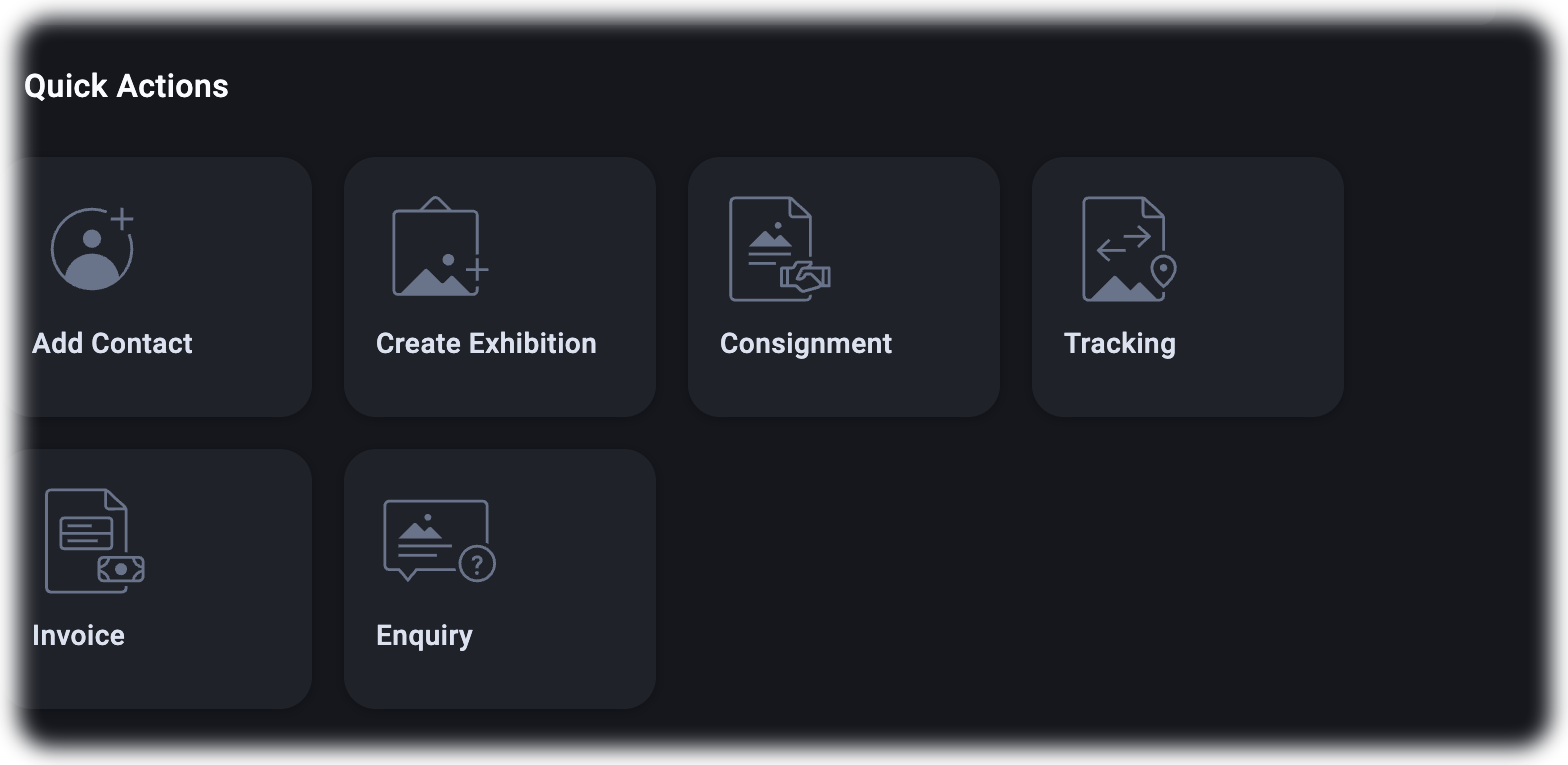
Step 6: Under Quick Actions, click Add Contact, Create Exhibition, Consignment, Tracking, Invoice (records a sale) or Enquiry. Each opens its form straight away.
Set your cover banner
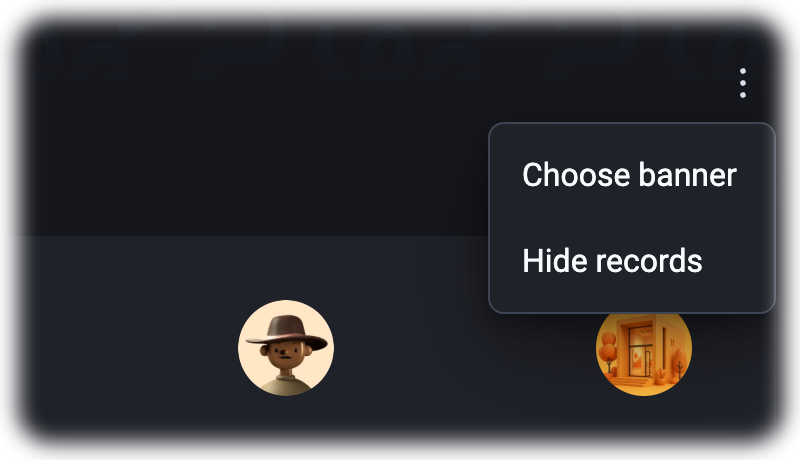
Step 7: Open the ⋮ menu next to your greeting and choose Choose banner (Change banner once you have one) to upload an image. Or hover over the empty banner and click ADD BANNER to Choose from artworks, which is handy for using one of your own pieces.
Hide records when someone’s watching
Step 8: In the same ⋮ menu, choose Hide records. Your artworks, contacts and records disappear from the dashboard, while other pages still show everything. It stays on, even next time you log in, until you choose Show records.
Key Fields Explained
Example Scenario
A gallery manager opens AWWRT first thing in the morning. Records shows yesterday’s enquiry at the top, so they click it and check the details in the panel.
Later, a collector stops by and looks over their shoulder at the dashboard. The manager chooses Hide records, and their artworks, contacts and records disappear from the dashboard. After the visit, they switch it back with Show records.
Common Mistakes to Avoid
- Expecting Hide records to hide other pages. It only hides the dashboard; Artworks, Contacts and Records still show everything.
- Looking for everything on the dashboard. It shows only your latest items. Click a section heading, or use the side menu, for the full list.
- Hunting for “Sale” in Quick Actions. Sales start from Invoice.
FAQ
What are the items marked SAMPLE?
Starter examples so you can explore. Remove them in Settings → Preferences with REMOVE SAMPLE DATA, and bring them back any time with LOAD SAMPLE DATA.
Does Hide records stay on?
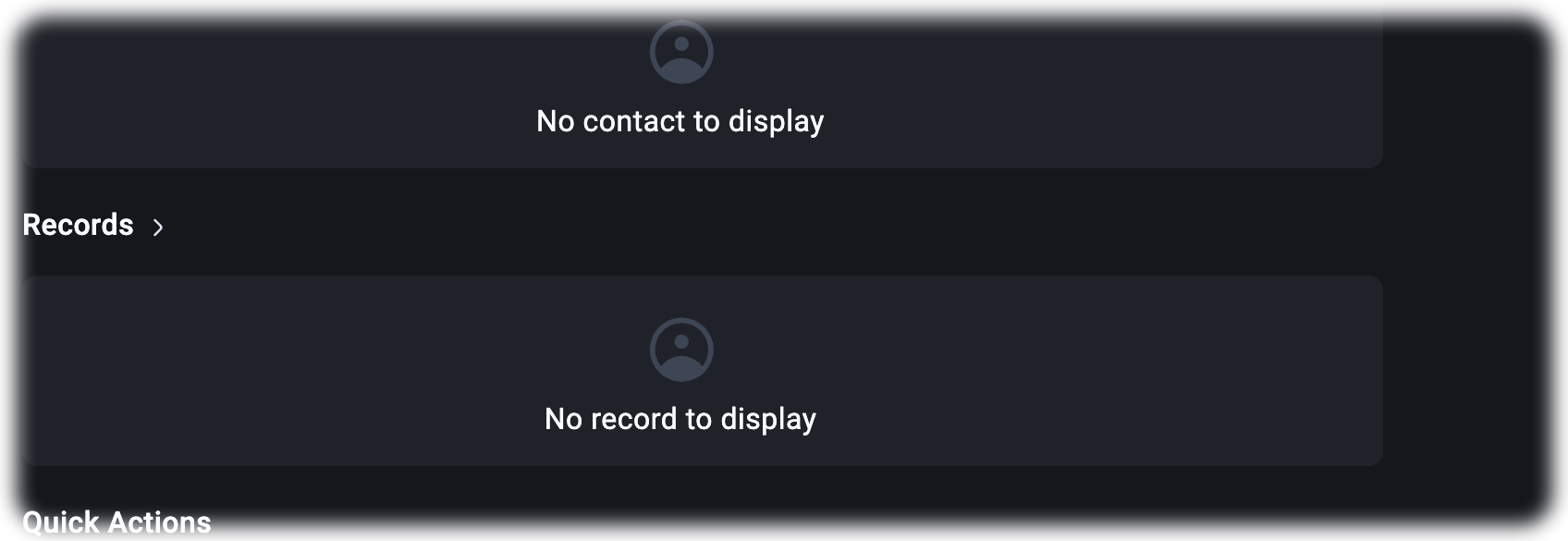
Yes, it’s saved to your account, so it’s still on next time you log in, on every device. If your dashboard says “No contact to display” although you’ve added contacts, check the ⋮ menu for Show records.
Can I use one of my artworks as the banner?
Yes. Hover over the empty banner, click ADD BANNER and choose Choose from artworks.
Next Steps
(Underlined below as placeholders: link to the live articles only in the final version.)
- How to Add a Contact: start with Add Contact under Quick Actions.
- How to Add an Artwork: the ADD ARTWORK button at the top of the side menu.
- How to Add a Record: enquiries, tracking and consignments from Quick Actions.
Final Takeaway
Use the dashboard to pick up where you left off and start new work fast, and switch on Hide records when someone can see your dashboard.