How to Attach Files in AWWRT
Quick Answer
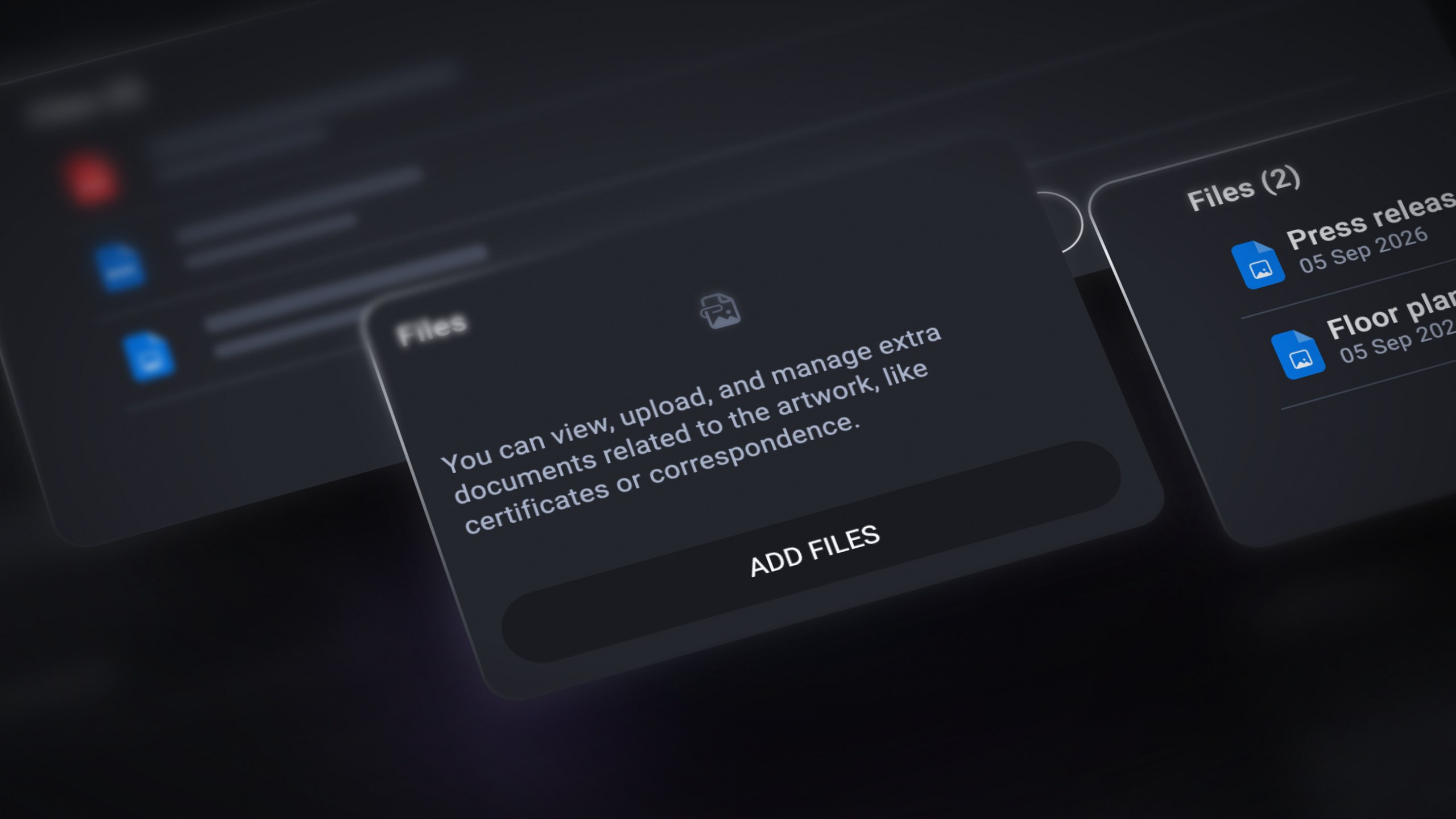
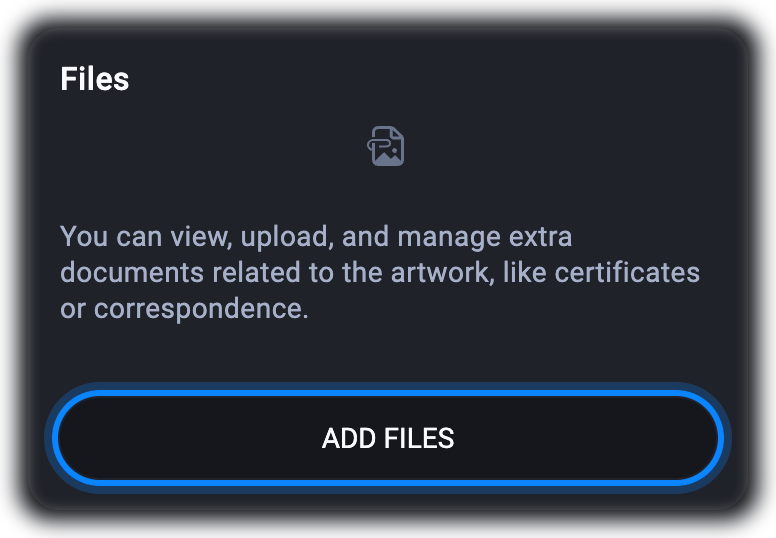
A certificate in your inbox, a contract on your desktop, an invoice in a folder somewhere? Attach them to the record they belong to. On an artwork’s page, click ADD FILES on the Files card, pick your files and click SAVE. Contacts and exhibitions work the same way, with an ADD FILE button.
Keep the following ready
- Google Drive linked
- PDF, Word, Excel, JPG or PNG
- Up to 5 MB each
Step-by-Step Guide
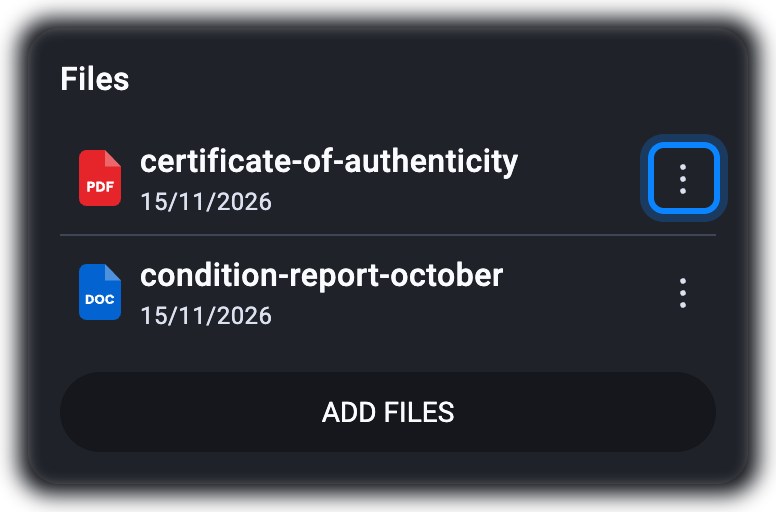
Step 1: Open Artworks and click the artwork. The Files card is on the Details tab.
Step 2: Click  .
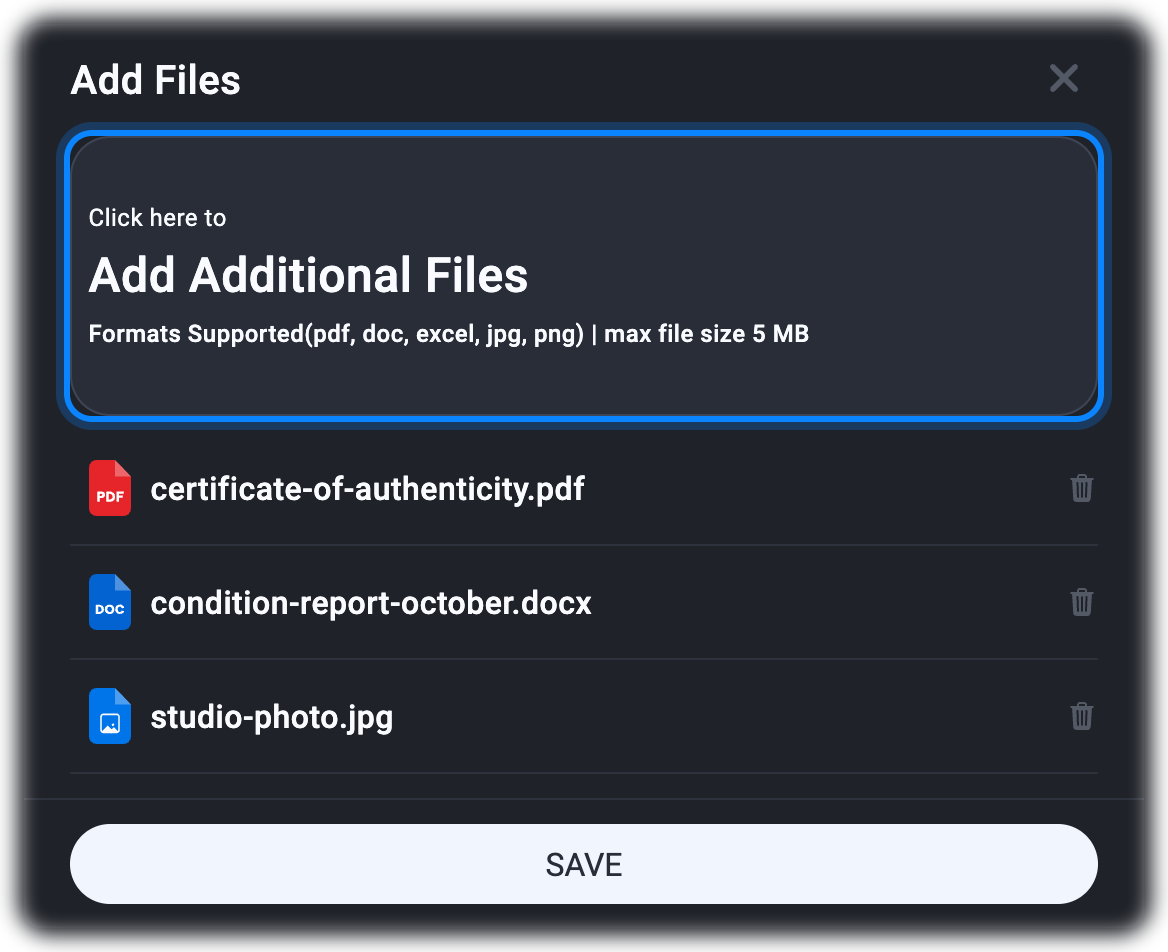
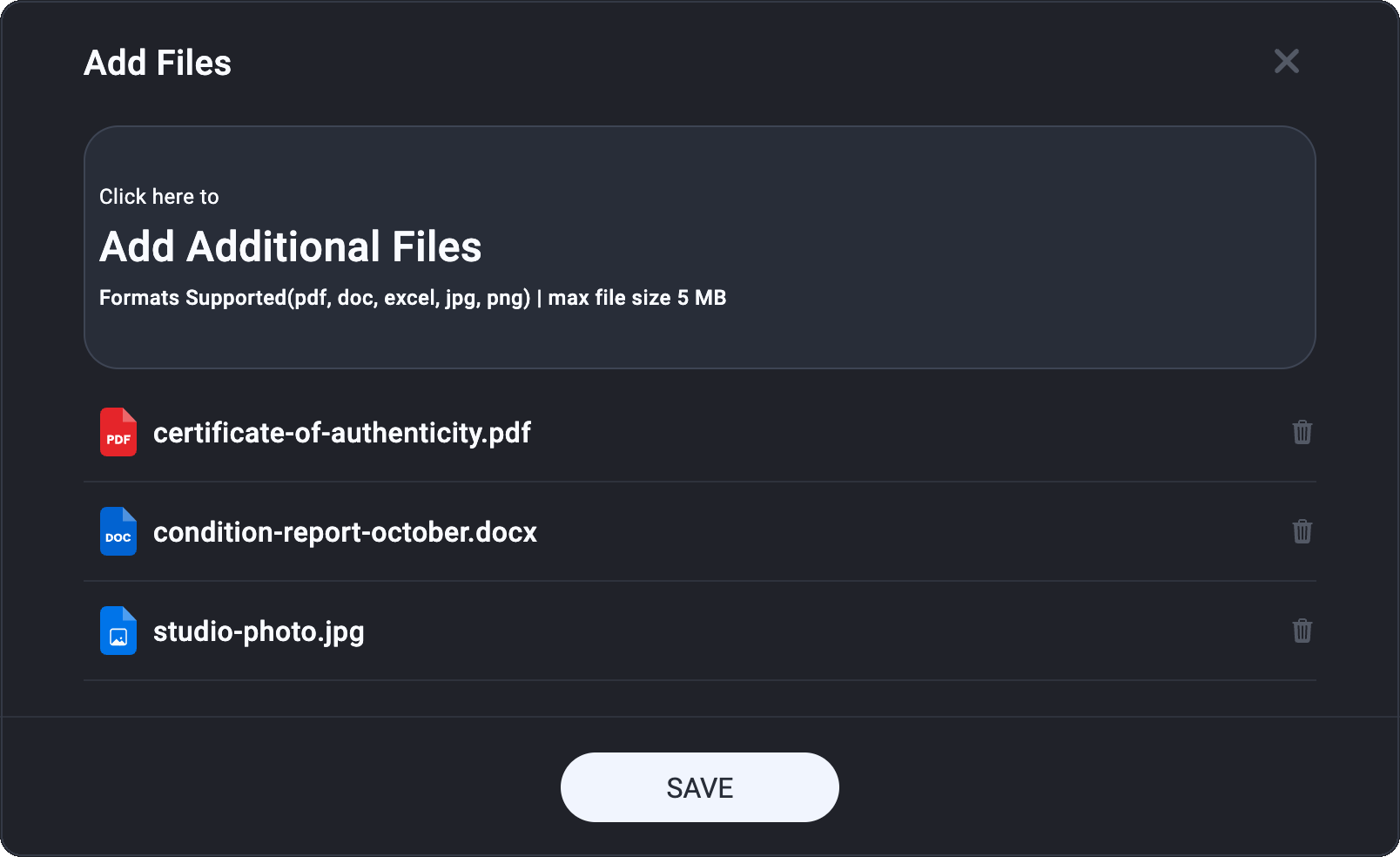
Step 3: In Add Files, click the Add Additional Files box and pick one or more files (PDF, Word, Excel, JPG or PNG, up to 5 MB each). Click again to add more, or click a file’s bin icon to take it off the list.
Step 4: Click  . The files upload and appear on the card with the date they were added.
Tip: Nothing uploads until you click SAVE. If any file fails, none are saved, so fix the problem and try again.
Step 5: To open a file, click its name. To remove one, open its ⋮ menu (shown when you hover over the card) and choose Delete.
Same steps for contacts and exhibitions
The same steps work on a contact’s page and an exhibition’s page. What differs:
| Artwork | Contact | Exhibition | |
|---|---|---|---|
| Where | Files card, Details tab | Files section on the contact’s page | Files card on the exhibition |
| Button | |  | |
| ⋮ menu | Delete (click the name to open) | Open, Download, Delete | Open, Download, Delete |
Key Fields Explained
Example Scenario
A gallery takes a sculpture on consignment. The registrar opens the artwork and attaches the certificate of authenticity and a condition report.
On the artist’s contact page, they attach the signed consignment agreement. When the piece goes into a show, they add the loan form to the exhibition. Every document now lives with the record it belongs to.
Common Mistakes to Avoid
- Files over 5 MB. Compress large scans or save them as PDF first.
- Picking the same file twice. It’s refused with “… is already on the list”, because it’s attached once.
- Looking for Download on artworks. On an artwork, click the file’s name to open it.
FAQ
How many files can I attach?
As many as you need. Add several in one go.
Where do maintenance receipts and the About-Work document go?
In their own fields: the receipt on the maintenance entry, and the document on the About-Work card. Use Files for everything else.
Can I download a file?
On contacts and exhibitions, use the ⋮ menu’s Download. On artworks, click the file’s name to open it.
Is there a limit on how many files I can add?
No set number. Each file can be up to 5 MB; any file that’s too big or the wrong type is refused with a message, and the rest are added.
If one file fails to upload, are the others saved?
No. SAVE is all or nothing: if any file can’t be uploaded, none are saved, and the message above SAVE names the file. Remove or replace that file, then click SAVE again.
Next Steps
(Underlined below as placeholders: link to the live articles only in the final version.)
- How to Log Maintenance for an Artwork: receipts and reports for each job.
- How to Describe an Artwork: Creation Date, Dimensions and About the Work: the About-Work card and its document.
- How to Add an Exhibition: then attach loan forms and floor plans to it.