How to Link Google Drive to AWWRT
Quick Answer
Logged in, but AWWRT won’t open past a Google Drive screen? That’s expected. On the web, AWWRT stores your artwork images, photos and PDFs in your own Google Drive, so it needs a Drive linked first. Click CONNECT GOOGLE DRIVE, choose your Google account and allow access. You’ll land back in AWWRT, ready to go.
Before You Start
- Choose the Google account carefully. It doesn’t have to be the one you sign in with. Each Google account can be linked to one AWWRT account only. If you switch to a different Google account later, files uploaded before stay in the old account’s Drive, and only new files go to the new one.
- On the web, it’s required. Until a Drive is linked, the web app shows only the “Link your Google Drive” screen. On the desktop app it’s optional, since your files stay on your computer until you link one from the same Settings page.
- AWWRT only touches its own folder. It can read and write only the files it creates, in an AWWRT folder in your Drive. The rest of your Drive stays private.
- Leave the AWWRT folder where it is. That’s where your images, files and backups live, so don’t move, rename or delete it.
Keep the following ready:
- The Google account you want to use for AWWRT
- Free space in that Google Drive
- Your AWWRT login
Step-by-Step Guide
Link your Drive for the first time
Step 1: Log in to AWWRT on the web. You’ll see “Link your Google Drive to use AWWRT on the web”.
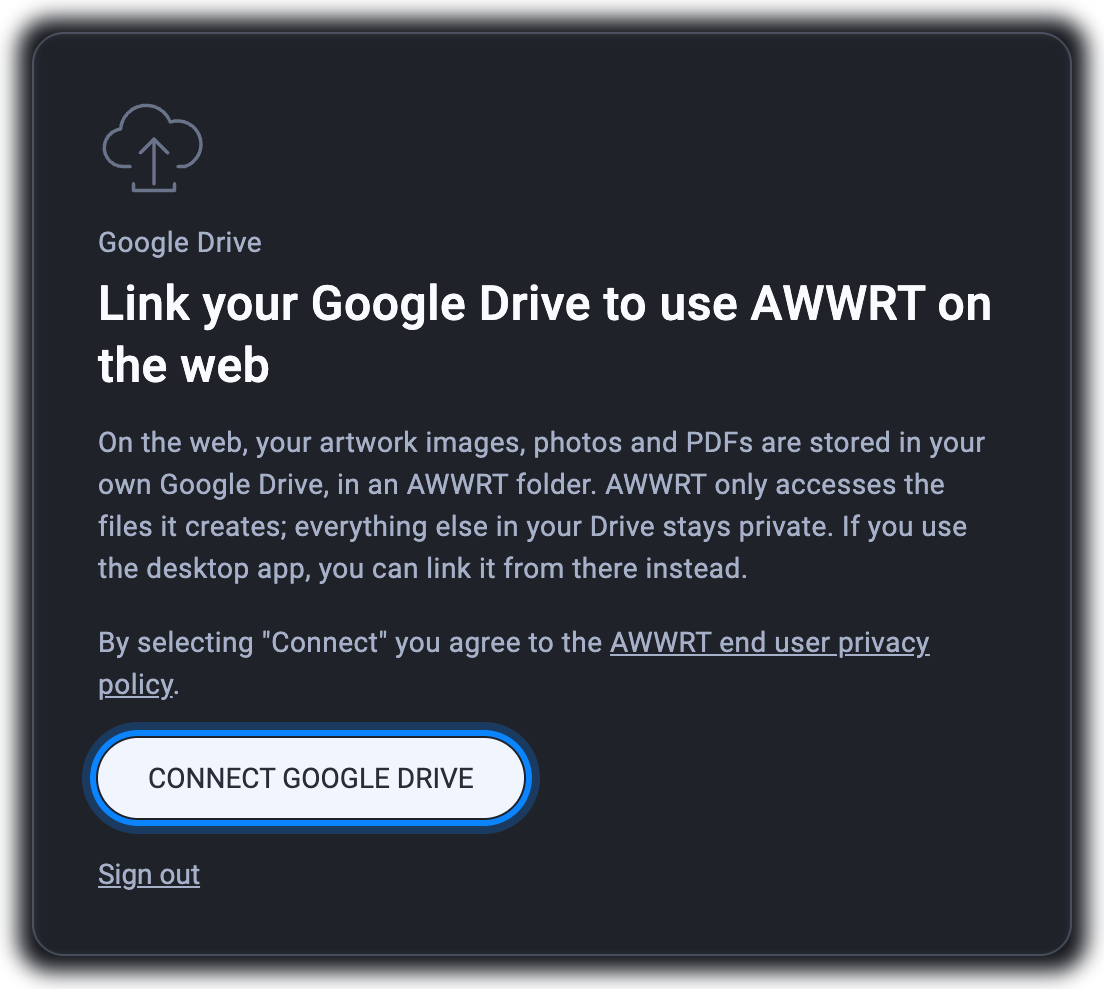
Step 2: Read the short note: your files go into an AWWRT folder in your Drive, and AWWRT only accesses the files it creates, so everything else stays private. Click  .
Step 3: Google opens. Choose the Google account you want to use and allow AWWRT access.
Step 4: Google sends you back to AWWRT. You’re in, and the rest of AWWRT is now open.
Check that it’s working
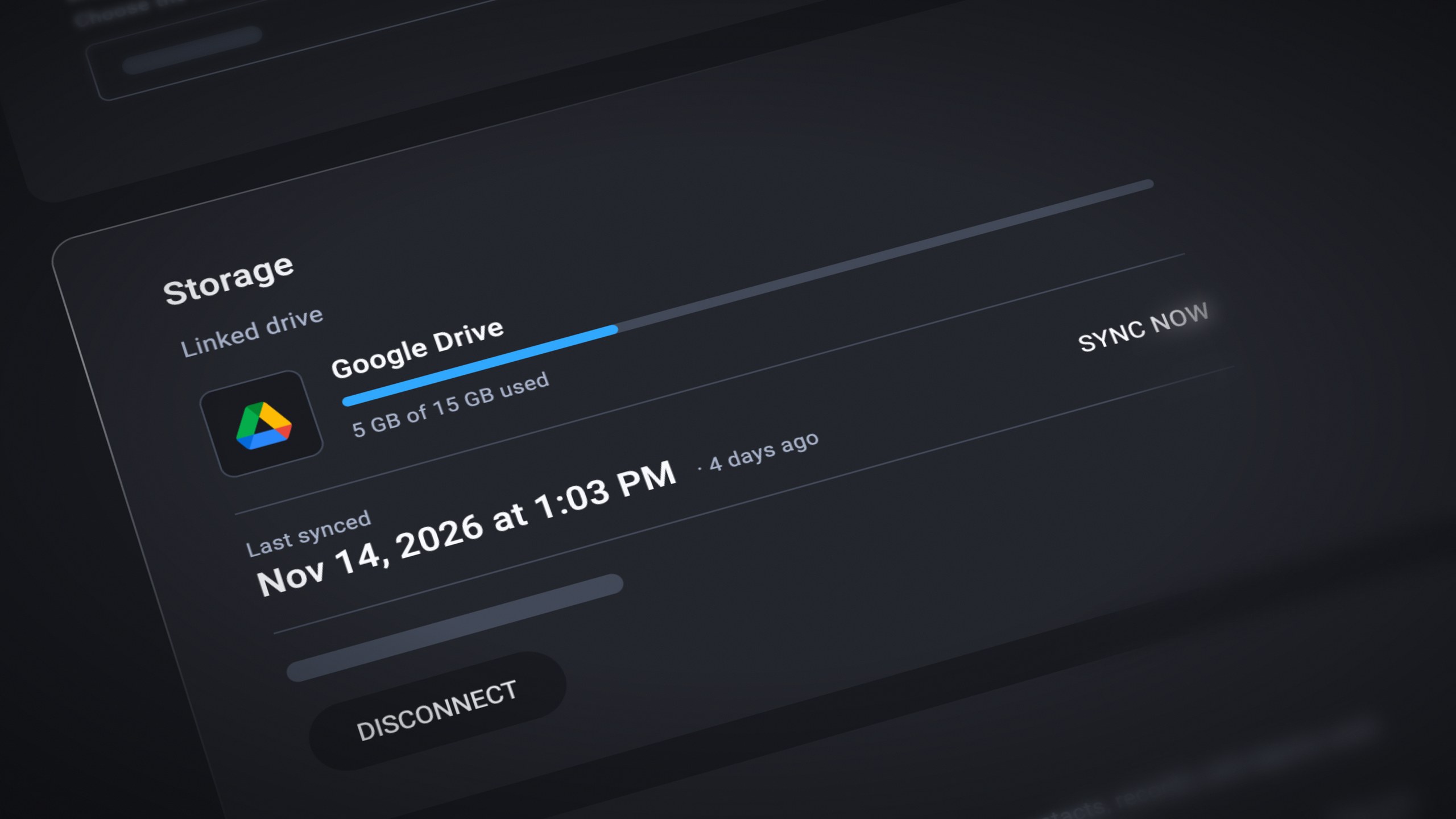
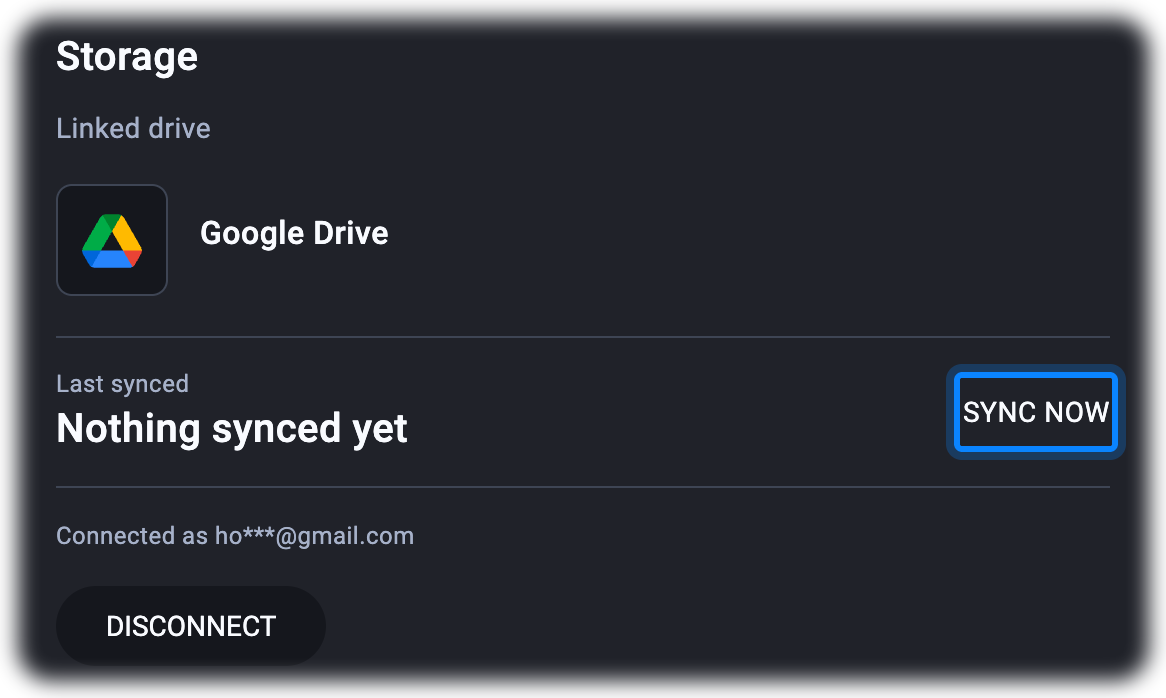
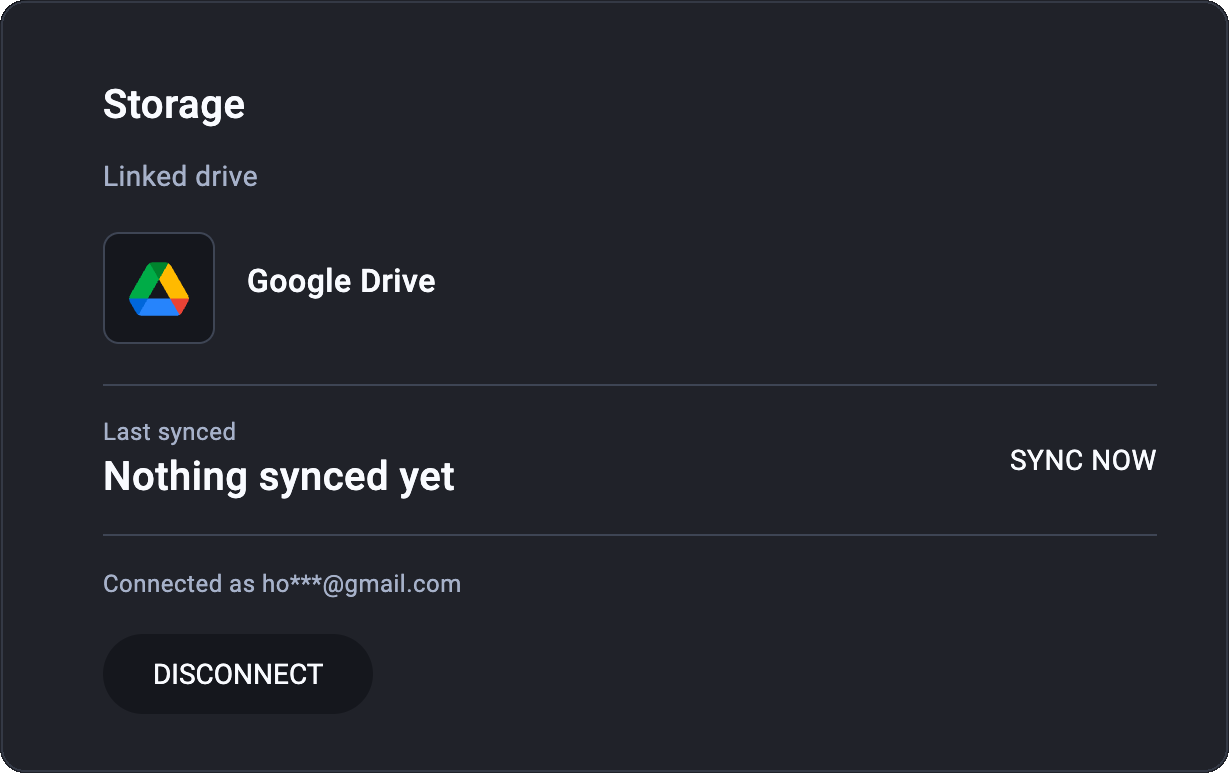
Step 5: Open Settings → Preferences and scroll to Storage. The Linked drive card shows:
- Connected as: which Google account is in use
- Last synced: when files last went to Drive (“Nothing synced yet” on a new account), plus any files still waiting
- Open folder and storage used: these appear once AWWRT has created its folder in your Drive
Step 6: If files are waiting or failed to upload, click SYNC NOW to send them again.
When a strip appears at the top
Step 7: AWWRT shows a strip across the top when something needs your attention:
- “AWWRT no longer has access to your Google Drive.” Click
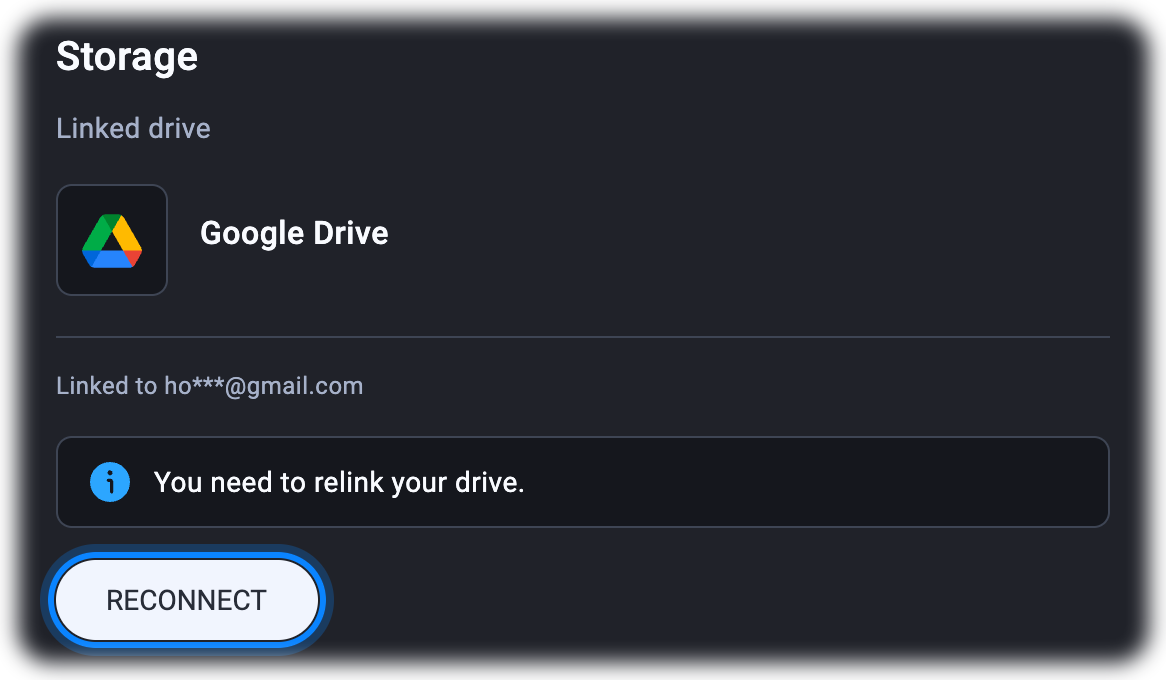
 and sign in with the same Google account to get your files back.

- “Your Google Drive is full. No data can be created until you free up space.” Free up space in Google Drive, then click
 .

Both strips also have a Settings link. When access has been removed, the Linked drive card says “You need to relink your drive” with its own button.
Disconnect (only if you need to)
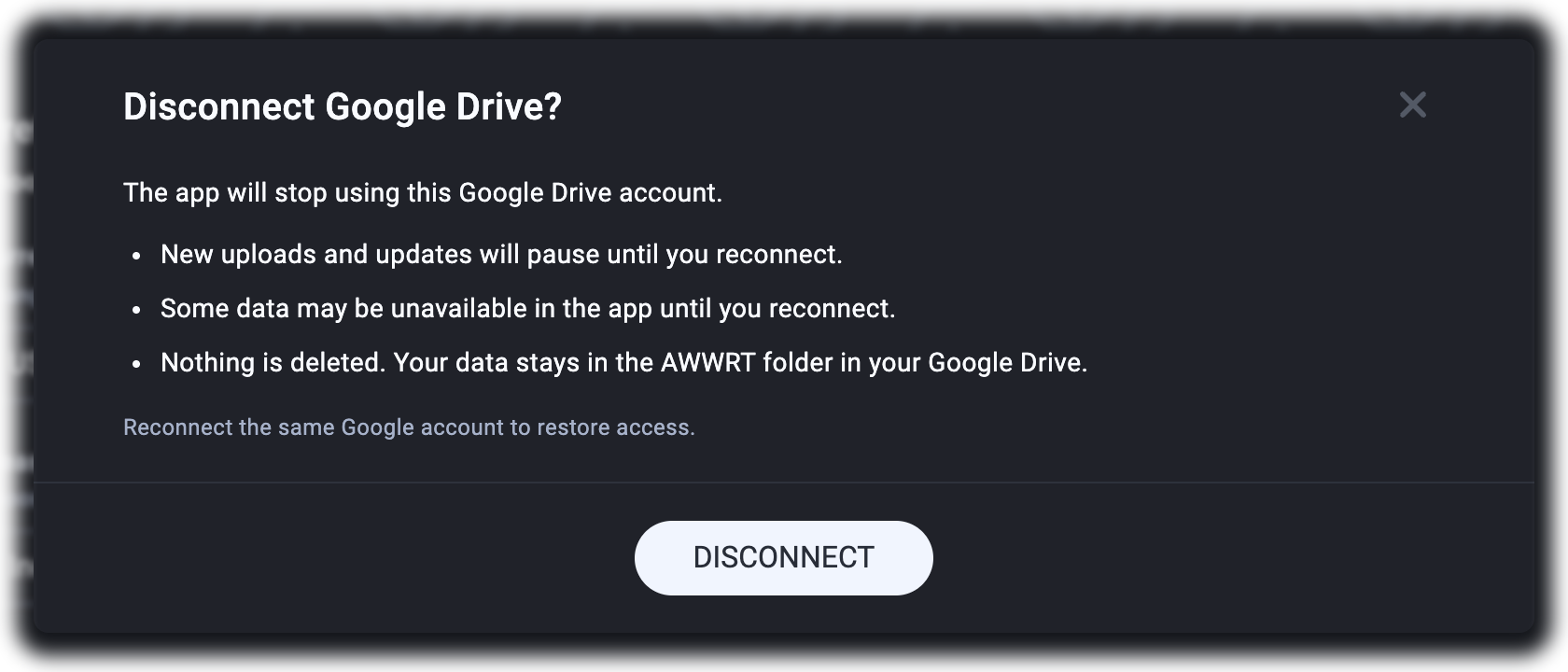
Step 8: On the Linked drive card, click  . A box explains what happens: new uploads pause, some data may be unavailable, and nothing is deleted. Click again to confirm.
Heads up: on the web, disconnecting takes you back to the “Link your Google Drive” screen. AWWRT won’t open again until a Drive is linked. If something isn’t working, try SYNC NOW or
Key Fields Explained
What AWWRT Keeps in Your Drive
Everything goes into the AWWRT folder. Files are named so you can find them there too:
| What | Named like |
|---|---|
| Artwork images | The inventory code and title, like “74BC_MOST_01JAN_26 Monsoon Study.jpg” |
| Contact and exhibition files | A contact or exhibition number, the name and the file’s own name |
| Reports | A report number, the type, your file name and the date, like “RPT-00045 Catalogue – Spring show – 18 Sep 2026.pdf” |
| Sale and consignment PDFs | A record number, the type and the date |
| Your logo and banner | “Logo” and “Banner” |
| A backup of your records | Data copies, plus a readable spreadsheet (“AWWRT records (generated).xlsx”) refreshed once a day and whenever you click SYNC NOW |
If Something Goes Wrong
| What you see | What to do |
|---|---|
| “Google did not allow access. You can try again.” | Click CONNECT GOOGLE DRIVE again and allow access on Google’s screen. |
| “Google Drive could not be connected. Please try again.” | Something failed on the way back from Google. Try again. |
| “This Google account is already linked to another AWWRT account. Choose a different Google account.” | Each Google account works with one AWWRT account. Connect again and pick another Google account. |
| “AWWRT no longer has access to your Google Drive.” | Click RECONNECT and sign in with the same Google account. |
| “Your Google Drive is full…” and the add buttons are greyed out | Nothing new can be created until there’s space. Free up space in Google Drive, then click CHECK AGAIN. |
| “N files could not be uploaded to Google Drive. Sync now tries again.” | Click SYNC NOW on the Linked drive card. |
| “This is a different Google account from the one your files are in…” | You connected another Google account. Older files stay in the first account’s Drive. To keep everything together, reconnect the original account. |
| “Google Drive is not connected” when uploading an image | Link Drive in Settings → Preferences, then upload again. |
Example Scenario
An artist signs up and logs in on their laptop. The Google Drive screen pops up, so they click CONNECT GOOGLE DRIVE, choose their personal Google account, and allow access. AWWRT opens, Settings → Preferences shows their email under “Connected as”, and they’re ready to add artworks.
Months later, a strip shows up: “Your Google Drive is full.” The ADD ARTWORK button is greyed out. They delete a few old videos in Google Drive and click CHECK AGAIN. The strip disappears, and they can save new work again.
FAQ
Why do I need Google Drive to use AWWRT on the web?
Your artwork images, photos and PDFs are stored in your own Drive, in an AWWRT folder. The web app needs it linked before anything opens.
Can AWWRT see everything in my Google Drive?
No. AWWRT only accesses the files it creates. Everything else stays private.
Do I need Google Drive on the desktop app?
No, it’s optional there. Your files stay on your computer until you link a Drive.
What happens to my files if I disconnect?
Nothing is deleted. They stay in the AWWRT folder in your Drive. Reconnect the same account to use them again.
My Drive is full. What now?
Free up space in Google Drive, then click CHECK AGAIN on the strip. The strip also clears on its own once space is freed.
Can I use one Google account for two AWWRT accounts?
No. Each Google account can be linked to one AWWRT account only.
Is there a copy of my records in my Drive?
Yes. AWWRT keeps a backup of your records in the AWWRT folder, including a readable spreadsheet, “AWWRT records (generated).xlsx”. It’s refreshed once a day and whenever you click SYNC NOW.
What does SYNC NOW do?
It sends any waiting or failed files to Drive and refreshes the backup of your records.
A file didn’t reach Drive. Is it lost?
No. AWWRT keeps a copy until it’s in Drive. Click SYNC NOW to retry any that failed. If Drive isn’t linked, or is full, new uploads are refused until that’s fixed.
Next Steps
(Underlined below as placeholders: link to the live articles only in the final version.)
- How to Set Up Your Account Settings: your name, city, currency and measurement unit, so invoices and reports come out right.
- Getting Around the Dashboard
- How to Add an Artwork: your first images go straight to Drive.
Before you start, if you haven’t yet: How to Sign Up and Verify Your AWWRT Account.
Final Takeaway
Link your Drive once, keep the same Google account, and reconnect when AWWRT asks. Your artwork files and a backup of your records stay safe in your own Drive.