Workflow: From Enquiry to Sale to Shipment in AWWRT
Quick Answer
The question came by DM, the invoice by email, the courier receipt on paper? In AWWRT, each is a record, and they link together. Log the enquiry, record the sale and link it to the enquiry, mark the artwork Sold, then add a tracking record for the shipment and update its status when it arrives.
Before You Start
- Use this for any sale that starts with a question, such as a QR page enquiry at a show, a message or call from a collector, or an art fair conversation.
- Nothing moves on by itself. There’s no button that turns an enquiry into a sale. A sale doesn’t mark the artwork Sold. A delivered shipment doesn’t change where the artwork is. Each step is yours.
- Links are the thread. Link each new record back to the one before it (the sale to the enquiry, the tracking to the sale). Then anyone opening the later record can see where it started.
- The buyer must be a real contact. A name typed on an enquiry isn’t saved to Contacts, while sales and tracking need one, with an address for the invoice.
- The invoice is made once. It shows what’s paid on the day you generate it. Later payments can be added to the sale, but the PDF doesn’t change.
Keep the following ready:
- The artwork
- The buyer’s details, including their address
- Sale price, tax rate and payment details
- Courier name and tracking ID
- Delivery receipt (optional)
The Journey at a Glance
| Stage | What you create | What you link |
|---|---|---|
| Enquiry | An enquiry record (or it arrives from a QR page) | The exhibition, if it came from a show |
| Buyer | A contact with their address | – |
| Sale | A sale record and its invoice | The enquiry |
| Artwork | Nothing new: update its status or editions | – |
| Shipment | A tracking record | The sale |
Step-by-Step Guide
1 · The enquiry
Step 1 (Log the enquiry): ADD RECORD → Enquiries: the person’s name, a mobile or email, what they asked, any offer, and the artwork. Enquiries from QR pages arrive in Records → Enquiries without you doing anything. (See How to Add a Record.)
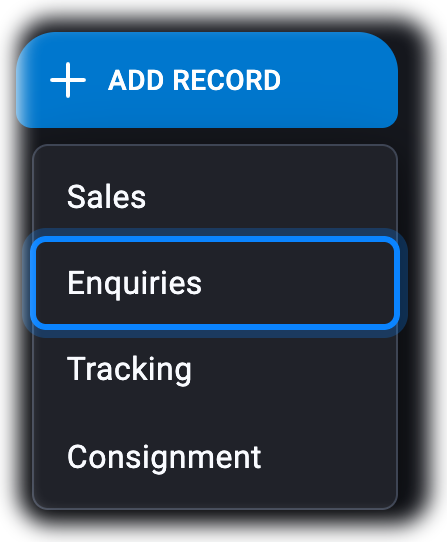
Tip: If the enquiry came from a show, link the exhibition in the enquiry’s second step. QR enquiries aren’t linked to the show on their own, so edit them to add it.
Step 2 (Add them as a contact when it gets serious): A name typed on an enquiry isn’t saved to Contacts. Before the sale, add the buyer as a contact with their address, since the invoice’s “To” uses it. (See How to Add a Contact.)
2 · The sale
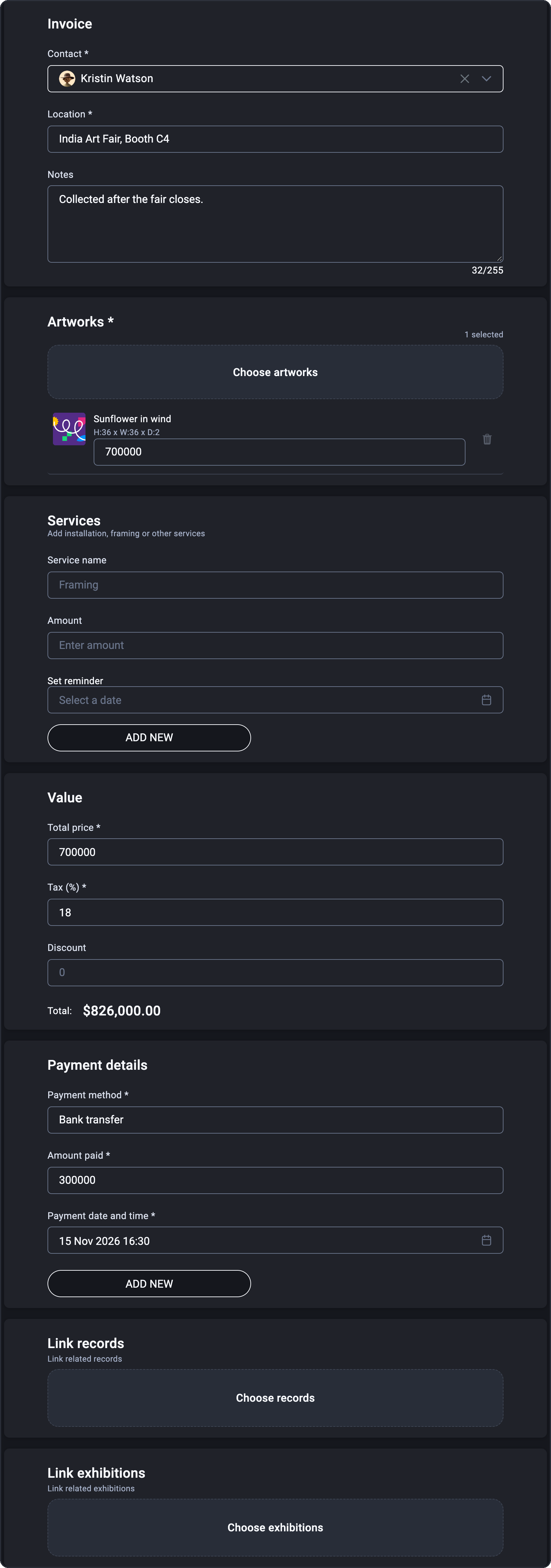
Step 3 (Record the sale): ADD RECORD → Sales: the buyer, location, the artwork and its sale price, tax, and the payment. (See How to Record a Sale and Create an Invoice.)
Step 4 (Link it to the enquiry): In the sale’s Link records, click Choose records and pick the enquiry. The sale now carries its history.
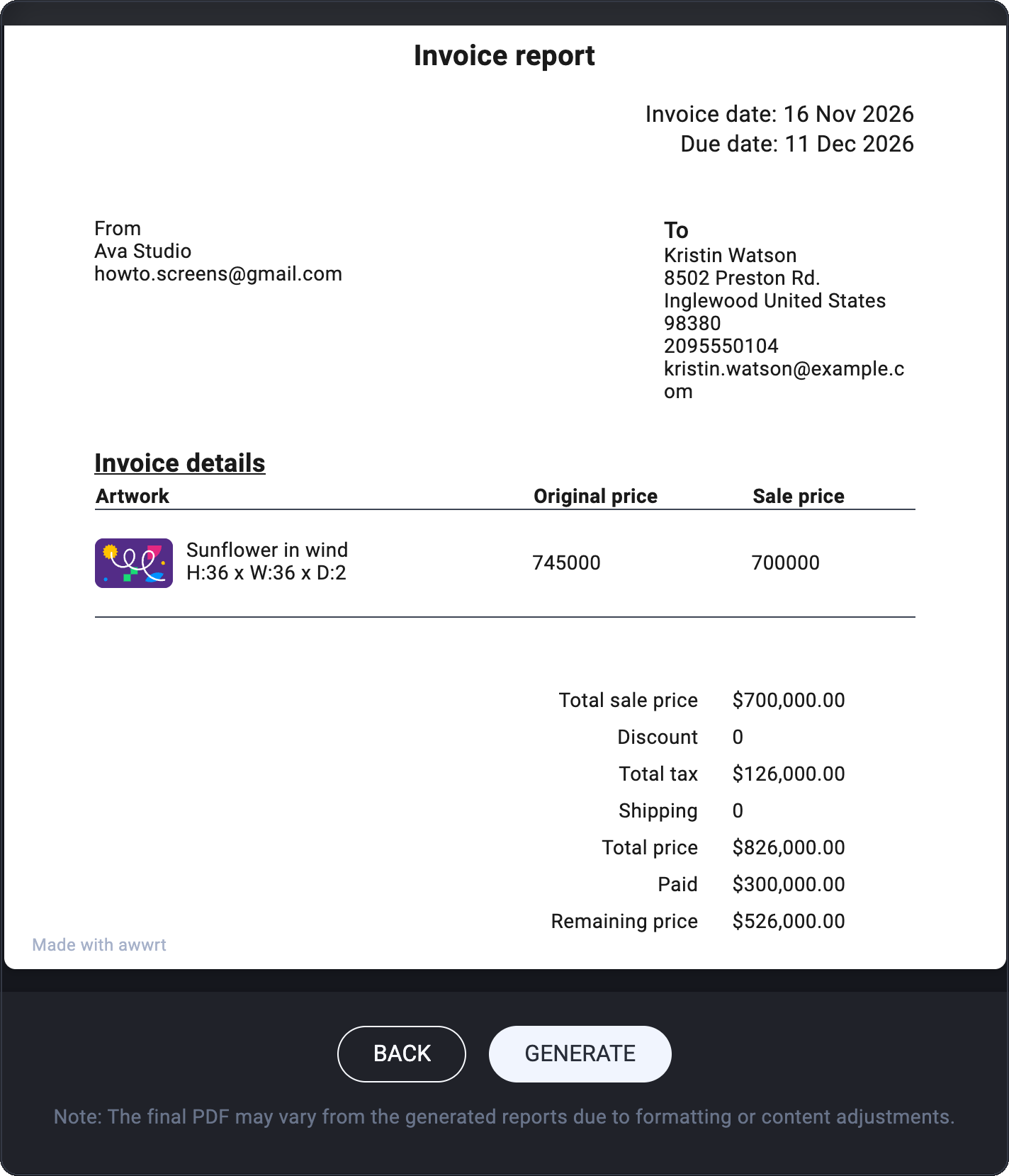
Step 5 (Generate the invoice):  , check it, then
 and the invoice PDF goes to your Google Drive. Paid in parts? The invoice shows what’s paid and remaining today. When the balance arrives, edit the sale to add it.
3 · The artwork
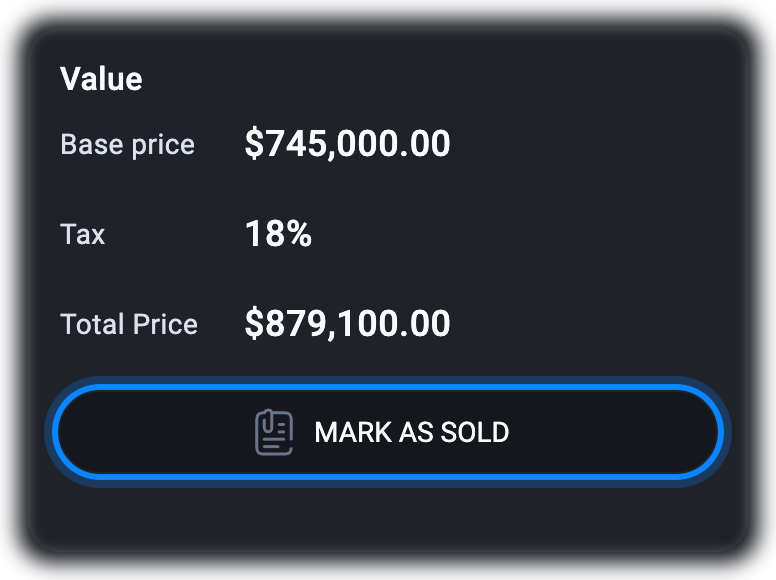
Step 6 (Mark it sold): A sale doesn’t change the artwork by itself. On the artwork’s page:
- One-off work: click
 on the Value card.
- Edition: increase Sold on the Editions card.
(See How to Set an Artwork’s Price and Editions.)
4 · The shipment
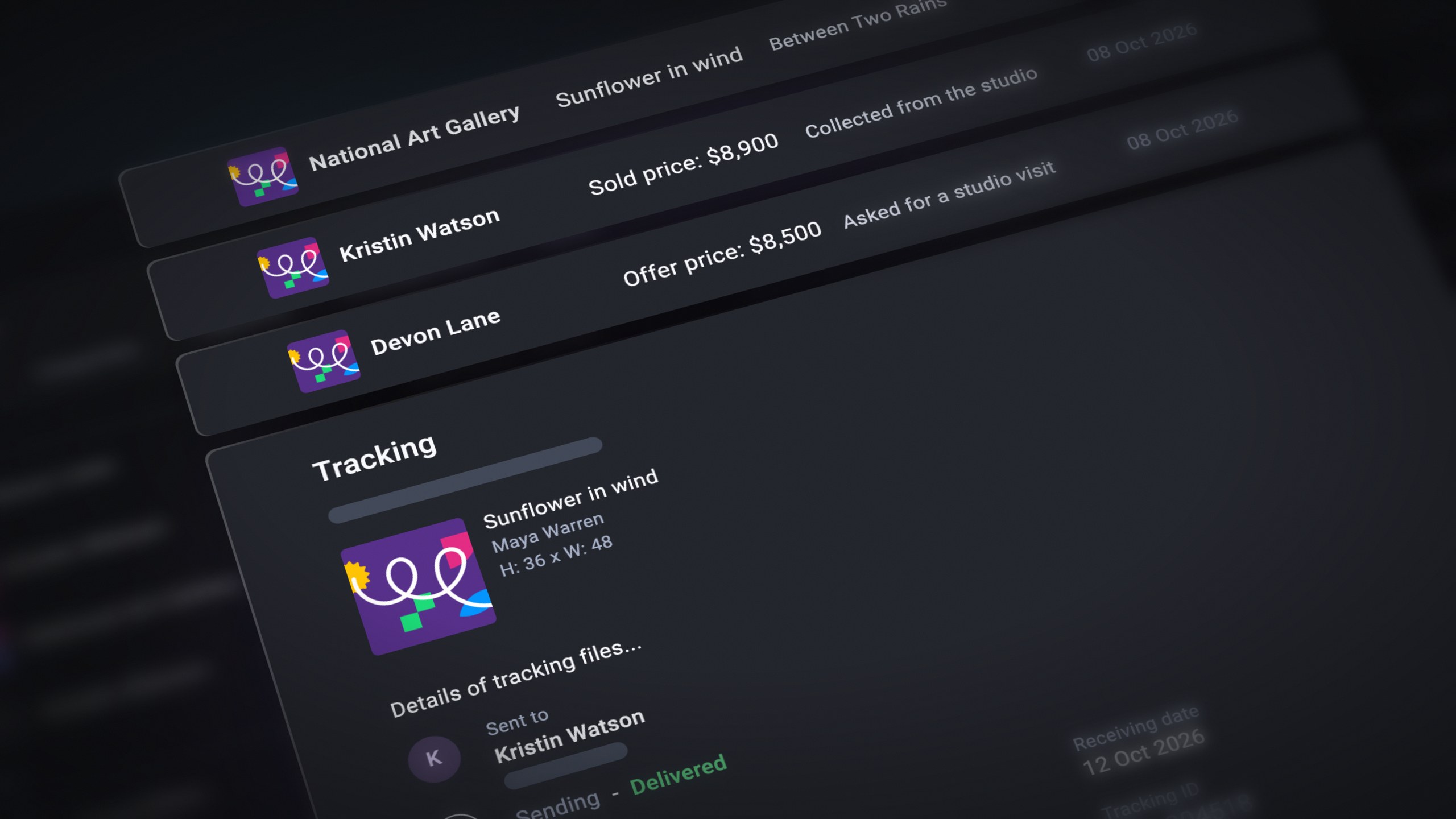
Step 7 (Track the shipment): ADD RECORD → Tracking: a heading, the buyer as contact, Sending, the start date, the courier and tracking ID, and the artwork. Change the status to Tracking, because it starts as Undelivered. In the second step, link the sale, then click  . (See How to Add a Record.)
Step 8 (Mark it delivered): When it arrives, open the tracking record (row ⋮ → Edit), set the status to Delivered and upload the delivery receipt. Then update the artwork’s location yourself, because delivery doesn’t change it. (See How to Find and Edit.)
Key Fields Explained
If Something Goes Wrong
| What you see | What to do |
|---|---|
| The buyer isn’t in the sale’s Contact list | Their name was typed on the enquiry, so it isn’t a contact. Add them in Contacts, with their address, then record the sale. |
| The enquiry isn’t on the sale | Edit the sale and pick the enquiry under Link records. |
| The invoice doesn’t show the balance payment | Invoices aren’t updated after they’re generated. The sale record shows the payment. |
| The artwork still shows Available | Sales don’t change the artwork. Use MARK AS SOLD, or update Sold on Editions. |
| The tracking shows Undelivered while it’s on the way | It starts that way. Edit it and set the status to Tracking. |
| The artwork’s location still says the studio after delivery | Delivery doesn’t change the artwork. Edit the artwork and update its Location. |
Example Scenario
A ceramics gallery turns an art-fair enquiry into a delivered sale. A visitor scans the QR code next to a one-of-a-kind ceramic sculpture and sends an enquiry, which lands in Records → Enquiries. Once they agree on a price, the gallery adds the collector as a contact with their delivery address, records the sale, links the enquiry, logs the 50% deposit, and generates the invoice showing what’s left to pay.
Then the gallery marks the sculpture as Sold. When the rest of the payment comes in, they add it to the sale and create a Tracking record linked to that sale, with the courier’s tracking ID and the status set to Tracking. Once it arrives, they switch it to Delivered and update the sculpture’s location to the collector’s city. The enquiry, payment, invoice and shipment all stay connected from the fair booth to the collector’s door.
FAQ
Can I turn an enquiry into a sale with one click?
No. Record the sale, then link the enquiry under Link records.
Does a sale update the artwork’s status?
No. Use MARK AS SOLD, or update Sold on the Editions card.
Will the invoice show the balance payment?
No. The invoice shows what was paid when you generated it. Add later payments to the sale so the record is complete.
Where do QR page enquiries go?
To Records, under Enquiries.
How do I mark a shipment as delivered?
Edit the tracking record and set its status to Delivered.
Does Delivered update the artwork?
No. Update the artwork’s location yourself.
Can I see all the linked records together?
Yes. Open the sale or the tracking record, and the records you linked show as cards in its panel.
Next Steps
(Underlined below as placeholders: link to the live articles only in the final version.)
- How to Create a Report: a Certificate of Authenticity for the buyer.
- Workflow: Preparing an Exhibition in AWWRT: where many of these enquiries begin.
- How to Record a Sale and Create an Invoice: every field of the sale and invoice.
Every other guide used here is linked in the steps above.
Final Takeaway
Enquiry, sale, shipment, all linked and each one closed by you. The artwork’s whole journey stays one click away.