How to Create an Album and Choose Its Artworks in AWWRT

Quick Answer
A series spread across your whole collection? Put it in an album. Go to Artworks → Albums, click ADD ALBUMS, give the album a title, click Choose artworks, tick the ones you want and click PROCEED. Then click SAVE. Albums are part of Artist accounts.
Keep the following ready
- Artworks added
- Album title
Step-by-Step Guide
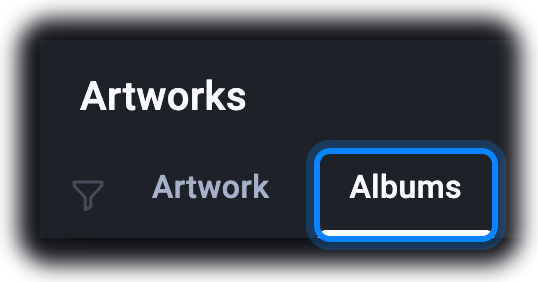
Step 1: Click Artworks in the side menu, then the Albums tab.
Step 2: Click  at the top of the side menu. (No albums yet? The empty page has an link too. On a phone, use the floating + button.)
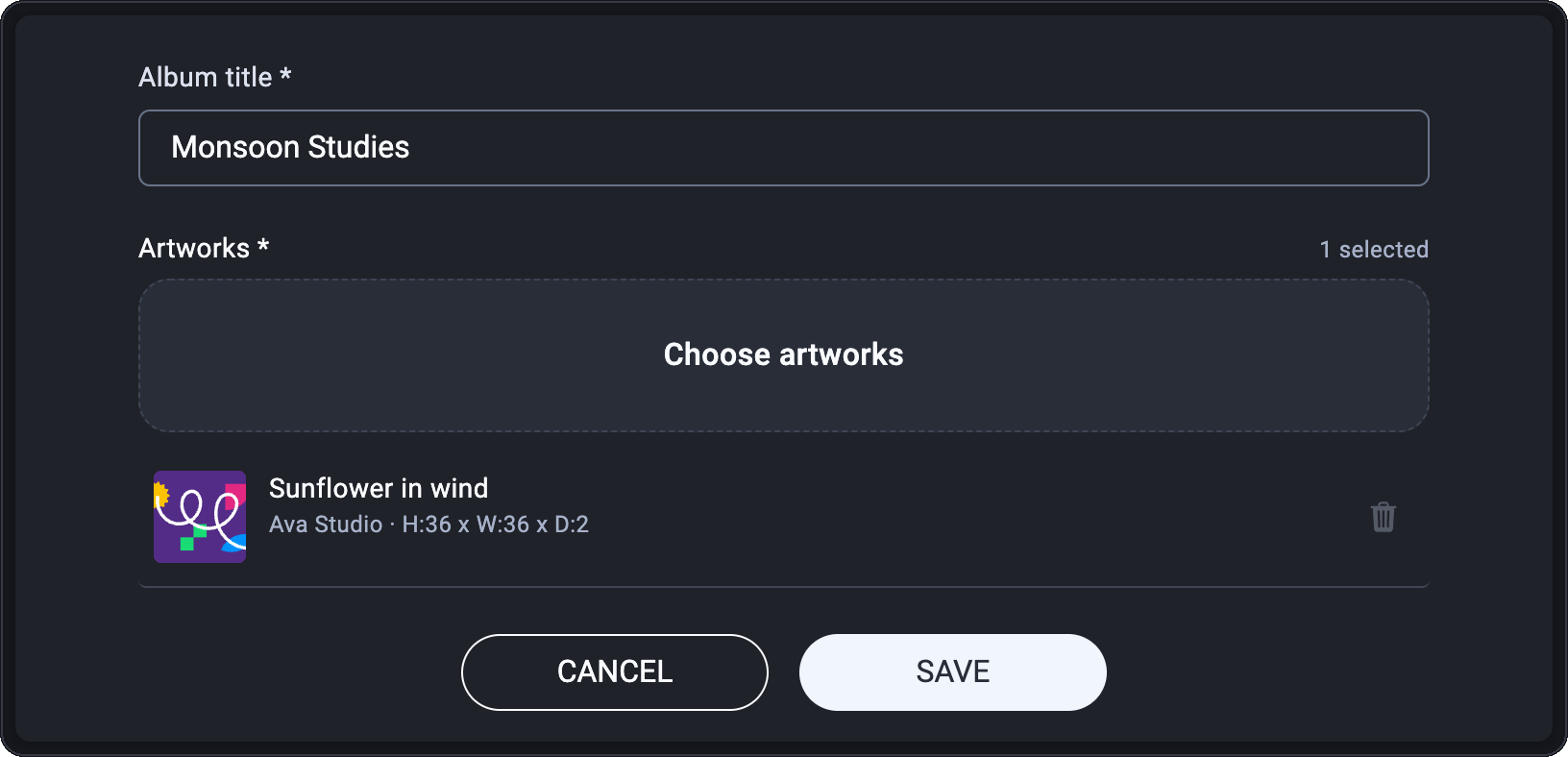
Step 3 (Create Album): Enter the Album title (required).
Step 4: Under Artworks, click Choose artworks. An album needs at least one artwork.
Step 5: In Choose artworks, tick the artworks you want. Search by title, artist or medium.
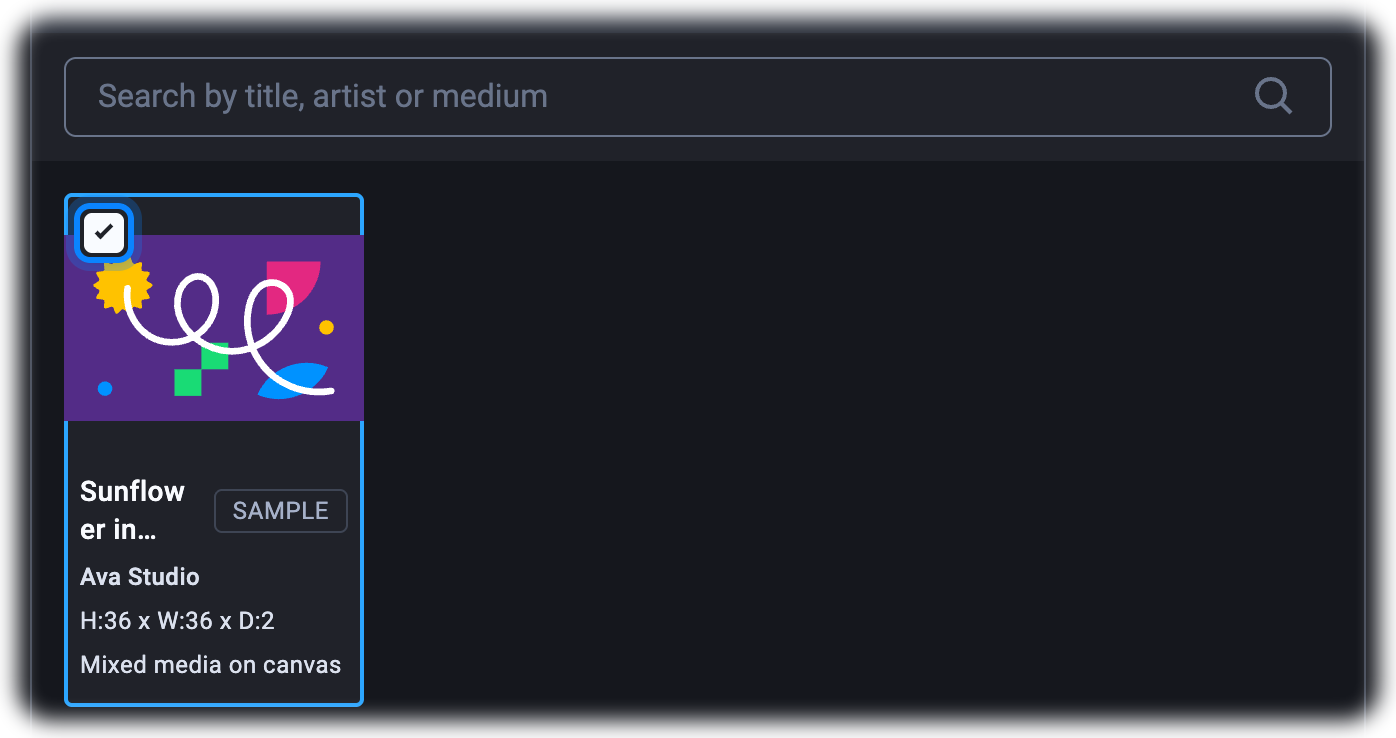
The bottom of the picker counts them. Click  .

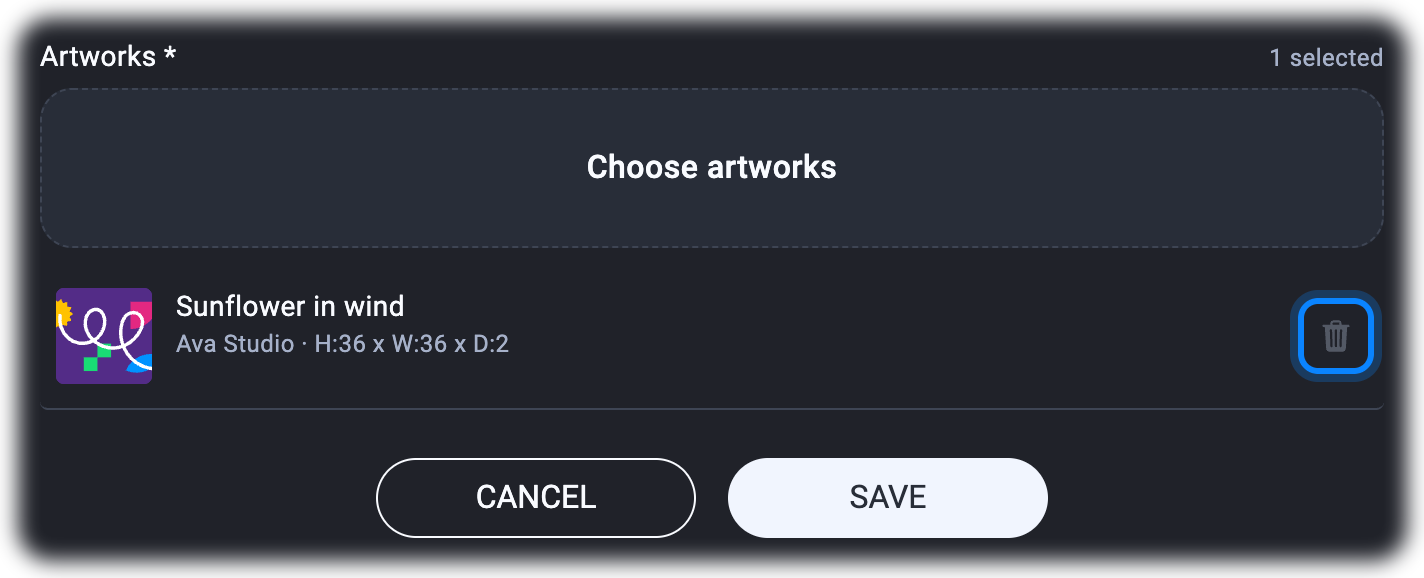
Step 6: The chosen artworks are listed on the form. To drop one, click its bin icon.
Step 7: Click  . AWWRT opens the new album.
Step 8 (Change it later): Open the album and use its  menu:
- Edit: change the title, or add and remove artworks.
- Delete: removes the album. Your artworks stay in Artworks.
You can also take a single artwork out from its own menu on the album page.
Key Fields Explained
Example Scenario
A multimedia artist puts together a residency application. The application asks for a tight selection from the past three years, so they create an album called “Residency Selection: Memory and Signal”. They search their collection and pick ten related works across installations, video pieces and small sculptures.
As they refine the application, they drop two weaker pieces and add a newer installation without touching the artworks themselves. The album keeps that residency selection in one place while the rest of their work stays organised in Artworks.
Common Mistakes to Avoid
- Repeating an album title. Each album in your account needs its own title; a repeat is refused with “Album title already exist”.
- Adding artworks you haven’t created yet. Add the artwork first, then choose it.
- Expecting Delete to remove artworks. Deleting an album keeps every artwork in Artworks.
FAQ
Who can create albums?
Artist accounts. Gallery and collector accounts don’t have the Albums tab.
Can an artwork be in more than one album?
Yes. Adding it to an album doesn’t move or change it.
Does deleting an album delete its artworks?
No. Only the album is removed, and the artworks stay in Artworks.
Can I share an album?
No. Albums are for organising your work inside AWWRT.
Next Steps
- How to Add an Artwork
- How to Bulk Upload Artworks
- How to Add an Exhibition: for a dated show at a venue, use an exhibition instead of an album.