How to Use an Artwork’s QR Code in AWWRT
Quick Answer
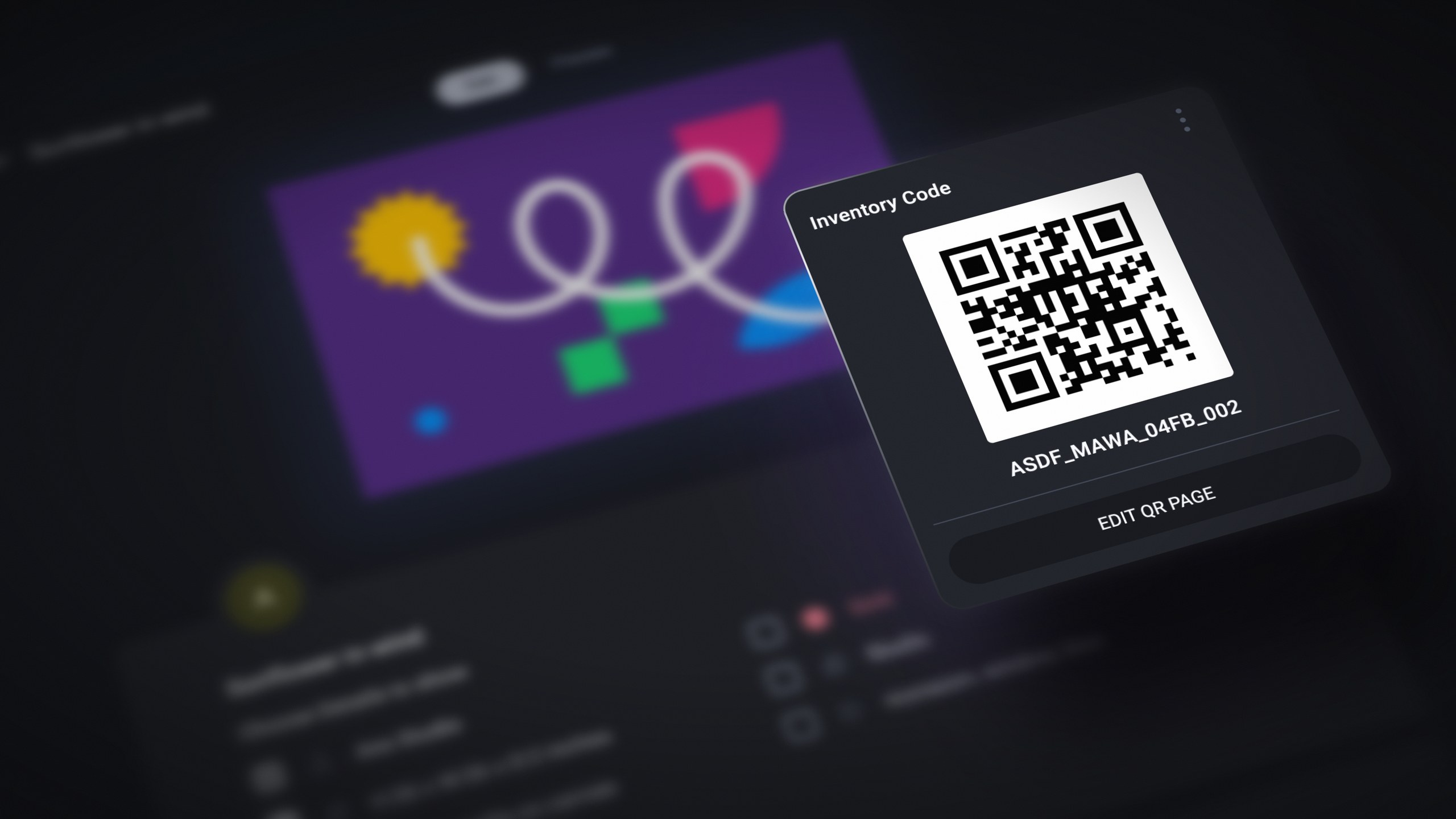
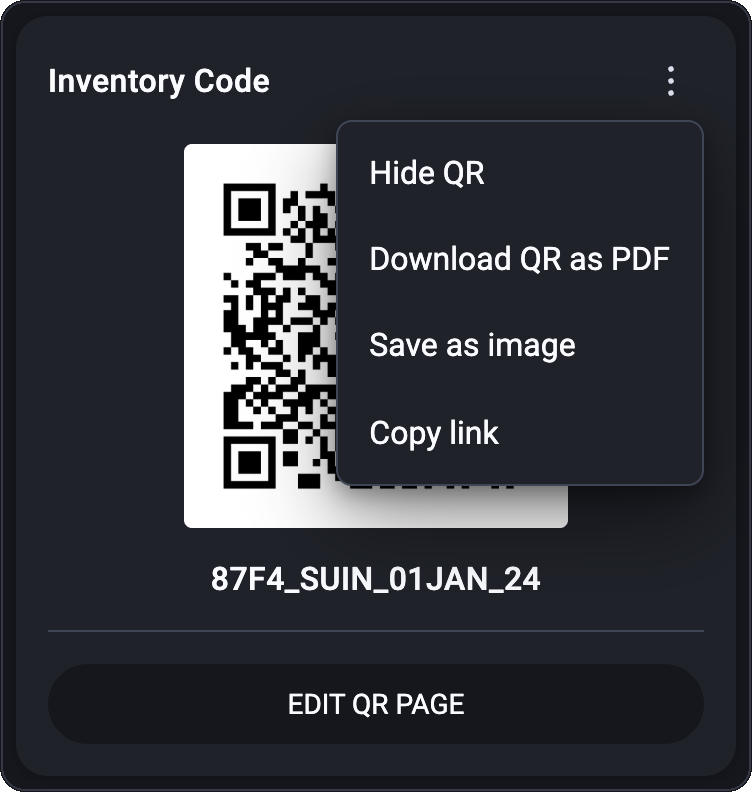
Want visitors to scan a label and see the artwork? Every artwork already has a QR code. It’s on the Inventory Code card on the artwork’s page. Open the card’s ⋮ menu to download it as a PDF, save it as an image, copy its link or hide it. Click EDIT QR PAGE to change what visitors see. Use it for shows, open studios, storage labels, or to send a work’s page to a buyer.
Before You Start
- The QR code never changes; print it once. It points to the artwork’s page by its inventory code, which is set when the artwork is saved and never changes. Edit the title, price or anything else, and labels you’ve already printed still work.
- Set up the QR page before you print. Scanning opens the page you design in the QR page editor (which details show, an About text, enquiries). Check it first with EDIT QR PAGE.
- The page is public. Anyone who scans the code or has the link can open it, with no AWWRT account or login needed.
- Nothing hides it for you. A work marked Sold or On loan stays online until you choose Hide QR.
- One artwork, or many? This card is for one artwork at a time. For a whole show, the Artwork Labels report prints labels with QR codes for many artworks at once.
Keep the following ready:
- An artwork already added
- Its QR page set up (optional, but do it before printing)
Step-by-Step Guide
Step 1: Open Artworks and click the artwork. On the Details tab, find the Inventory Code card.
Step 2: The card shows the QR code and, under it, the inventory code. AWWRT creates both when you save the artwork.
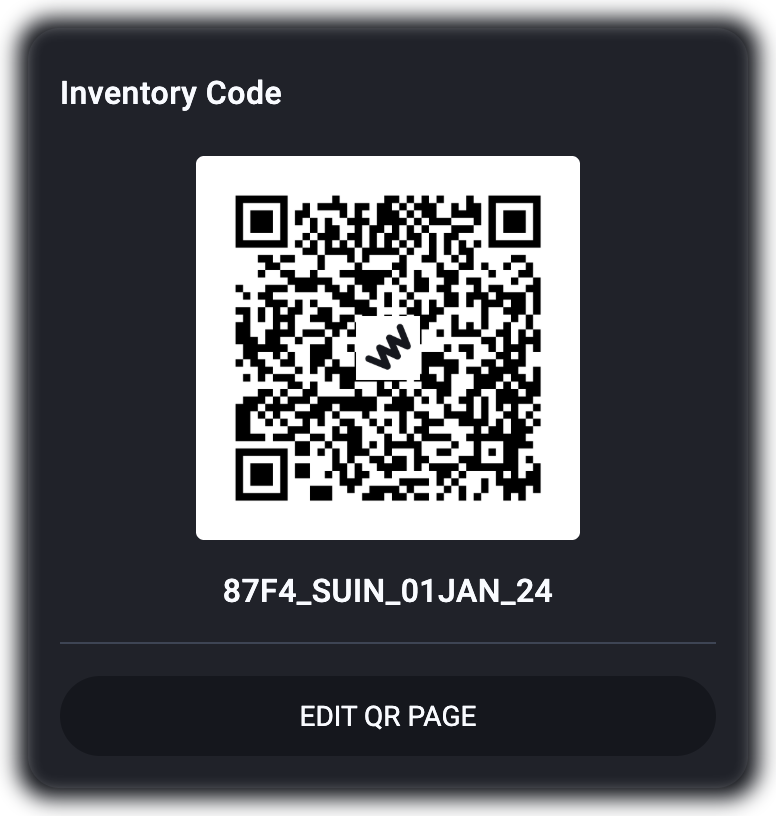
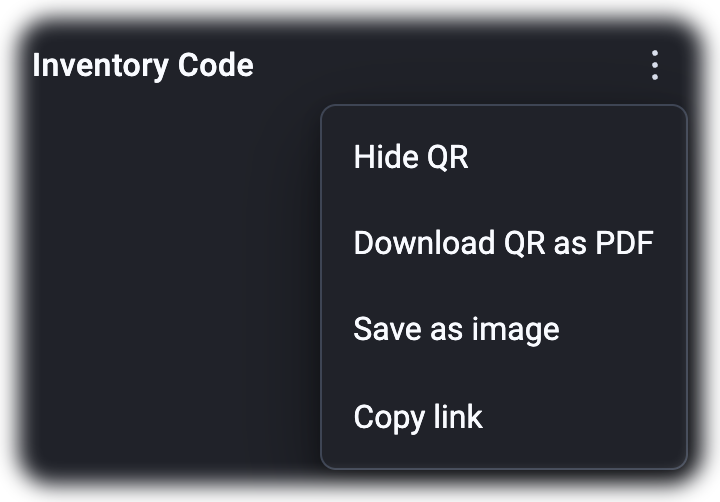
Step 3: Open the card’s ⋮ menu (shown when you hover over the card). You’ll see:
- Download QR as PDF: an A4 page with the artwork’s title and the QR code, ready to print.
- Save as image: the QR code as an image file, for your own labels or designs.
- Copy link: copies the link to the artwork’s public page.
- Hide QR: takes the public page offline.
Step 4 (Hide or show the page): Choose Hide QR, then click  in the box that asks “Hide the QR code?”.
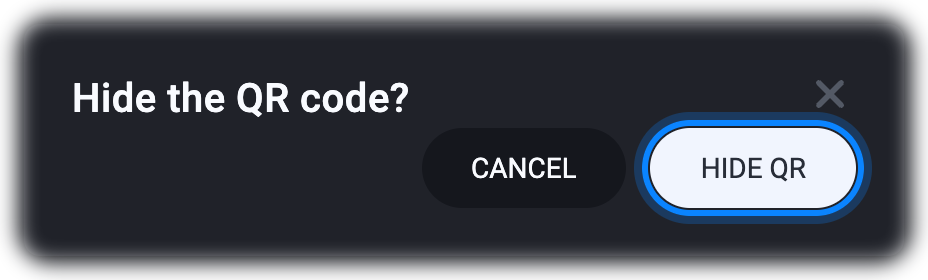
- The QR code is blurred on the card.
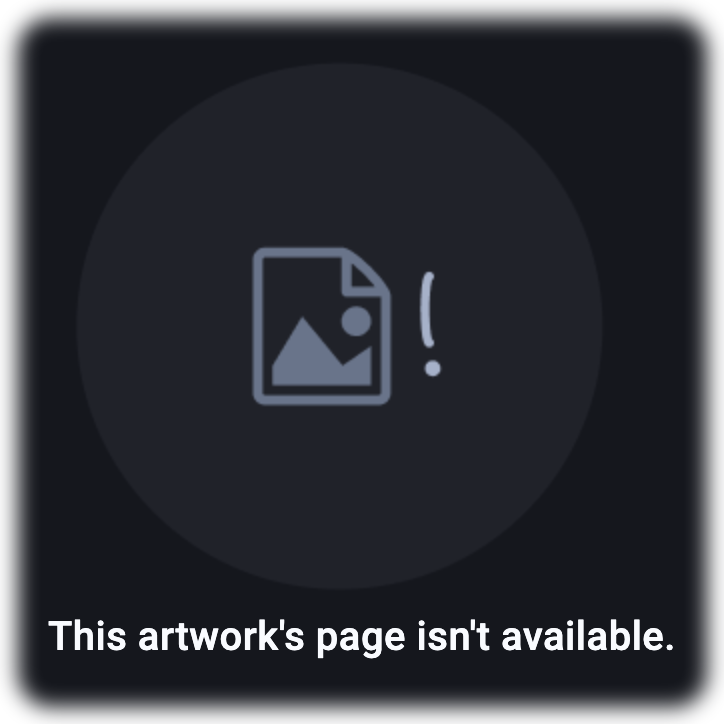
- Anyone who scans it sees “This artwork’s page isn’t available.”
- To bring it back, choose Show QR from the same menu and confirm
 .
Step 5 (Change what visitors see): Click  to open the QR page editor, where you choose which details to show, set up enquiries and preview the page. It has its own guide.
Key Fields Explained
Which Option to Use
| You want to… | Use | What you get |
|---|---|---|
| Print a QR for one artwork | ⋮ → Download QR as PDF | An A4 page with the title and QR, named after the inventory code |
| Put the QR in your own label or design | ⋮ → Save as image | A PNG of the QR, named after the artwork’s title |
| Send the page to a buyer or curator | ⋮ → Copy link | The page’s link, ready to paste into a message or email |
| Label a whole show | Reports → Artwork Labels, with Label and QR code | Wall labels with details and QR codes for many artworks, in one PDF |
Always use the PDF or the image file. A screenshot of the QR code won’t print sharply.
What Visitors See
- When the page is live: the artwork’s image and title, plus whatever you’ve turned on in the QR page editor: size, medium, price, an About text, a video, or a social link.
- If you’ve switched on enquiries: visitors can send an enquiry from the page. It lands in Records, under the Enquiry tab.
- When the QR is hidden: only “This artwork’s page isn’t available.”, with no details and no enquiry form.
If Something Goes Wrong
| What you see | What to do |
|---|---|
| Visitors say the page “isn’t available” | The QR is hidden. Choose Show QR from the card’s ⋮ menu. |
| “No QR code found.” or “Failed to generate PDF.” | Reload the artwork’s page and try Download QR as PDF again. Save as image is a fallback. |
| You changed the title; will old labels still work? | Yes. The QR uses the inventory code, which never changes. |
| The PDF title is cut short with “…” | The PDF shows the first 25 characters of the title. Use Save as image for your own label if you need the full title. |
| No ⋮ on the card | Hover over the card. The menu only appears then. |
Example Scenario
A sculpture park gets QR plaques ready for a new outdoor trail. For each piece, the registrar opens the Inventory Code card and clicks Save as image, giving the sign designer a PNG to drop into the plaque layout. They also copy each artwork link for the trail’s online visitor guide.
One sculpture’s write-up is still waiting on rights approval, so the registrar picks Hide QR before the plaques go up. Once the text is cleared, they switch it back with Show QR. The same printed plaque now opens the page, with nothing to reprint. You control when each page goes live while keeping one permanent QR code on the trail.
FAQ
Can I change the inventory code?
No. AWWRT creates it when you save the artwork, from its title and year, and it never changes.
Does the QR still work if I edit the artwork?
Yes. Change the title, price or status and the same QR code keeps working; it opens the updated page.
Do visitors need an AWWRT account?
No. The page opens in any phone browser, with no login.
Does hiding the QR stop enquiries?
Yes. While it’s hidden, the whole page is unavailable, including the enquiry form.
What’s in the PDF?
An A4 page with the artwork’s title and its QR code, ready to print.
An artwork sold. Should I hide its QR page?
Keep it live and tick Status in the QR page editor, so visitors see it’s Sold.
Next Steps
(Underlined below as placeholders: link to the live articles only in the final version.)
- How to Customize the QR Code Widget for an Artwork: choose what visitors see and switch on enquiries.
- How to Create a Report: Artwork Labels with QR codes for many artworks.
- How to Add a Record: follow up enquiries that come in from the QR page.
Before you start, if you haven’t yet: How to Add an Artwork.
Final Takeaway
Every artwork comes with a QR code that never changes. Set up its page, print it once, and hide it whenever a work shouldn’t be public.