How to Describe an Artwork in AWWRT: Creation Date, Dimensions and About the Work
Quick Answer
A title and price aren’t the whole story of an artwork. Three cards on its page hold the rest. Open the artwork, then use Creation date for when it was made, Dimensions for its frame size and weight, and About-Work for a description and an optional document. Each card works the same way: add, fill in, SAVE.
Before You Start
The three cards aren’t seen by the same people. Decide what goes where before you type:
- About-Work is public. Its description prints on the catalogue report and appears on the artwork’s QR page. It’s the same text as About work in the QR page editor; edit either one and both change. Write it for buyers and visitors.
- Creation date and Dimensions are your own record. They show only on the artwork’s page, and no report or QR page uses them. Use them for working notes, shipping and insurance.
- The year comes from the artwork. The Creation date card shows the year, month and date you entered when adding the artwork. To change them, edit the artwork itself.
- Frame size uses your measurement unit; weight is in grams. The unit is the one in Settings → Preferences (the form says, for example, “Frame (in inches)”).
Keep the following ready:
- An artwork already added
- Start and finish dates for the work
- Frame size and weight (grams)
- A short public description (up to 500 characters)
- A supporting document, like a certificate or press note (optional, up to 5 MB)
Step-by-Step Guide
Step 1: Open Artworks and click the artwork. The cards are on the Details tab, below the artwork’s main details. An empty card shows a short note and an add button, like  .
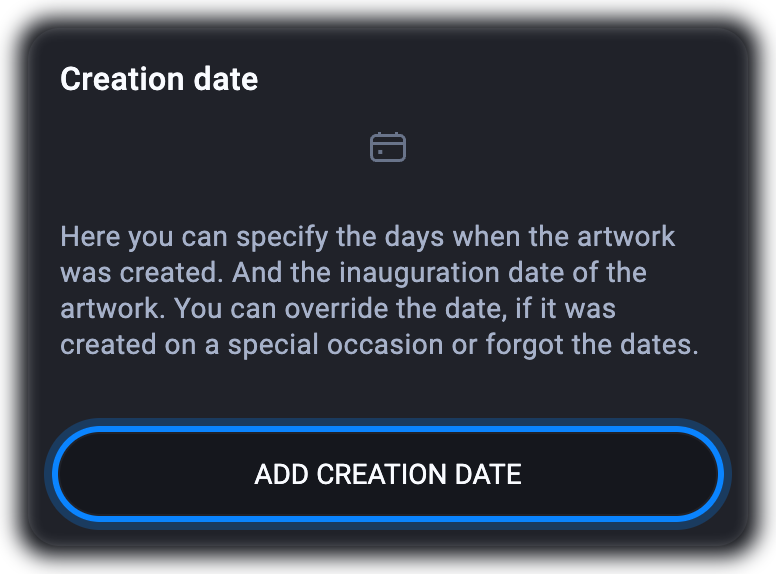
Creation date
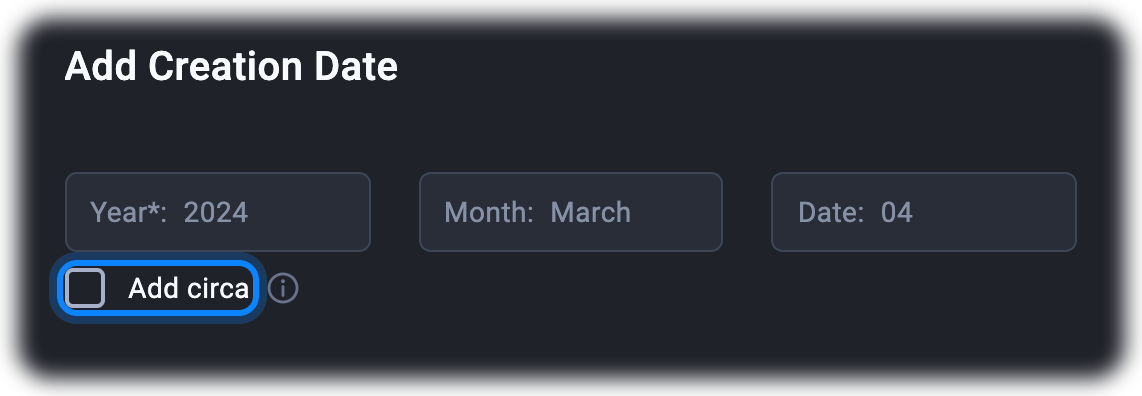
Step 2: Click . At the top, the artwork’s year, month and date are shown. Tick Add circa if you don’t know the exact year.
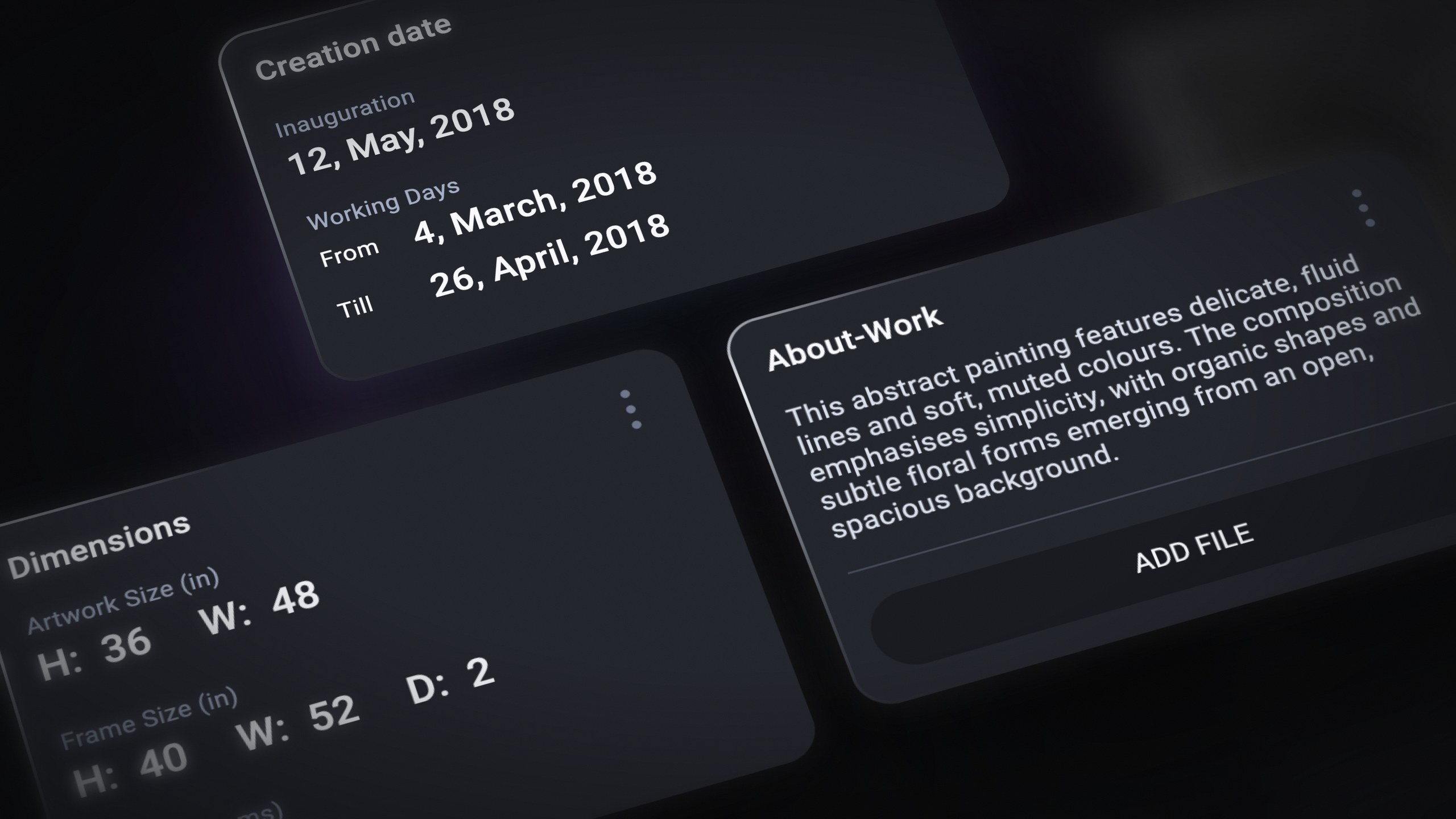
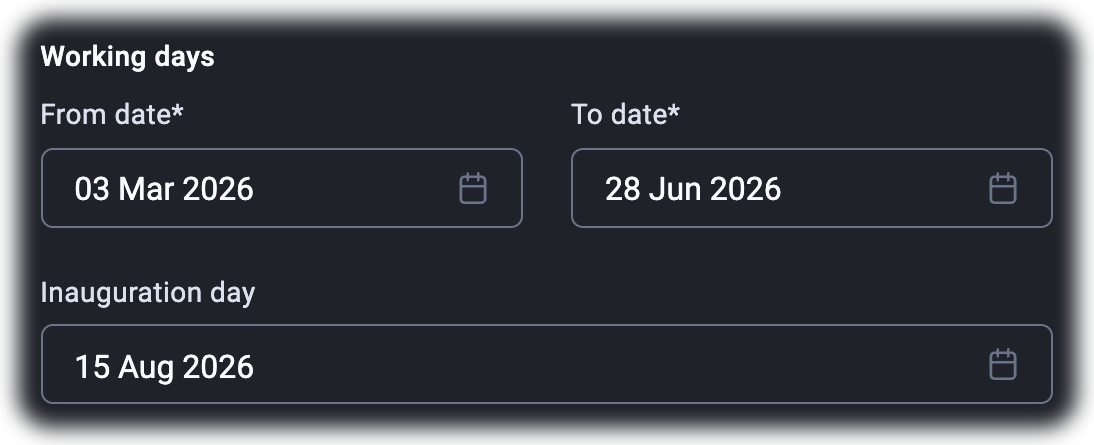
Step 3 (Working days): Enter the From date and To date, meaning when you started and finished. Both are required; for a work finished in one day, use the same date for both. Inauguration day is optional, for when the work was unveiled.
Step 4 (optional):
- Creation date in text: up to 150 characters, for dates you can only describe, like “Early Byzantine era”.
- Description: up to 250 characters.
Step 5: Click  .
Dimensions
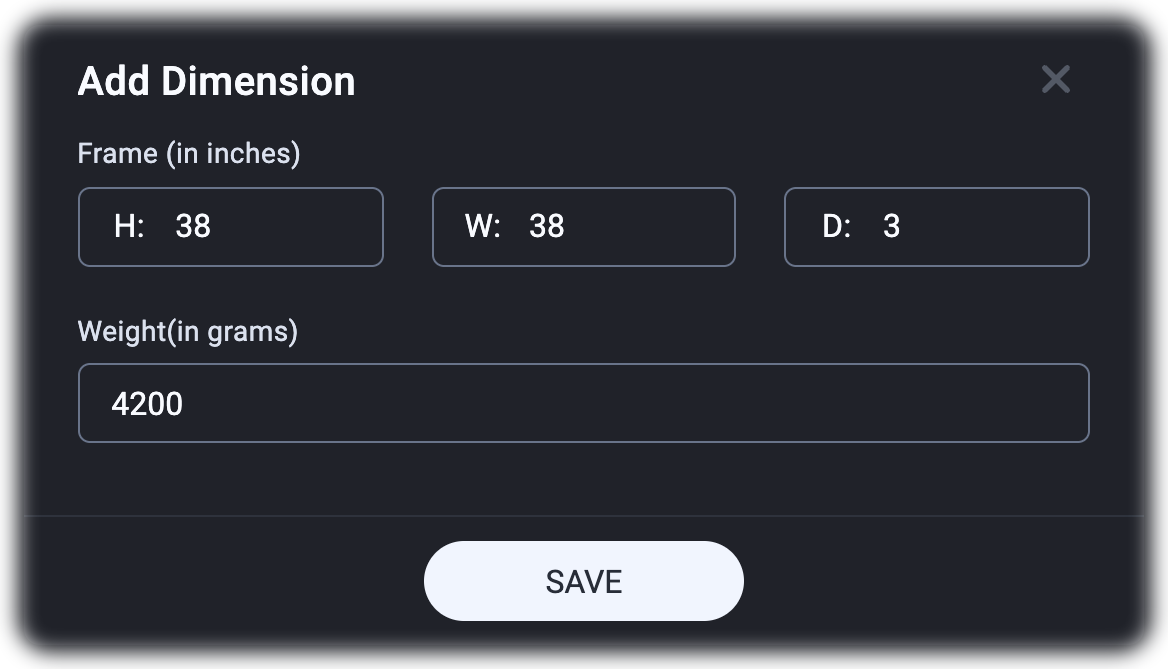
Step 6: Click  . Enter the frame size (height, width and depth) and the weight in grams. At least one value is needed. Click .
Note: This card is for the frame. The artwork’s own size is the one you entered when adding it. The card shows both: Artwork Size and Frame Size.
About-Work
Step 7: Click  . Write the Description (required, up to 500 characters). Inspiration, process, photo credits: anything you’re happy for visitors to read.
Step 8 (optional): Under Document, click  to attach one file, up to 5 MB.
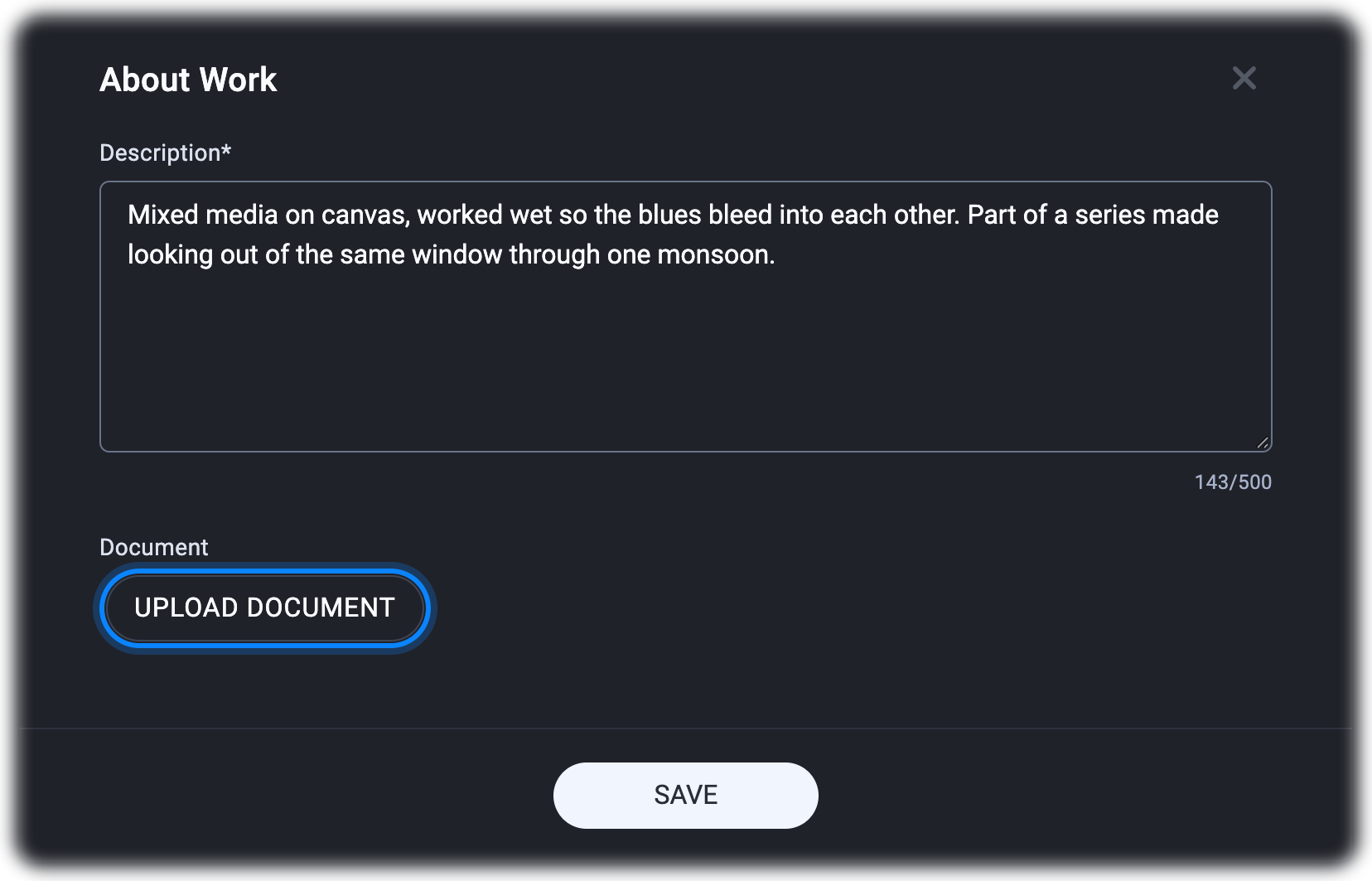
Step 9: Click .
Key Fields Explained
Who Sees Each Card
| Card | Artwork page | Reports | QR page |
|---|---|---|---|
| Creation date | ✓ | – | – |
| Dimensions | ✓ | – (reports print the artwork’s own size) | – |
| About-Work | ✓ | Catalogue | ✓ (as “About work”) |
After You Save
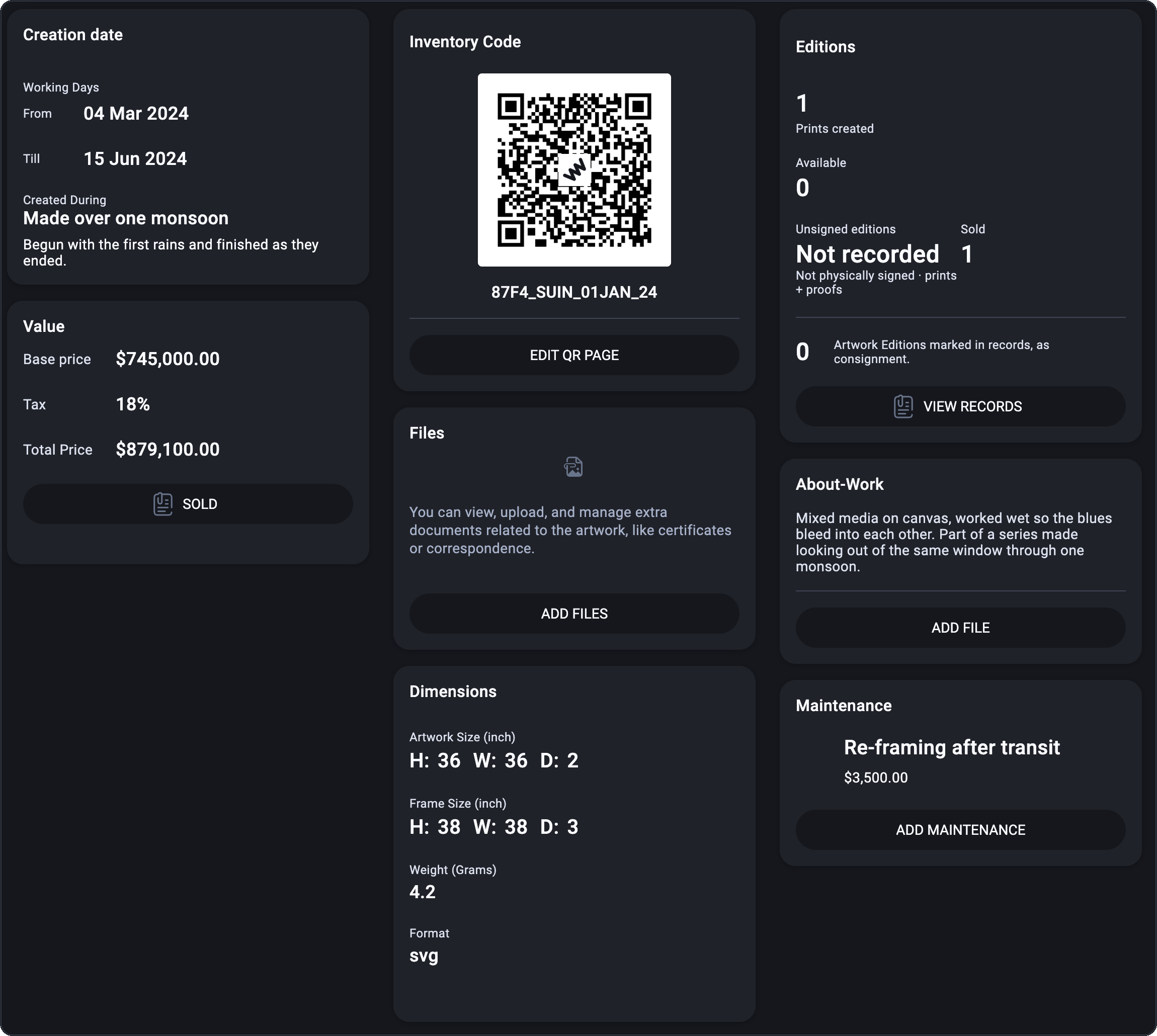
- Creation date shows the Working Days (From and Till), any inauguration day, your text under Created During, the description, and Circa if you ticked it.
- Dimensions shows Artwork Size and Frame Size side by side, plus the weight. If you later change the measurement unit, both are converted for display.
- About-Work shows your description, and a button with the document’s name that opens it. No document yet? The card’s ADD FILE button opens the same form.
To change or remove details, use the card’s ⋮ menu: Edit or Delete. On a computer, the ⋮ appears when you hover over the card. Delete asks you to confirm first.
If Something Goes Wrong
| What you see | What to do |
|---|---|
| “From date is required” or “To date is required” | Both working days are needed to save the Creation date card. Fill in both. |
| “To date must not be before the from date” | Swap the dates, or fix the one that’s wrong. |
| “Enter at least one dimension” | Enter at least one of frame height, width, depth or weight. |
| The About-Work description stops taking text | The box holds 500 characters. Shorten it; longer text belongs in the document. |
| “file name is over 5MB” | Compress the document or save a smaller PDF, then upload again. |
| No ⋮ on a filled card | Hover over the card. The menu only appears then. |
| You can’t change the year on the Creation date card | It comes from the artwork. Use ⋯ → Edit on the artwork’s details panel. |
Example Scenario
A textile artist gets a framed hand-dyed piece ready for a gallery show. Under Creation date, they log the weeks spent dyeing, stitching and mounting the work. Under Dimensions, they add the finished frame’s height, width and depth, plus its weight in grams so the gallery or shipper can plan how to handle it.
In About-Work, they write a short public note about the natural dyes, repeated pattern and family archive behind the piece, then attach a one-page care note. Visitors see that description on the catalogue and QR page, while the working dates, frame size and weight stay in the artwork’s own record.
FAQ
What’s the difference between Artwork Size and Frame Size?
Artwork Size is the piece itself, entered when you added it. Frame Size is what you enter on the Dimensions card.
Is About-Work the same as “About work” in the QR page editor?
Yes, it’s one description. Change it in either place and both update.
Can I attach more than one document to About-Work?
No, one document per artwork here. For more, use the artwork’s Files card.
Do I have to fill in all three cards?
No. Each card is optional and saves on its own, so fill in only the ones you need.
Which date do labels and the QR page show?
The year from the artwork’s primary details, not the working days or inauguration day from this card.
What kind of document can I attach to About-Work?
Any file type, up to 5 MB, such as a certificate, a press note, or a PDF of the full story.
Can visitors see the document attached to About-Work?
No. Visitors see the description; the document shows only on the artwork’s card.
Next Steps
(Underlined below as placeholders: link to the live articles only in the final version.)
- How to Set an Artwork’s Price and Editions: the next cards on the same page.
- How to Attach Files: photos, invoices and condition reports.
- How to Customize the QR Code Widget for an Artwork: choose what visitors see next to the About work.
- How to Create a Report: the catalogue prints the About-Work description.
Before you start, if you haven’t yet: How to Add an Artwork.
Final Takeaway
Three cards, one pattern: add, fill in, SAVE. Write About-Work for the public; keep the dates, frame and weight as your own record.