How to Find and Edit Artworks, Contacts, Exhibitions and Records in AWWRT

Quick Answer
A hundred artworks and you need the unsold oil paintings from 2024? Use the filter. There’s no search box; each list has its own Filter. Click it, set what you’re looking for and click APPLY. Change view shows the list another way. Open an item and use its ⋯ menu to Edit it.
Step-by-Step Guide
Artworks are the example. The same steps work for contacts, exhibitions and records (see the table at the end).
Find
Step 1: Click Artworks in the side menu.
Step 2: Click the Filter icon (the funnel, left of the tabs).
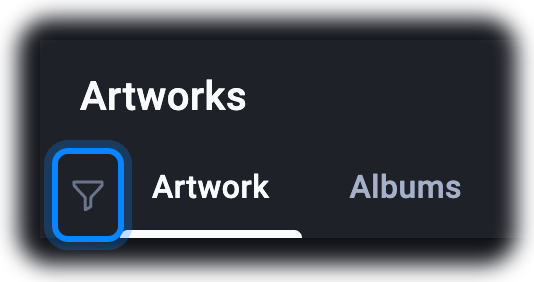
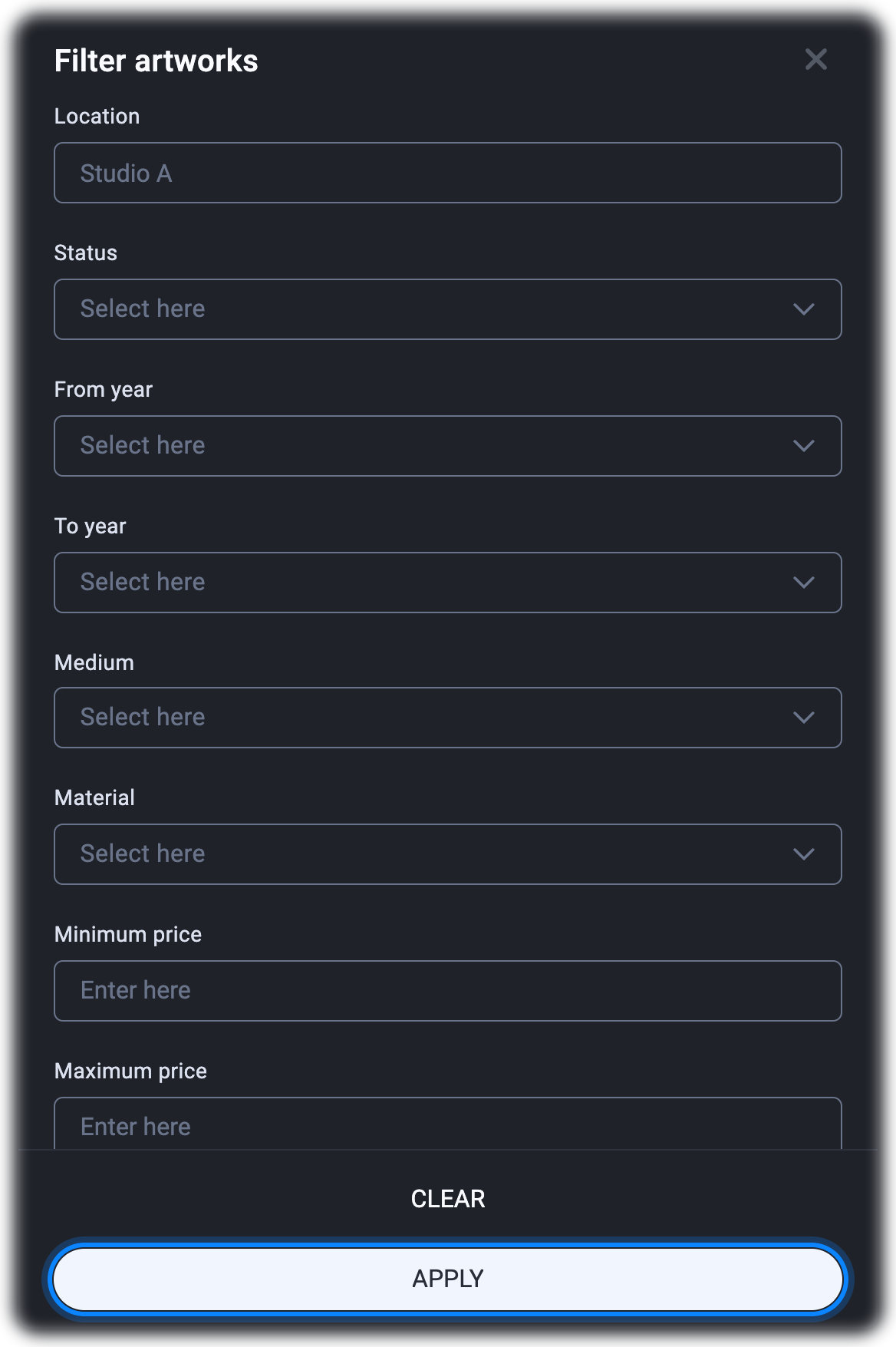
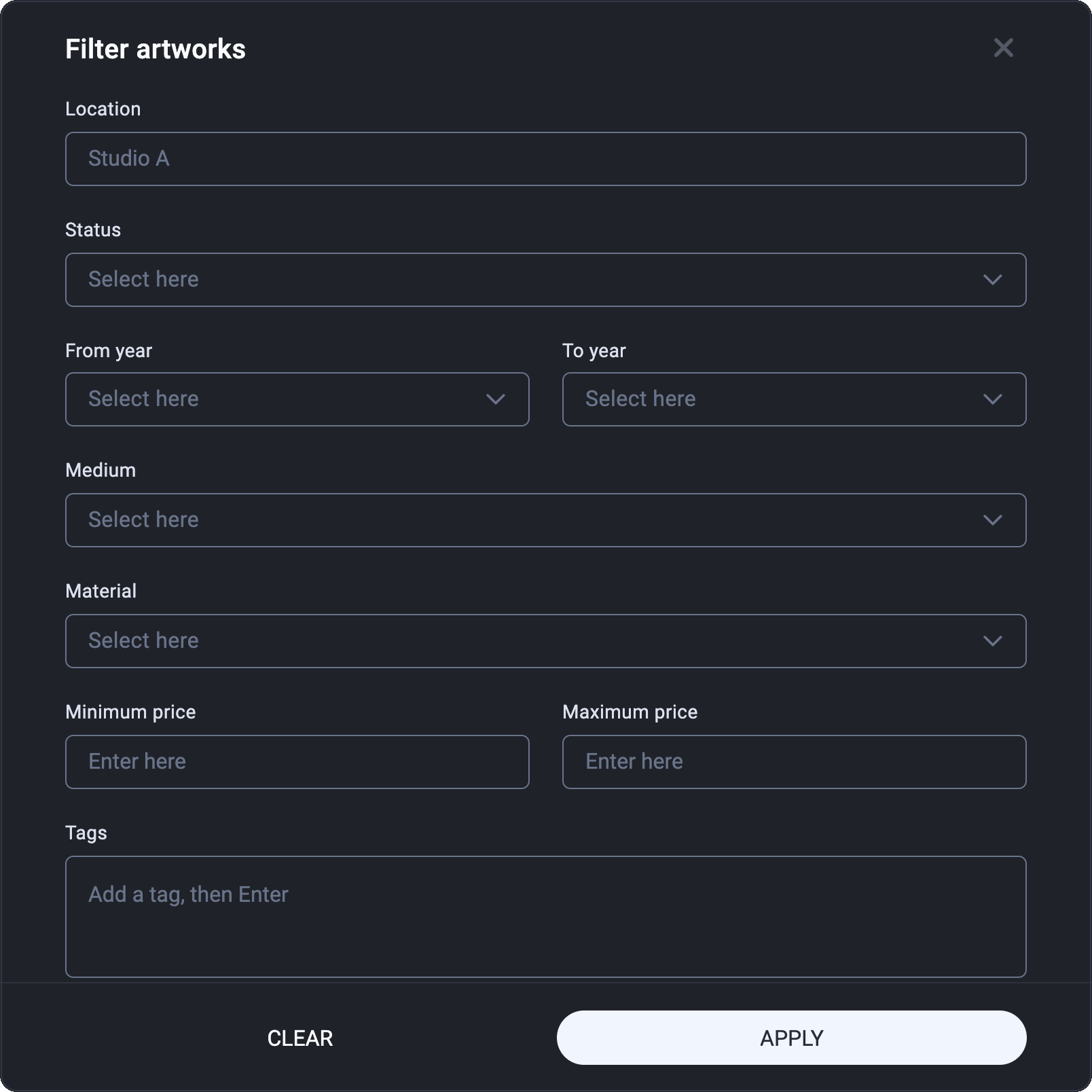
Step 3: In Filter artworks, set any of the filters:
- Location and Status
- From year and To year
- Medium and Material
- Minimum price and Maximum price
- Tags
- Available sizes: height, width and depth (scroll down in the panel)
Click  . CLEAR resets the filters.
Step 4: The filters you applied show as chips under the heading. Click a chip’s x to remove just that filter. “No search results” means nothing matches, so remove a chip or two.
Step 5: Click Change view  (the grid icon at the right) to switch between card, thumbnail and detail views.
Gallery accounts also have an Artists tab here, with its own filter by name and date.
Edit
Step 6: Click the artwork to open it.
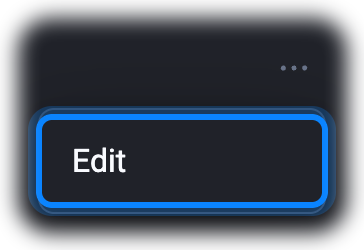
Step 7: Open the ⋯ menu on the right of its title and choose Edit. The form you used to add it opens as Edit Artwork. Change what you need and click  . Edit is the only option: artworks can’t be deleted, so to take one out of circulation, set its status to Archived.
Same steps for contacts, exhibitions and records
| Artworks | Contacts | Exhibitions | Records | |
|---|---|---|---|---|
| Filter by | Location, status, year, medium, material, price, sizes, tags | Label, city | Location, from and to date | Location, contact, tracking status, starting and receiving dates |
| Change view | Card, thumbnail, detail | Thumbnail, card | Thumbnail, card | – (tabs: All, Enquiries, Tracking, Consignment, Sales) |
| Edit | ⋯ → Edit | ⋯ → Edit | ⋯ → Edit | Row ⋮ → Edit |
| Delete | Not available | ⋯ → Delete | ⋯ → Delete | Not available |
Key Fields Explained
Example Scenario
A collector calls asking about available oil paintings under 2,000. The gallery assistant opens Artworks, clicks Filter, and sets Status: Available, Material: Oil on canvas and Maximum price: 2000. Six artworks remain.
One has the wrong year. The assistant opens it, chooses ⋯ → Edit, corrects the year and clicks UPDATE. Found and fixed in under a minute.
Common Mistakes to Avoid
- Leaving filters on. Chips stay under the heading, so remove them to see everything again.
- Deleting a contact or exhibition that’s still in use. AWWRT doesn’t check or warn; it’s removed even if it’s on sales, consignments or other records. Check its Records tab first.
- Trying to delete an artwork or record. They can only be edited. Archive an artwork instead.
FAQ
Is there a search box?
No. Each list has its own Filter.
Can I delete my own contact?
No. The contact AWWRT created for you has no Delete, since it’s how you’re set as the artist on your artworks.
Why is there no view switch on Records?
Records use tabs instead: All, Enquiries, Tracking, Consignment and Sales.
Next Steps
(Underlined below as placeholders: link to the live articles only in the final version.)
- How to Add an Artwork
- How to Add a Contact
- How to Add a Record
- How to Create a Report: once you’ve found the artworks you need.