How to Record a Sale and Create an Invoice in AWWRT
Quick Answer
Sale agreed, invoice still to write? Do both at once. Click ADD RECORD → Sales, choose the buyer and artworks, enter each sale price, check tax, add the payment, and click PREVIEW. Check the invoice, then click GENERATE.
Before You Start
- Sale or consignment? Record a sale when an artwork is sold, in full or in part-payments, and you get an invoice. Record a consignment when artworks go to a gallery, fair or agent to sell or show, and you get a receipt.
- Set up both ends of the invoice first. Your name, email and city in Settings print as “From”; the buyer’s address on their contact prints as “To”. Add anything missing before you start.
- The PDF is made once. GENERATE creates the invoice from what’s on screen. Editing the sale later doesn’t update the PDF, and records can’t be deleted, so check the preview carefully.
- Plan part-payments. The invoice shows what’s paid and remaining on the day you generate it. Later payments can be added to the sale, but they won’t appear on that invoice.
- The artwork doesn’t change. Recording a sale or consignment doesn’t mark an artwork Sold or update its editions; do that on the artwork.
Keep the following ready:
- The buyer added as a contact, with their address
- Your name, email and city in Settings
- Artworks added, and the sale price of each
- Your tax rate
- Payment method, amount and date for each payment so far
Step-by-Step Guide
Sales are the example. Consignments work the same way (see the table at the end).
Step 1: Click  at the top of the side menu (on the Records page) and choose Sales. (Also on Reports → Create records → Sales, or CREATE RECORD on an artwork’s Records tab.)
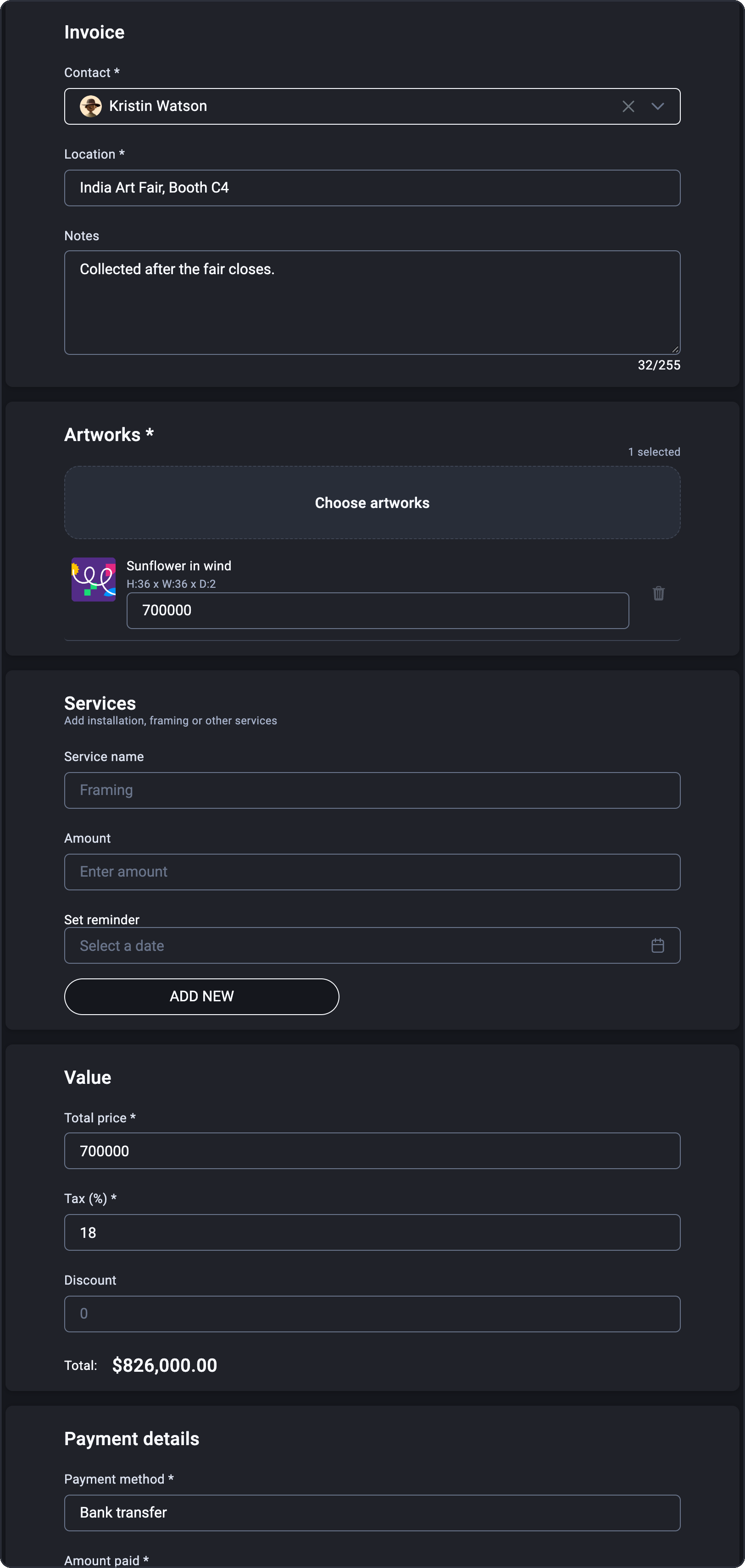
Step 2 (Invoice):
- Contact*: the buyer, from your contacts.
- Location*: where the sale happened, like your studio or a fair.
- Notes: optional, up to 255 characters.
Step 3 (Artworks*): Click Choose artworks, tick the sold works and click  . Enter each artwork’s sale price.
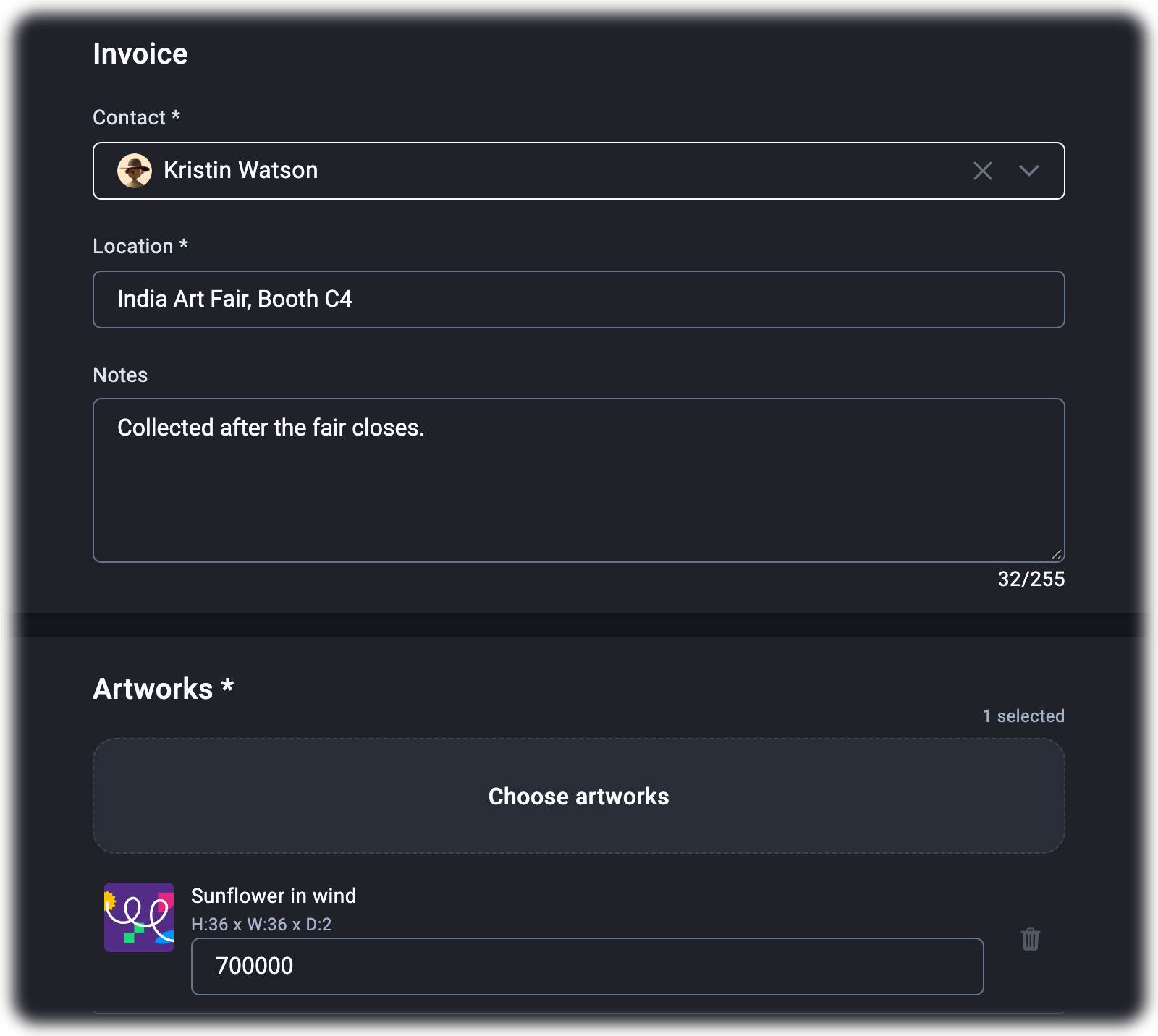
Step 4 (Services, optional): Add extras like framing or shipping: a service name, amount and reminder date. Click ADD NEW for another. Each line needs all three, or leave it empty.
Step 5 (Value):
- Total price*: worked out from the artworks above.
- Tax (%)*: starts at 18. Change it to your rate, or 0.
- Discount: optional amount. It can’t be more than the artworks and services together.
- Total: shown underneath: artworks plus services, minus the discount, plus tax.
Step 6 (Payment details): Enter the payment method (like “Bank transfer”), amount paid and payment date and time (all required). Click ADD NEW for another payment, like a deposit and a balance.
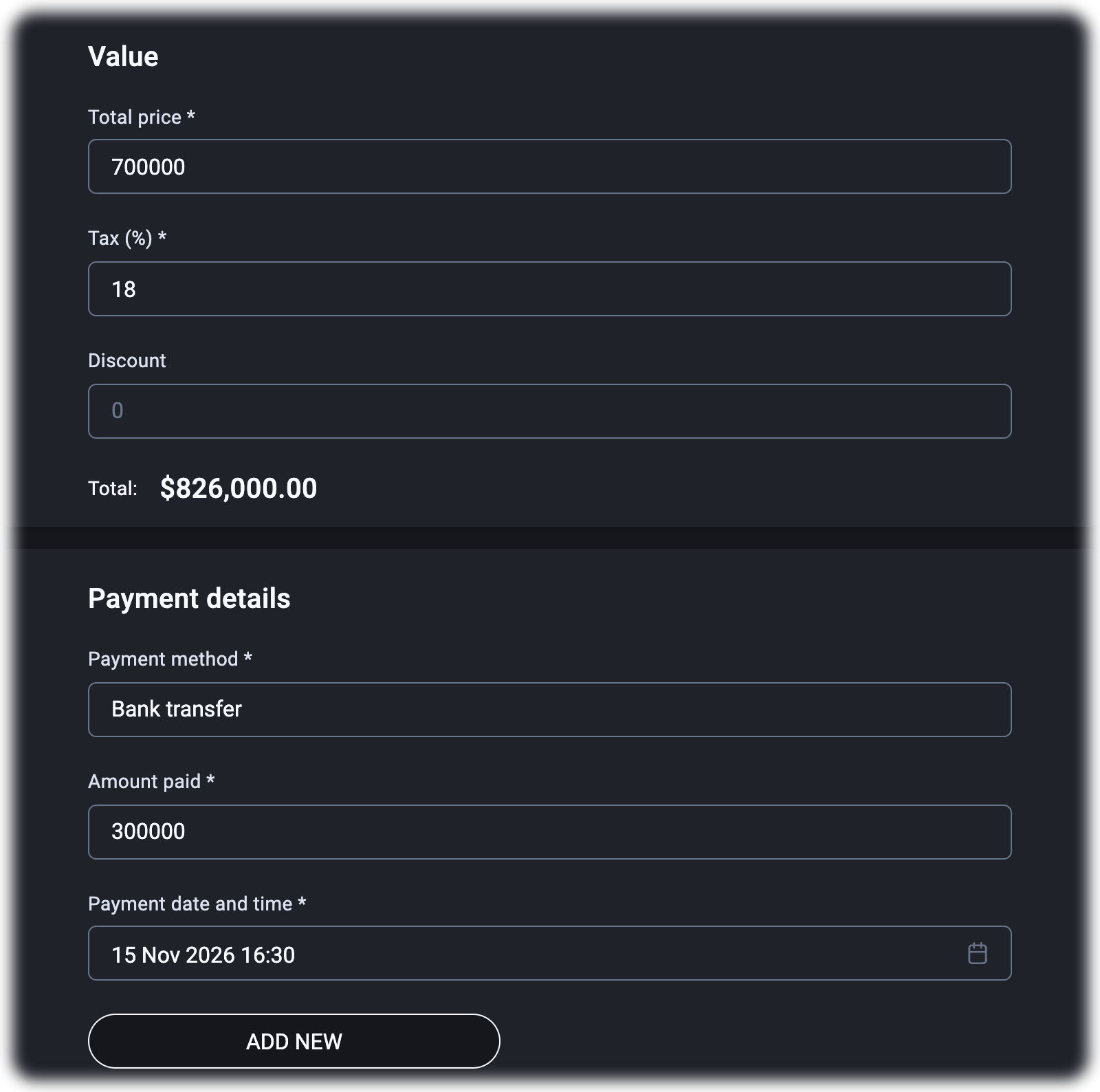
Paid more than the total? AWWRT tells you by how much, and you can still save.
Step 7 (optional): Under Link records and Link exhibitions, connect the enquiry this sale came from, or the show it sold at.
Step 8: Click  and check the invoice. This is exactly what the PDF will show.
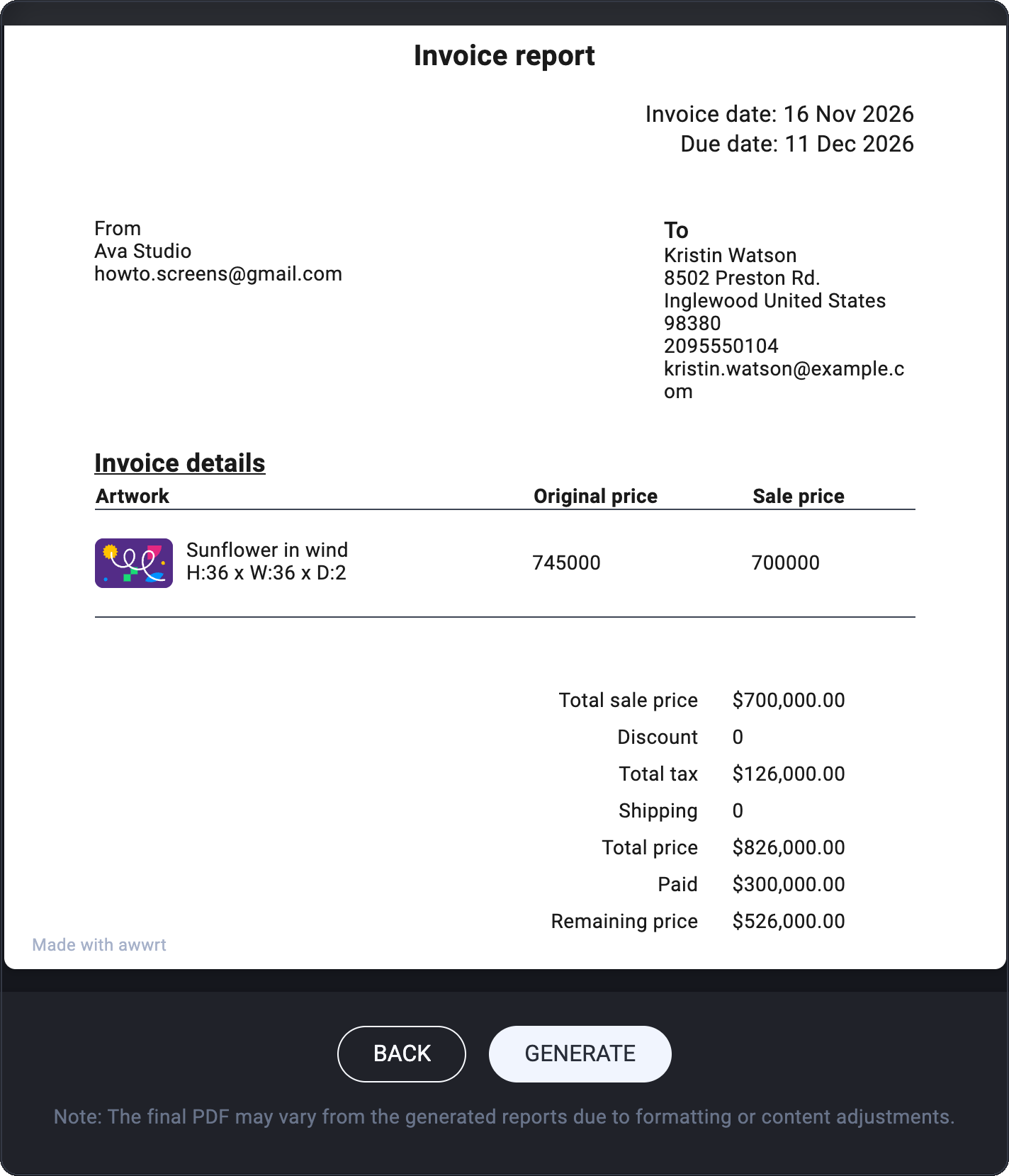
Step 9: Click  . AWWRT saves the sale, adds the invoice PDF to your Google Drive and opens Records.
Same steps for consignments
| Sale | Consignment | |
|---|---|---|
| Start from | ADD RECORD → Sales | ADD RECORD → Consignment |
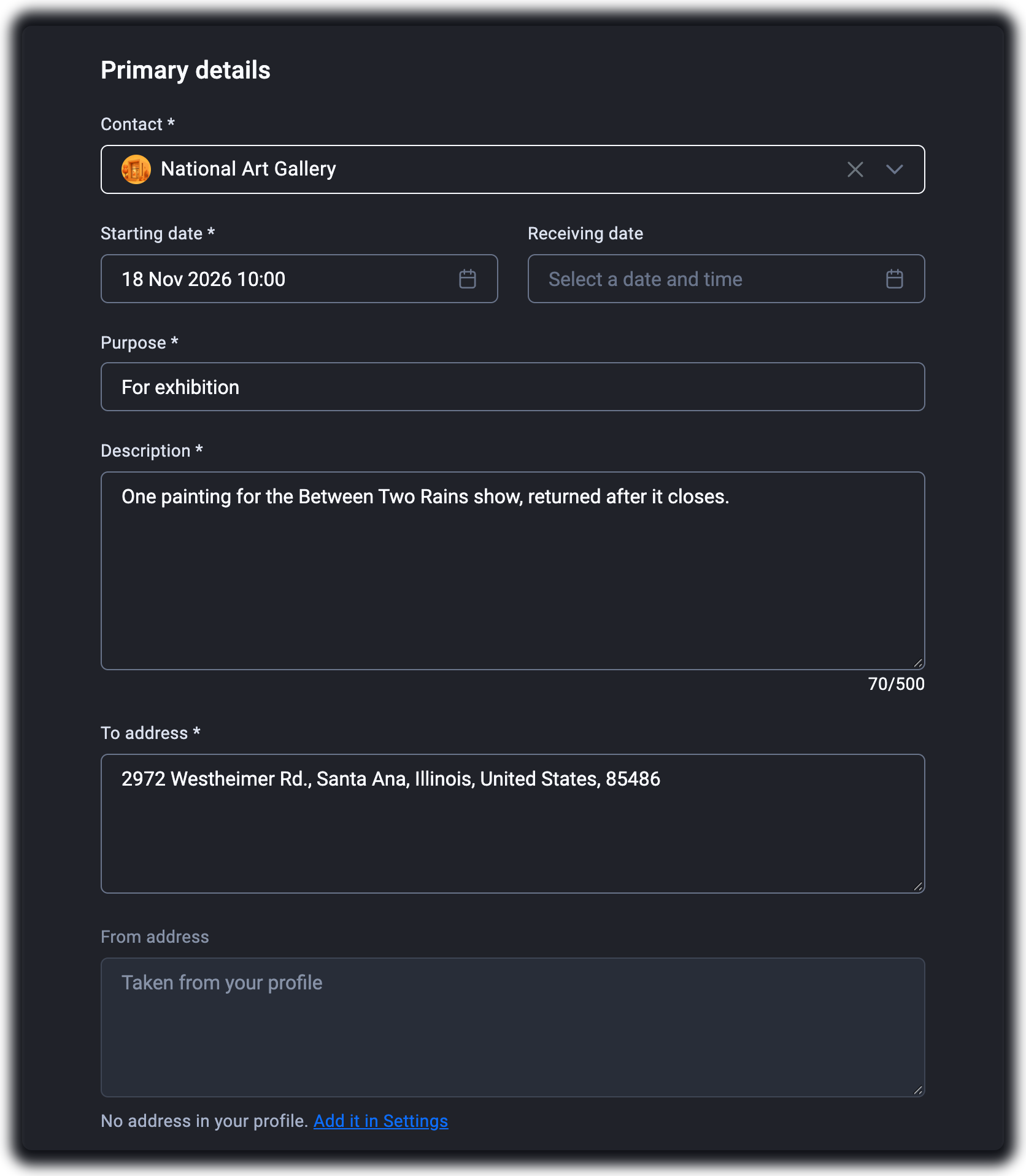
| Required | Contact, location, artworks with sale prices, tax, payment | Contact, starting date, purpose, description, To address, artworks |
| Addresses | From: your profile. To: the contact’s address | To address fills from the contact (you can edit it). From address comes from your profile; if empty, it says “Add it in Settings” (doesn’t stop you saving) |
| Steps | Add details → Generate preview | Add details → Generate preview → Link common records |
| Buttons | , then | ,  , then |
| Invoice | Consignment receipt |
Key Fields Explained
What’s on the Invoice
| Part of the invoice | Where it comes from |
|---|---|
| From | Your name, email and city in Settings |
| To | The buyer’s address on their contact |
| Invoice number | Numbered in order for your account |
| Invoice date and due date | The day you generate it; the due date is always 25 days later |
| Artwork lines | Each artwork’s original price (from the artwork) and its sale price |
| Services, discount, tax, total | The Services and Value sections |
| Paid and Remaining | The payments entered when you generate it |
Prices use the currency from Settings → Preferences.
After You Generate
- The invoice PDF is in your Google Drive, named with the sale number, “Sale receipt”, the invoice number and the date. The sale is listed in Records → Sales.
- Open the sale for its ⋮ menu: Download (the invoice PDF) and Edit.
- Then update the artwork: MARK AS SOLD on its Value card for a one-off work, or the Sold count on Editions for a print.
- Shipping it? Add a tracking record and link it to the sale.
If Something Goes Wrong
| What you see | What to do |
|---|---|
| The invoice “To” is blank in the preview | The buyer’s contact has no address. Click CANCEL, add the address on the contact, then record the sale. Don’t generate first, since the PDF can’t be changed afterwards. |
| The invoice “From” is missing your city in the preview | Add your city in Settings before you generate. It prints from there. |
| Tax shows 18% and you don’t charge it | Change Tax (%) to your rate, or 0, before you generate. |
| A service line won’t save | Each service needs a name, an amount and a date. Fill all three or clear the line. |
| The discount is refused | It can’t be more than the artworks and services together. |
| “Payments are amount more than the total. You can still save.” | Check the amounts. Overpaying is allowed, so you can save if it’s right. |
| The invoice doesn’t show a payment you added later | Edits don’t update the PDF. The sale record shows the payment; the invoice shows what was paid on the day it was generated. |
| The artwork still shows Available | Sales don’t change the artwork. Use MARK AS SOLD or update Editions. |
Example Scenario
A painting gallery sells two works at an art fair. A collector whose address is already in Contacts picks two paintings and pays a deposit at the booth, with the rest due in two weeks. The gallery creates a Sale, chooses the collector, types the fair as the location, and adds both paintings with their agreed sale prices. They also add framing as a service with its amount and reminder date, set the right tax rate, and log the deposit under Payment details.
In the preview, the invoice shows what was paid and what’s still owing. They generate the PDF and send it to the collector. When the balance comes in two weeks later, they edit the sale and add the second payment. The sale record now holds both payments, while the original invoice stays as it was on the day it was generated.
FAQ
Does recording a sale mark the artwork Sold?
No. Use MARK AS SOLD on the artwork’s Value card, or update its Editions.
Where’s the invoice saved?
As a PDF in your Google Drive. You can also download it from the sale’s ⋮ menu.
Can I record part-payments?
Yes. Add each payment with ADD NEW under Payment details. The invoice shows what’s paid and remaining when you generate it.
If I edit the sale, does the invoice update?
No. The record changes, but the invoice PDF stays as it was generated.
Can I delete a sale?
No. Records can be edited, not deleted.
Why is tax already 18%?
It’s the starting value. Change it to your rate, or 0.
Is a consignment different?
Same flow, but it needs a purpose, description and To address, and creates a receipt instead of an invoice.
Can I set my own due date or a default tax rate?
No. The due date is always 25 days after the invoice date, and tax starts at 18% on every new sale.
The invoice is wrong. Can I fix it?
It can’t be regenerated or deleted. Record a corrected sale, and note it in the old sale’s Notes.
Next Steps
(Underlined below as placeholders: link to the live articles only in the final version.)
- How to Set an Artwork’s Price and Editions: mark the artwork Sold, or update the Sold count.
- How to Add a Record: track the shipment to the buyer.
- Workflow: From Enquiry to Sale to Shipment: the whole journey, step by step.
Before you start, if you haven’t yet: How to Set Up Your Account Settings · How to Add a Contact · How to Add an Artwork.
Final Takeaway
Buyer, artworks, payment. Check the PREVIEW, then GENERATE. The sale and its invoice are done together. Then update the artwork yourself.