How to Add a Contact in AWWRT
Quick Answer
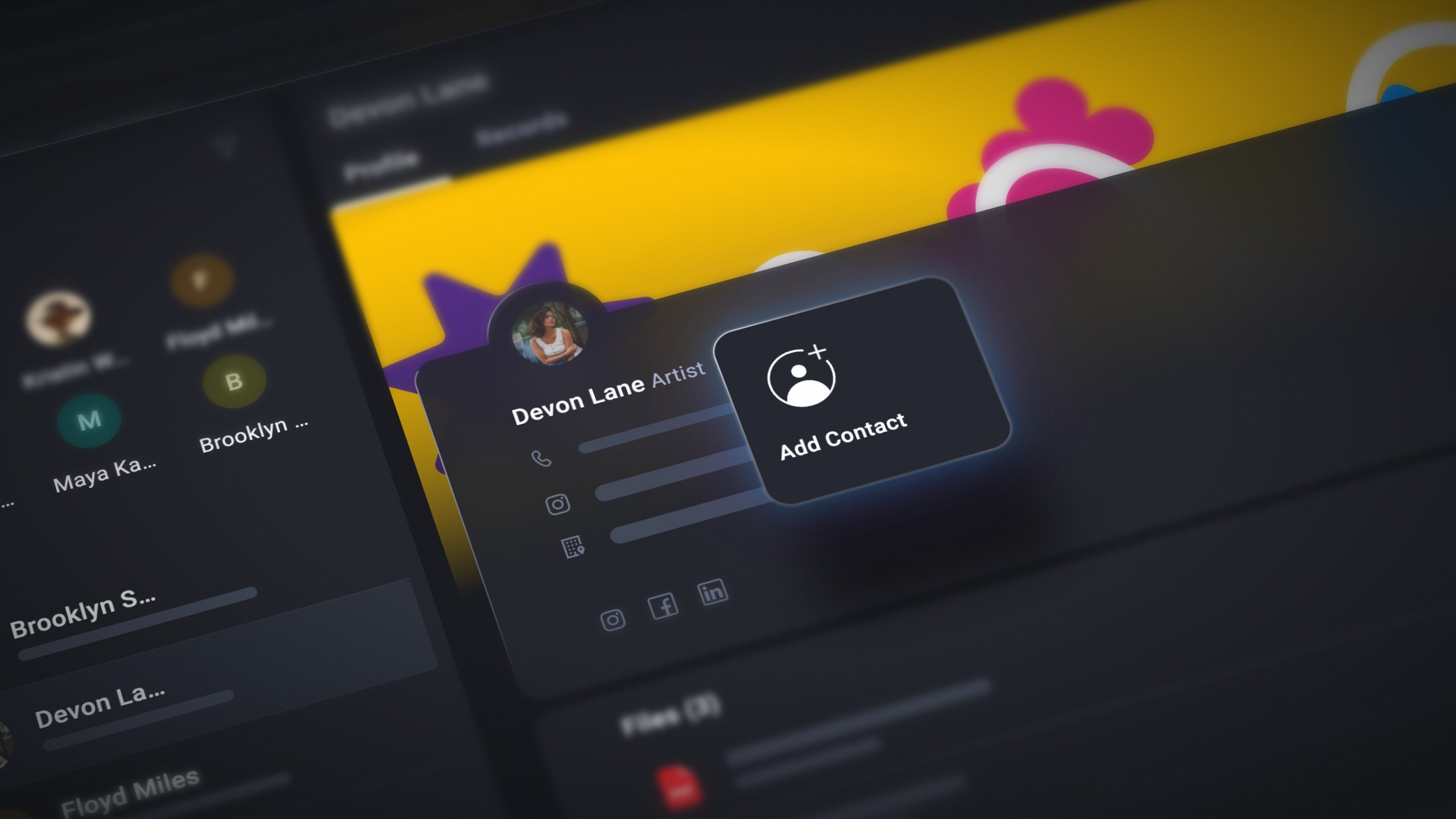
Collector details buried in an email, a framer’s number in your phone, and a curator’s address on a sticky note? AWWRT keeps them in one place. Click Add Contact, enter a full name, choose a label, add an email or mobile number, and click SAVE. It helps to add contacts early, because sales, maintenance, shipments, and consignments all need one.
Keep the following ready
- Full name
- Label (role)
- Email or mobile
- Postal address
- Photo (optional)
Step-by-Step Guide
Step 1: Click Add Contact under Quick Actions on the dashboard, or  at the top of the side menu on the Contacts page.
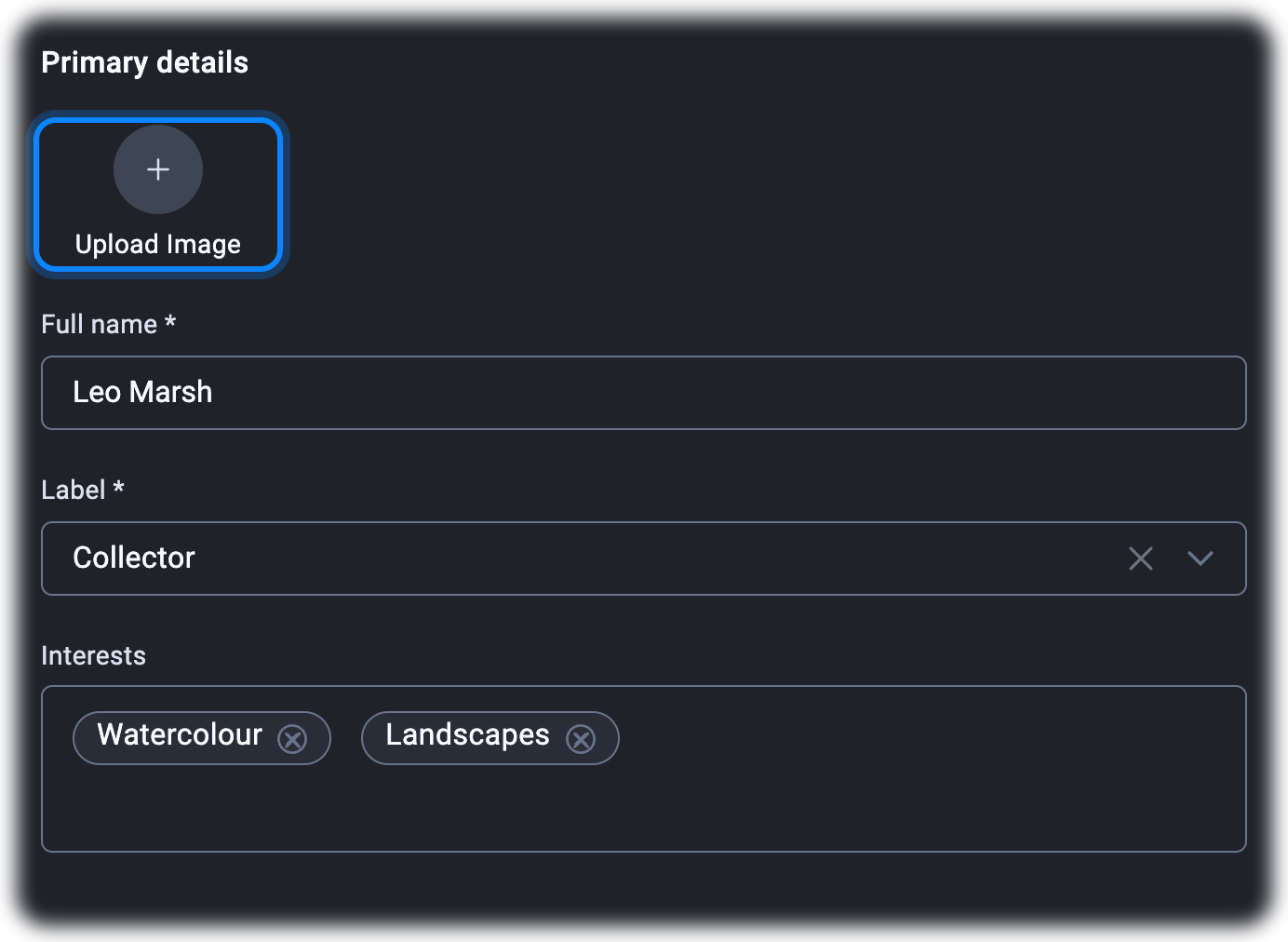
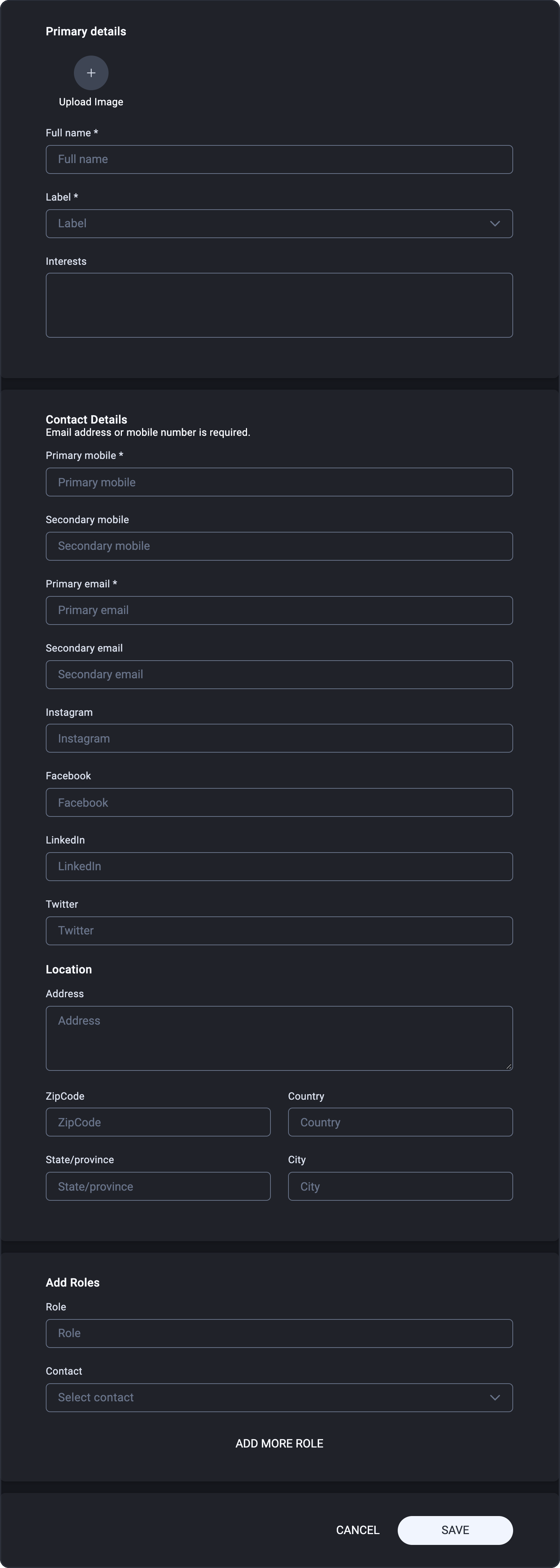
Step 2 (Primary details): Add a photo with Upload Image if you like, then fill in:
- Full name: required, at least 3 characters. A contact can be a person or an organisation; for a museum or gallery, use its name.
- Label: required. Pick what this contact is, such as Collector, Gallery, Museum, Curator, Framer, Shipper, Photographer or Conservator. Each contact has one label; for someone not on the list, like a registrar or installer, pick the closest label. In an Artist account, Artist isn’t offered because you’re already the artist.
- Interests: optional. Press Enter (or type a comma) after each one to add it as a tag.
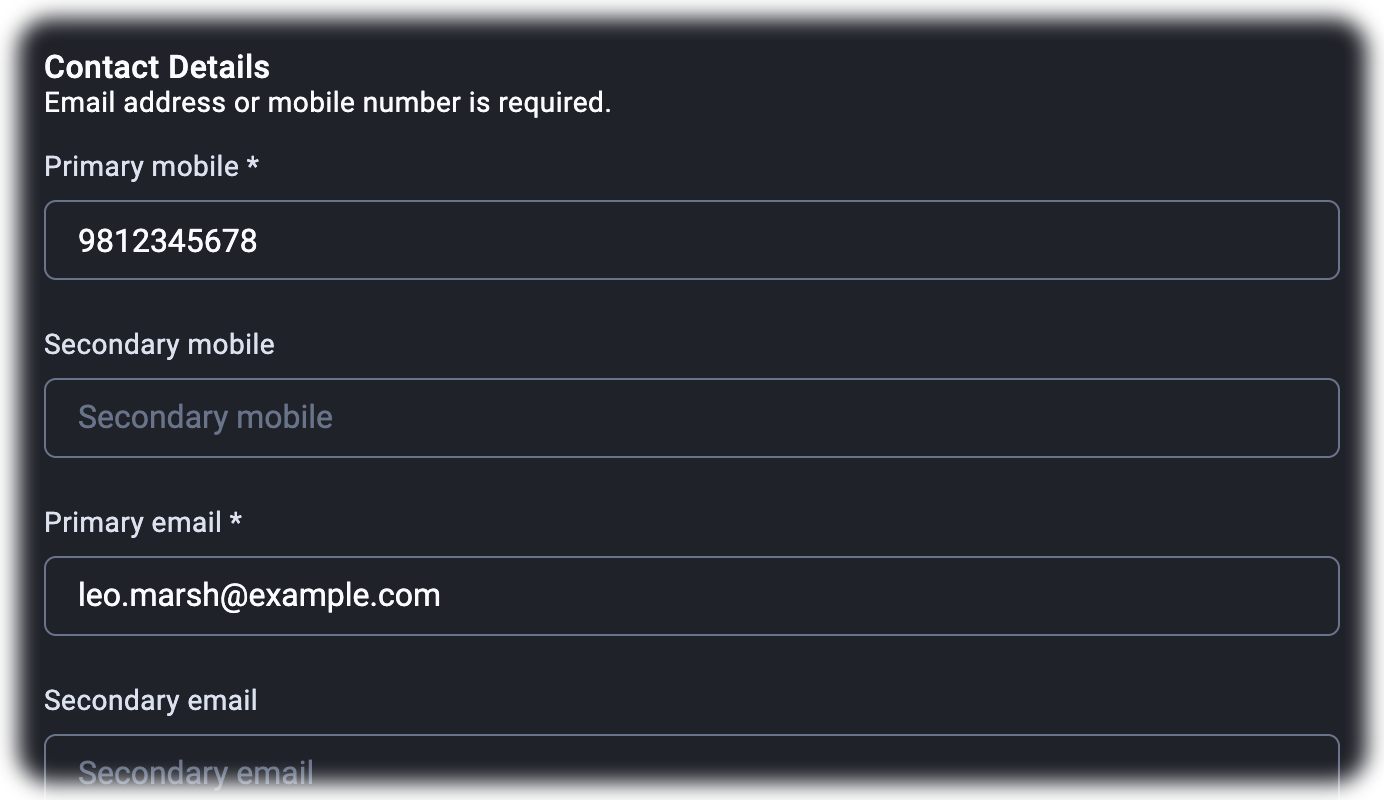
Step 3 (Contact Details): Add a mobile number or an email (at least one is required). The mobile number is 10 digits, with no country code. Outside India, enter the local 10-digit number; if it isn’t 10 digits, leave Mobile empty and add an email instead. Secondary contacts and Instagram, Facebook, LinkedIn and Twitter are optional.
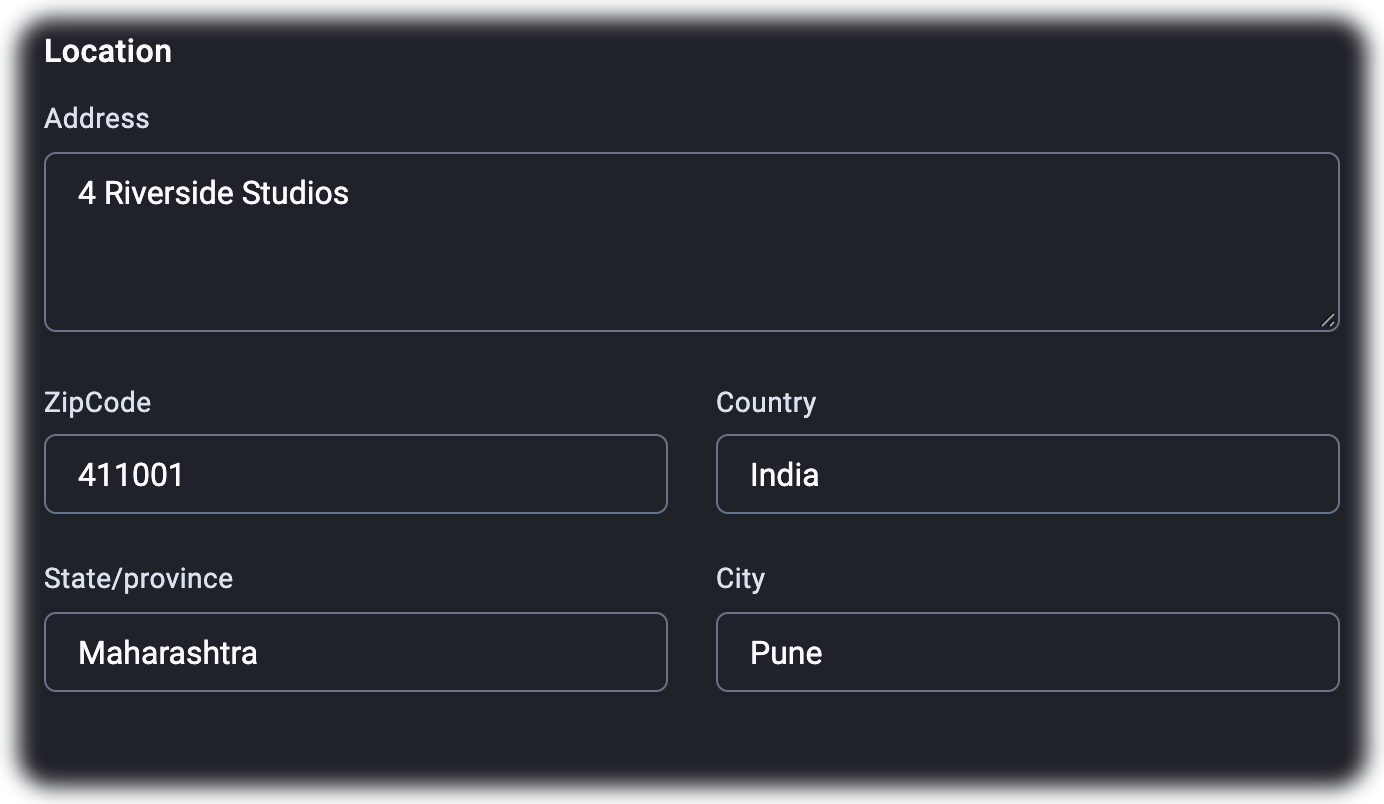
Step 4 (Location): Add the address. It’s optional, though it prints on invoices and fills in the To address on consignments.
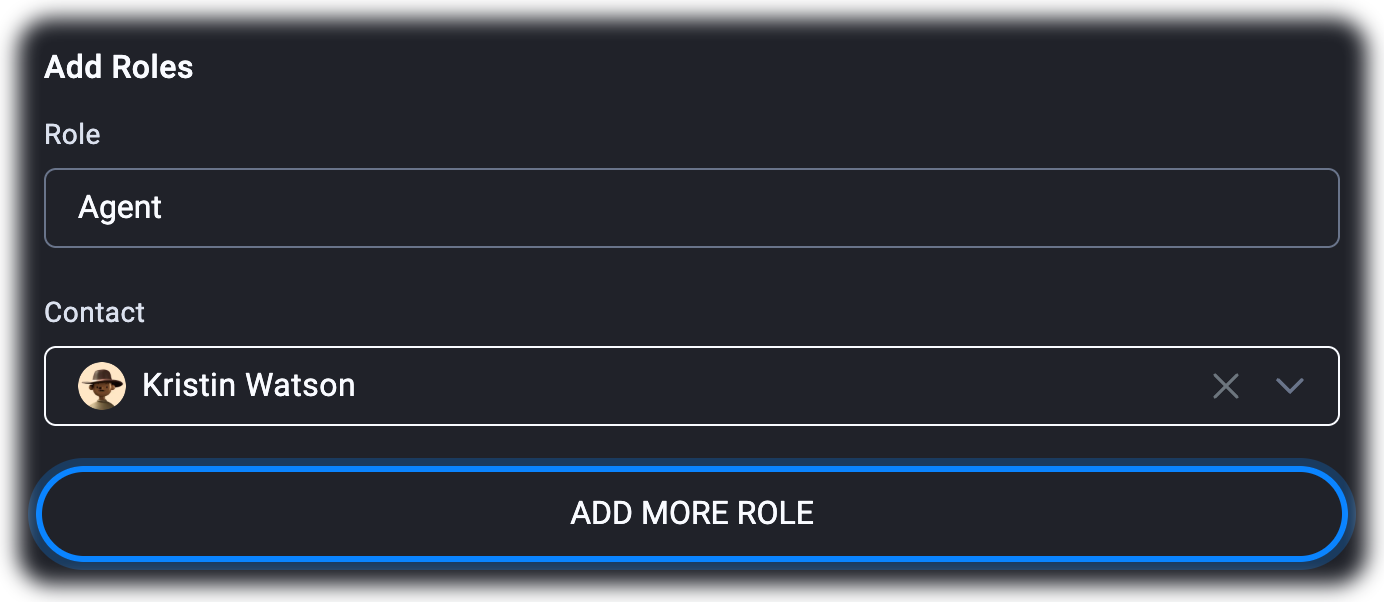
Step 5 (Add Roles, optional): Link this contact to someone already in your contacts. Type a role, like “Agent”, and choose the contact. Each line needs both fields filled, or neither. ADD MORE ROLE adds another line.
Step 6: Click  . AWWRT opens the new contact in Contacts.
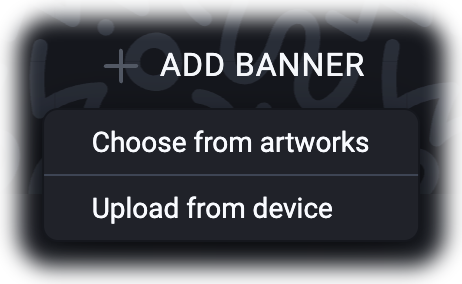
Optional (cover banner): On the contact’s page, hover over the banner and click ADD BANNER, then pick Choose from artworks or Upload from device.
Key Fields Explained
Example Scenario
A ceramic artist has a stoneware sculpture going to a museum exhibition. Before creating the consignment, they add the museum as a contact with the Museum label, along with its exhibition-office email, mobile number and full delivery address.
When they create the consignment, they just pick the museum and its address fills the To address for them. They use that same contact for the shipment’s Tracking record too. You enter the museum or gallery once and reuse those details for the whole loan and delivery.
Common Mistakes to Avoid
- Adding a country code to the mobile number. The field takes exactly 10 digits, so leave out “+91” or a leading 0.
- Half-filled roles. A role without a contact (or a contact without a role) won’t save. Fill both, or remove the line.
FAQ
What are Roles for?
They link this contact to another one, for example an artist’s agent or a gallery’s studio manager.
Why is there already a contact with my name?
In an Artist account, AWWRT creates a contact for you automatically. That’s how you’re set as the artist on your own artworks.
Can I change a contact later?
Yes. Open the contact and edit it. The same form opens as Edit Contact, with an UPDATE button.
What happens if I delete a contact?
Your records stay, but the contact disappears from your lists and its photo and banner are removed. Its name may be missing on older records. A deleted contact can’t be restored.
Next Steps
(Underlined below as placeholders: link to the live articles only in the final version.)
- How to Add an Artwork
- How to Attach Files: keep agreements and correspondence on the contact.
- How to Add a Record: enquiries, sales, tracking, and consignments.