How to Add a Record in AWWRT: Enquiries and Tracking
Quick Answer
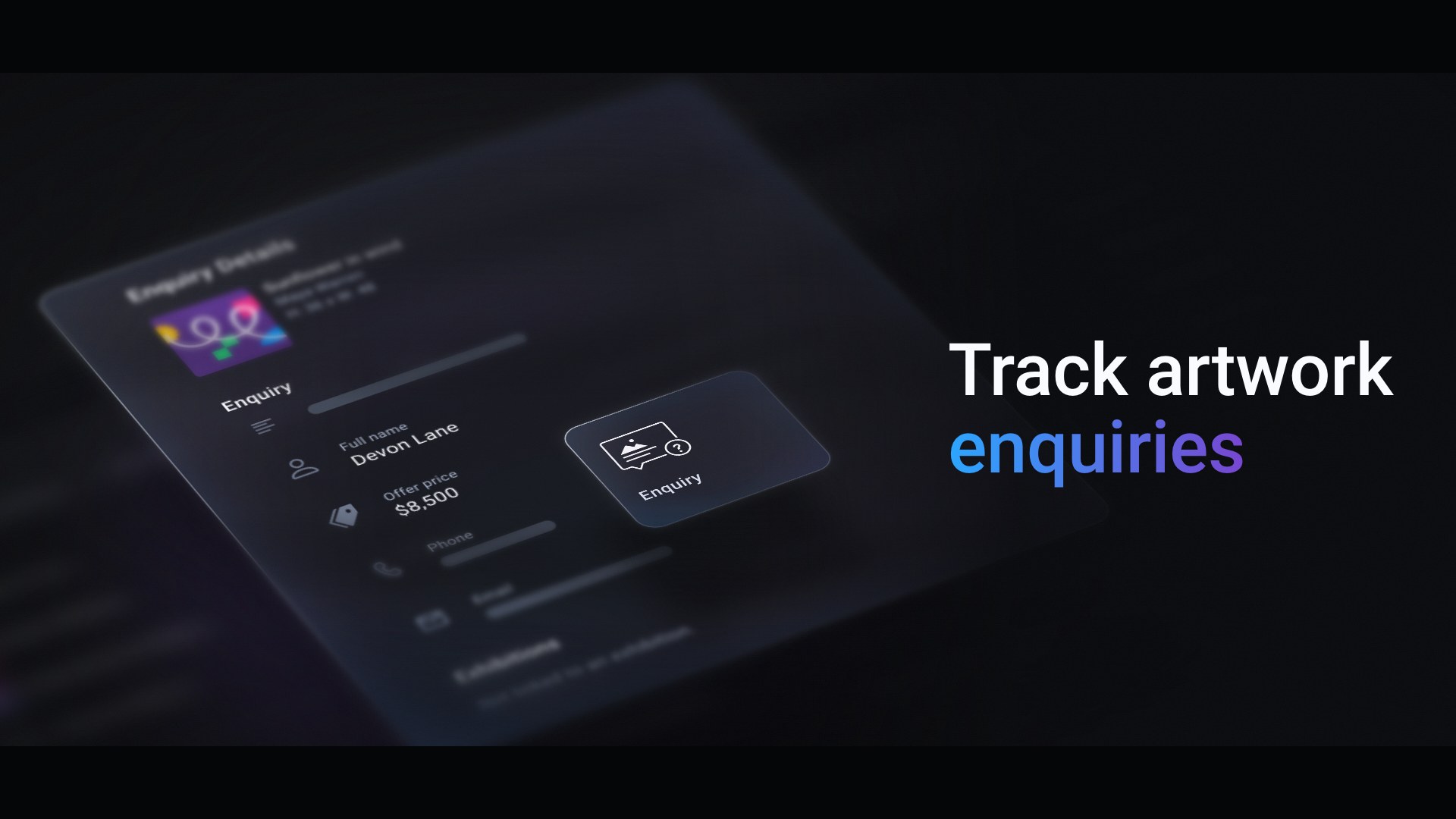
A buyer’s question in your DMs, or a courier receipt in a drawer? Make them records. Click ADD RECORD and choose Enquiries (or Tracking). Fill in Add details (who, what, and which artworks), then use Link common records to connect related records and exhibitions, and save.
Before You Start
- Pick the right record. An enquiry is someone asking about a work, such as a price, availability, or a commission. Tracking is a work being sent or received, whether to a show, a buyer, a framer, or storage. Sales and consignments are records too, with their own guide.
- Records can’t be deleted. You can edit one later, though it stays in your records, so check the details before you save.
- Enquiries can be from anyone; tracking needs a contact. On an enquiry you can type a new name, and it won’t be added to Contacts. Tracking picks from your contacts only.
- Records don’t change the artwork. An enquiry, or a tracking marked Delivered, leaves the artwork’s status and location as they were. Update those on the artwork yourself.
- Links are what connect records. Linking an earlier enquiry or the exhibition keeps the whole story in one thread, since there’s no automatic connection.
Keep the following ready:
- Artworks added
- For an enquiry: the person’s name and a mobile number or email
- For tracking: the contact (already in Contacts), dates and courier details
- Delivery receipt (optional: JPG, PNG or PDF, up to 10 MB)
Step-by-Step Guide
Enquiry is the example. Tracking works the same way (see the table at the end).
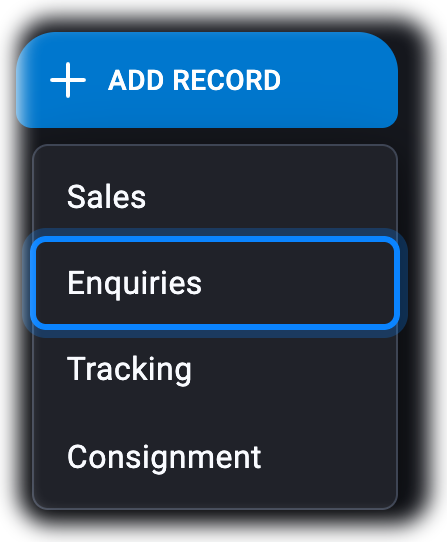
Step 1: Go to Records and click  at the top of the side menu, then choose Enquiries. Also: Reports → Create records → Enquiry, Quick Actions on the dashboard, or CREATE RECORD on an artwork’s, contact’s or exhibition’s Records tab (that option fills in the artwork or show for you).
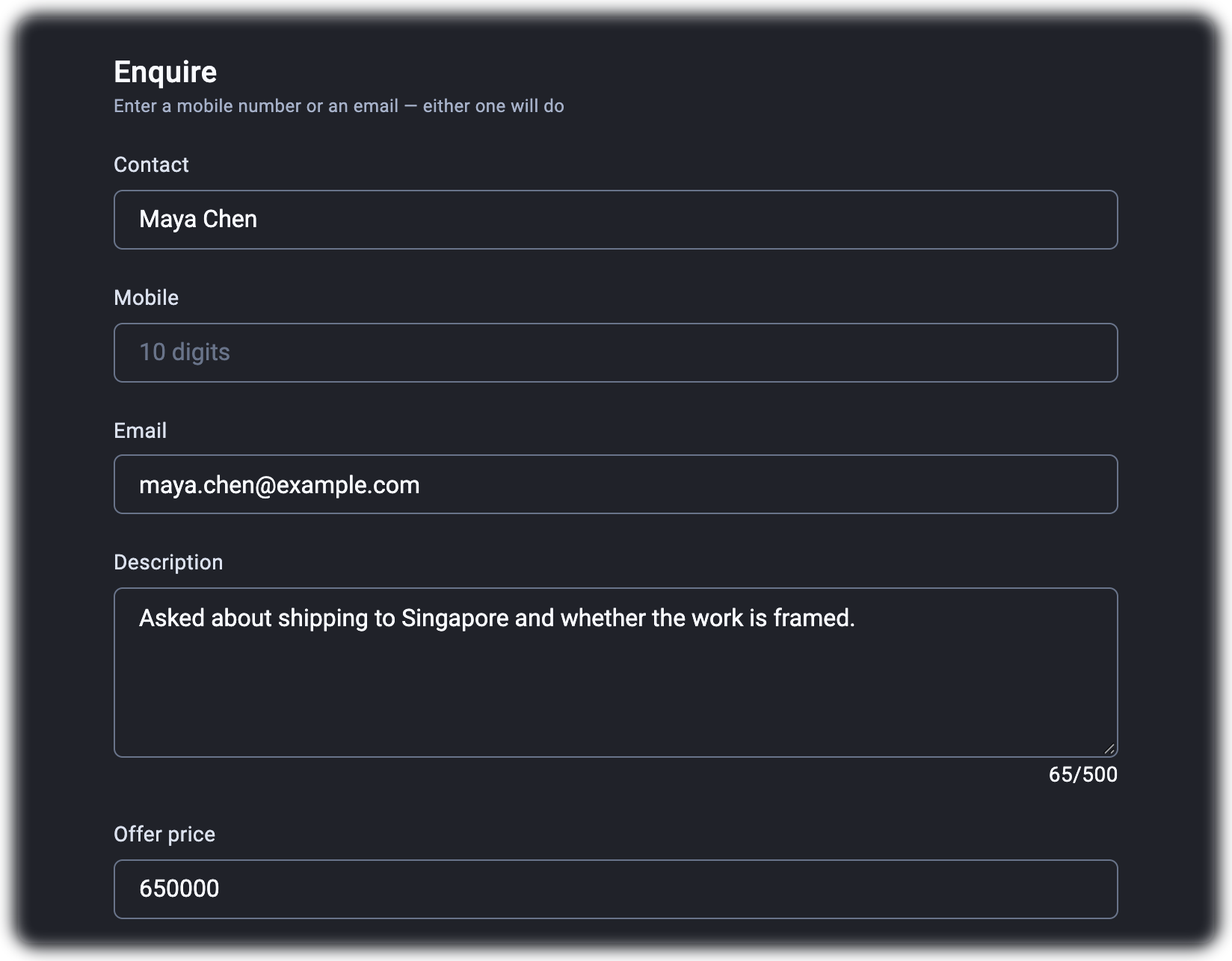
Step 2 (Add details):
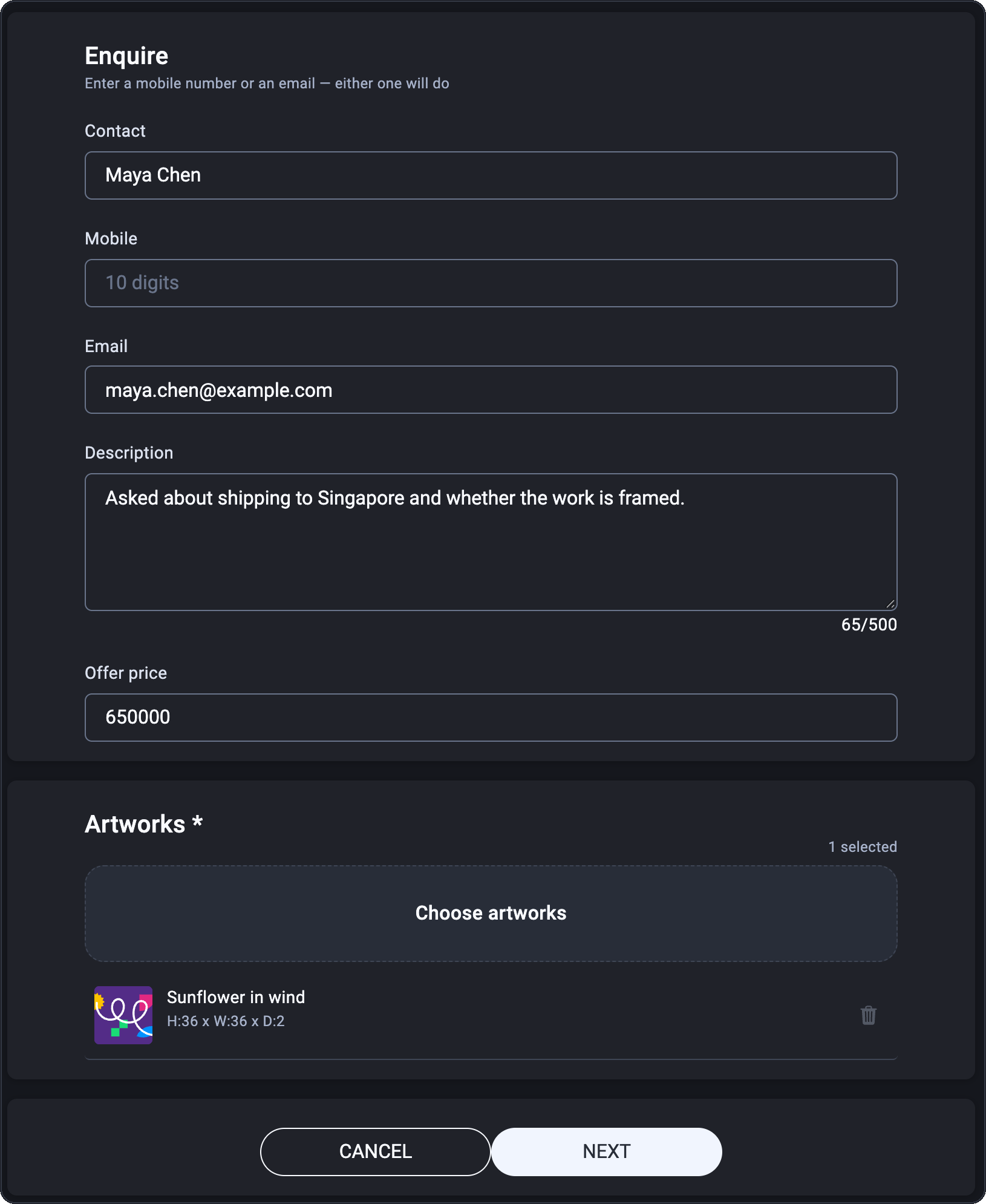
- Contact: required. Search your contacts, or type a new name. A new name is saved with the enquiry only and isn’t added to Contacts.
- Mobile or Email: at least one is required; the form says “either one will do”. Mobile is 10 digits.
- Description: starts as “I am interested in the artwork and would like to know more.” Change it to what was asked.
- Offer price: optional. Whole numbers only.
- Artworks*: click Choose artworks, tick the works and click
 .
Step 3: Click  .
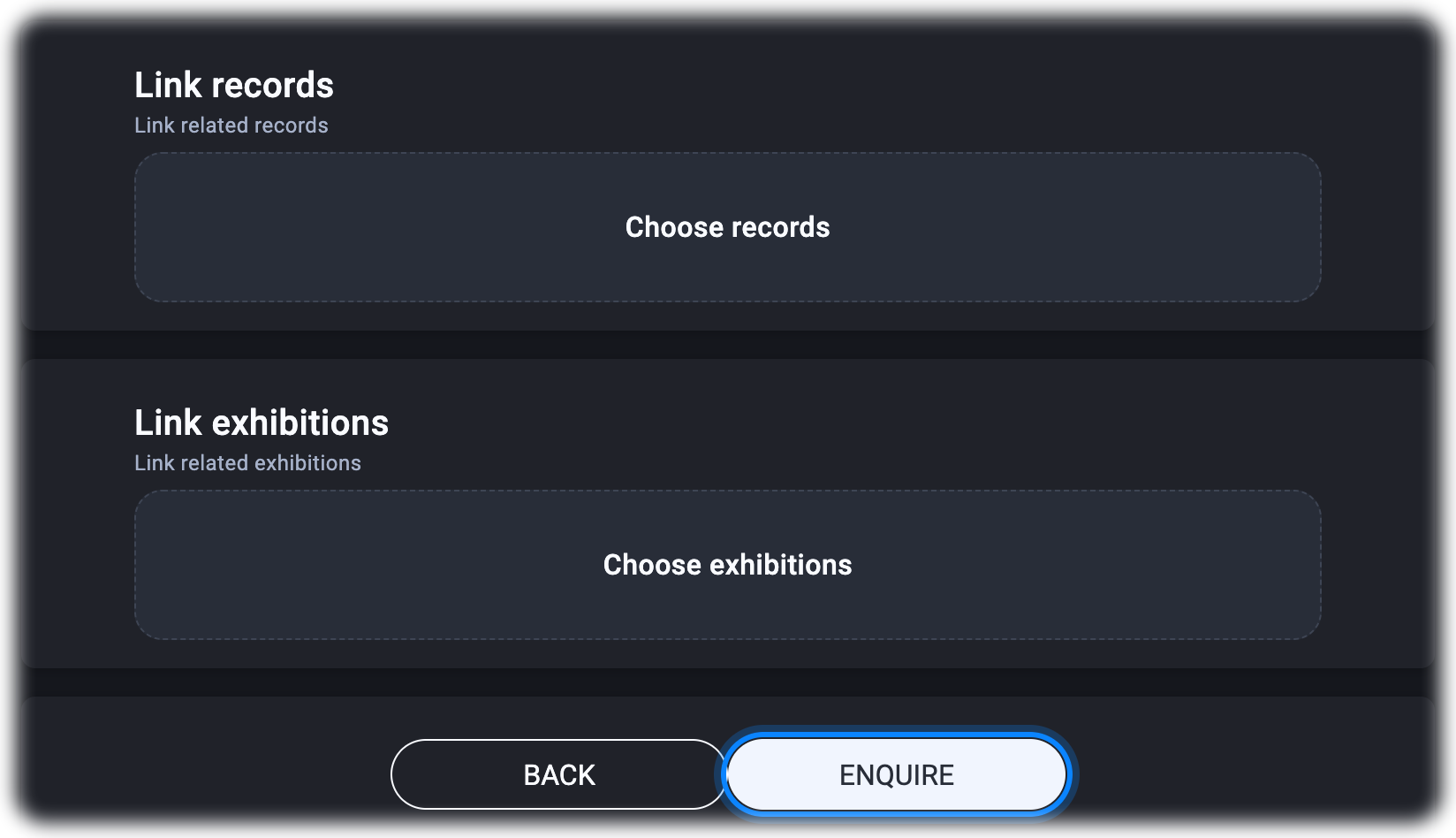
Step 4 (Link common records, optional):
- Link records: click Choose records to connect related records, like an earlier enquiry or a tracking.
- Link exhibitions: click Choose exhibitions to connect the show it came from.
Step 5: Click  . AWWRT saves it and opens Records.
Same steps for tracking
| Enquiry | Tracking | |
|---|---|---|
| Start from | ADD RECORD → Enquiries | ADD RECORD → Tracking |
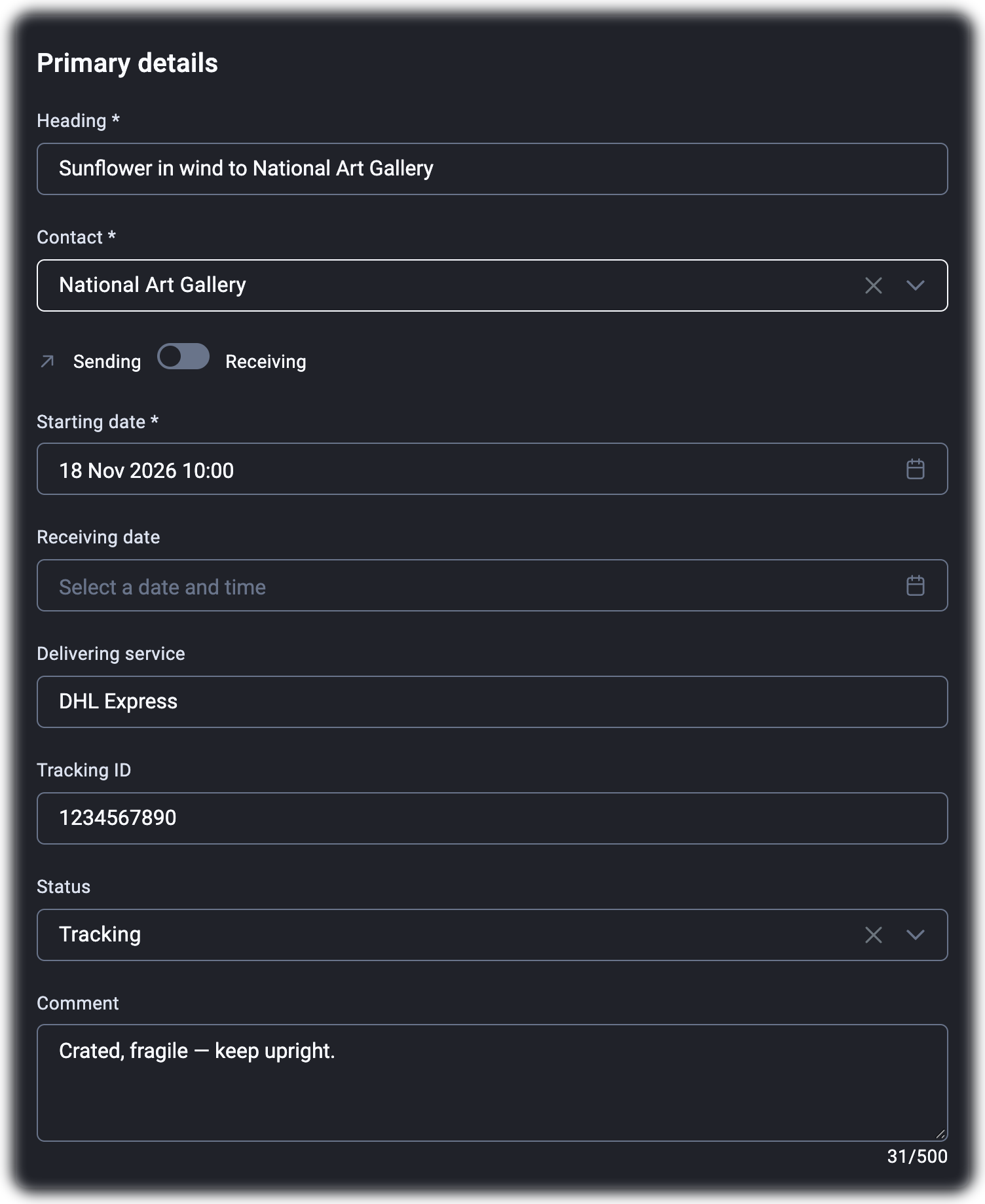
| Required | Contact name, mobile or email, artworks | Heading, contact (from Contacts), starting date, artworks |
| Other fields | Description, offer price | Sending / Receiving switch, receiving date, delivering service, tracking ID, status (Tracking, Delivered, Undelivered; starts as Undelivered, so change it to Tracking), comment, receipt (JPG, PNG or PDF, up to 10 MB) |
| Step 2 | Link records, link exhibitions | Same |
| Buttons | , then | CREATE, then  (CREATE only moves to step 2) |
Key Fields Explained
Where Records Show Up
| Place | What you see |
|---|---|
| Records page | Every record, on its tab: Enquiries, Tracking, Sales, Consignment |
| An artwork’s Records tab | Every record that includes that artwork |
| A contact’s or exhibition’s Records tab | Every record linked to them |
| The dashboard | Recent records, unless Hide records is switched on |
Enquiries that visitors send from an artwork’s QR page arrive on the Records page too, under Enquiries.
After You Save
- To change a record, open it from Records and edit it. Records can’t be deleted.
- When an enquiry becomes a sale, record the sale and link the enquiry under Link records, as there’s no one-click conversion.
- As a shipment moves, edit the tracking and update its status: Tracking while it’s on the way, Delivered when it arrives.
- Then update the artwork’s status or location yourself.
If Something Goes Wrong
| What you see | What to do |
|---|---|
| “Enter a mobile number or an email — either one will do” | Add at least one way to reach the person. Mobile is 10 digits, with no country code. |
| “Choose at least one artwork” | Click Choose artworks, tick at least one and click PROCEED. |
| The tracking contact isn’t in the list | Tracking only picks from your contacts. Add them in Contacts first. |
| You clicked CREATE but the tracking isn’t in Records | CREATE only moves to step 2. Click SAVE to finish. |
| A new tracking shows Undelivered | It starts that way. Edit it and set the status to Tracking. |
| “file name: only JPG, PNG and PDF files” or “file name is over 10MB” | Save the receipt as a JPG, PNG or PDF under 10 MB. |
| A name you typed on an enquiry isn’t in Contacts | Typed names stay on the enquiry. Add them as a contact if you’ll deal with them again. |
Example Scenario
A works-on-paper gallery follows up after a print fair. A visitor asked about two limited-edition lithographs and whether they could ship abroad. The gallery assistant logs an Enquiry with the visitor’s name and email, notes the shipping question and offer, ticks both prints, and links it to the print fair. That puts the enquiry on both artworks and on the fair’s record.
When the visitor decides to buy one print, the assistant adds them to Contacts with their delivery address, records the sale, and links that earlier enquiry. Next, they add a Tracking record for the shipment: they pick the collector, set it to Sending, enter the courier and tracking ID, switch the status to Tracking, attach the receipt, and link the sale. Once it arrives, they change the tracking status to Delivered and update the print’s location on its own page. The gallery can trace the whole thread from the first question to delivery.
FAQ
Does the enquiry contact have to be in my contacts?
No. You can type a new name, though it won’t be added to Contacts. Tracking, sales and consignments do need a contact from Contacts.
Can I start a record from an artwork?
Yes. Use CREATE RECORD on the artwork’s Records tab and the artwork is filled in for you. The same works from a contact or an exhibition.
Where do QR page enquiries go?
To Records, under the Enquiries tab.
Can I delete a record?
No. Records can’t be deleted, only edited.
How do I turn an enquiry into a sale?
Record the sale, then link the enquiry to it under Link records. There’s no one-click conversion.
Does marking a tracking Delivered update the artwork?
No. Records don’t change the artwork’s status or location, so update those on the artwork.
Can I add links after saving?
Yes. Edit the record and choose the records or exhibitions to link.
Can one tracking record cover several artworks?
Yes. Tick all the artworks in the shipment.
I made the wrong type of record. What now?
Records can’t be deleted or changed to another type. Create the right one, and edit the wrong one’s description to say it isn’t used.
Next Steps
(Underlined below as placeholders: link to the live articles only in the final version.)
- How to Record a Sale and Create an Invoice: when an enquiry turns into a sale.
- Workflow: From Enquiry to Sale to Shipment: the whole journey, step by step.
- How to Find and Edit Artworks, Contacts, Exhibitions and Records: find and edit records later.
Before you start, if you haven’t yet: How to Add an Artwork · How to Add a Contact · How to Add an Exhibition.
Final Takeaway
Details, then links. Every enquiry and shipment stays connected to the work it’s about. Just remember the artwork itself is yours to update.