How to Create a Report in AWWRT: Price Lists, Labels and More
Quick Answer
Retyping titles, sizes and prices into a document before every show? Let AWWRT build it from your records. Go to Reports, pick a report like Price List, give it a file name, choose the artworks and click PREVIEW. Check it, then click GENERATE and the PDF is saved to your Google Drive.
Before You Start
- Reports print what’s saved. Fill in each artwork’s price, size, medium (and location, for an inventory sheet) before you generate. A missing detail is simply missing on the PDF.
- Currency and units come from Settings → Preferences. Every price and size in a report uses them. Check them first.
- You always pick the artworks yourself. The tiles under Create for exhibitions don’t pull works from an exhibition, so tick them one by one.
- Sold works aren’t marked. No report prints an artwork’s status, so a sold work on a price list shows its price like any other. Leave it out.
- Reports can’t be deleted in AWWRT. Each one stays on the History tab, so give it a file name you’ll recognise.
Keep the following ready:
- Google Drive linked
- Artworks added with their details (or contacts with addresses, for contact labels)
- Currency and measurement unit set
- A file name
Step-by-Step Guide
Price List is the example. The other reports work the same way (see the table at the end).
Step 1: Click Reports in the side menu. On the Create tab, find Price List under Create for exhibitions.
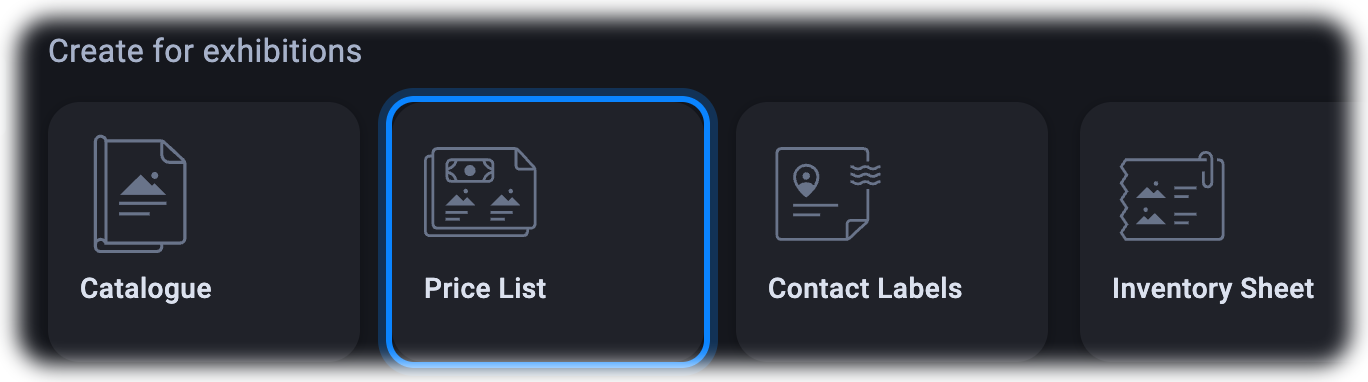
See “Pro” on a tile? That report isn’t included in your plan. Catalogue, Price List, Contact Labels and Inventory Sheet can carry it; they’re all open during a trial.
Step 2 (Add details): Enter a File name (required). AWWRT suggests one, like “Untitled price list 15Nov26”, so change it to something you’ll recognise.
Step 3: Under Artworks, click Choose artworks, tick the ones to include and click  . To drop one, click its bin icon.
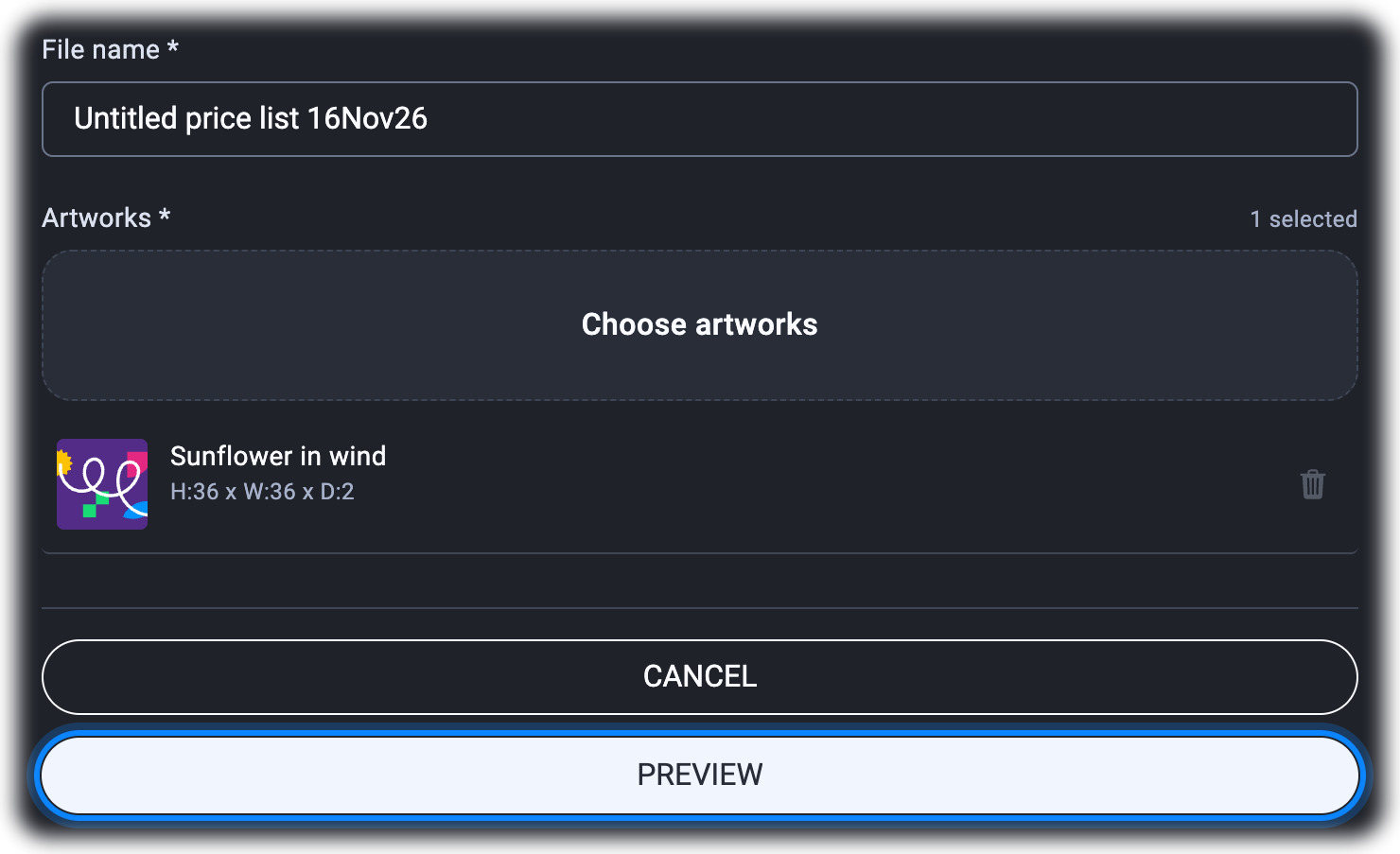
Step 4: Click  .
Step 5 (Generate preview): Check the report. Use the arrows under the page to move between pages.
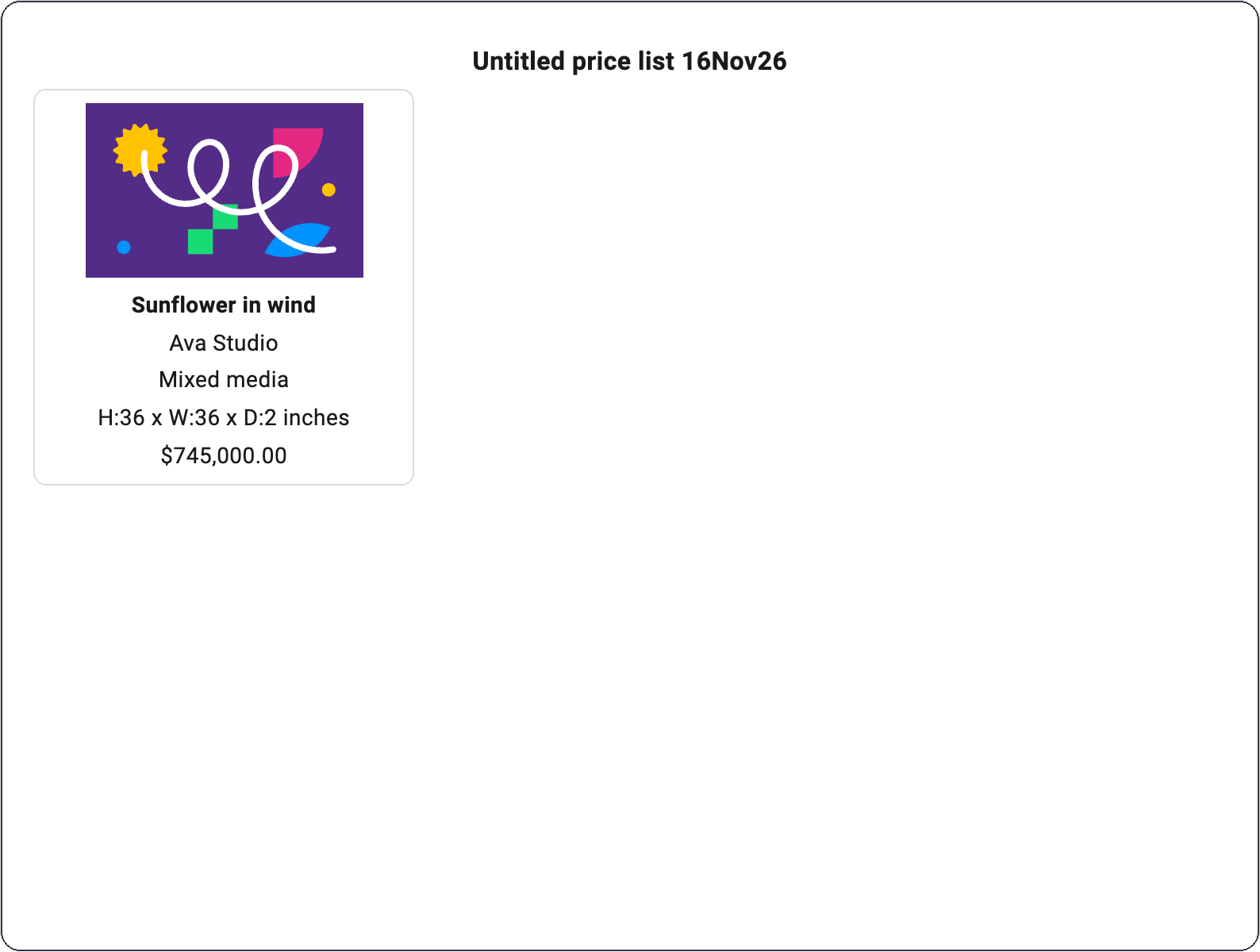
Step 6: Click  . AWWRT creates the PDF and adds it to your Google Drive. Use
 to change the details first.

Step 7: Find it later on the History tab. Each report’s ⋮ menu has View and Download.
Same steps for the other reports
| Report | Tile section | What you choose | Extra options |
|---|---|---|---|
| Price List | Create for exhibitions | Artworks | – |
| Catalogue | Create for exhibitions | Artworks | Name is Catalogue name |
| Inventory Sheet | Create for exhibitions | Artworks | – |
| Contact Labels | Create for exhibitions | Contact addresses | Font size: small (14px) or large (16px) |
| Certificate of Authenticity | Create for artworks | Artworks | Special instructions (up to 250 characters) |
| Artwork Labels | Create for artworks | Artworks | Label only, Label and QR code or Label and image; font size small or large |
Key Fields Explained
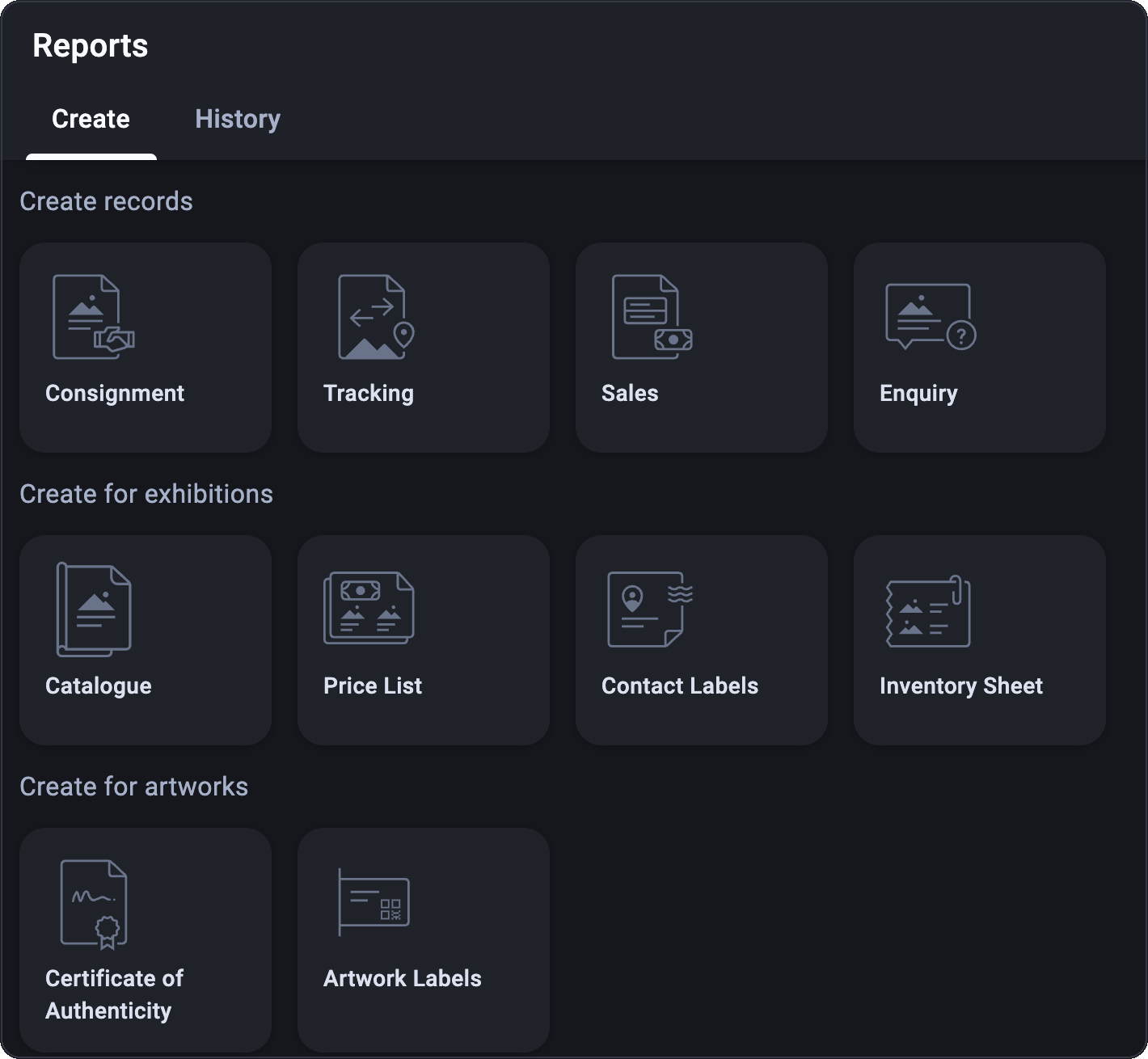
Which Report Prints What
| Report | Use it for | What each item shows |
|---|---|---|
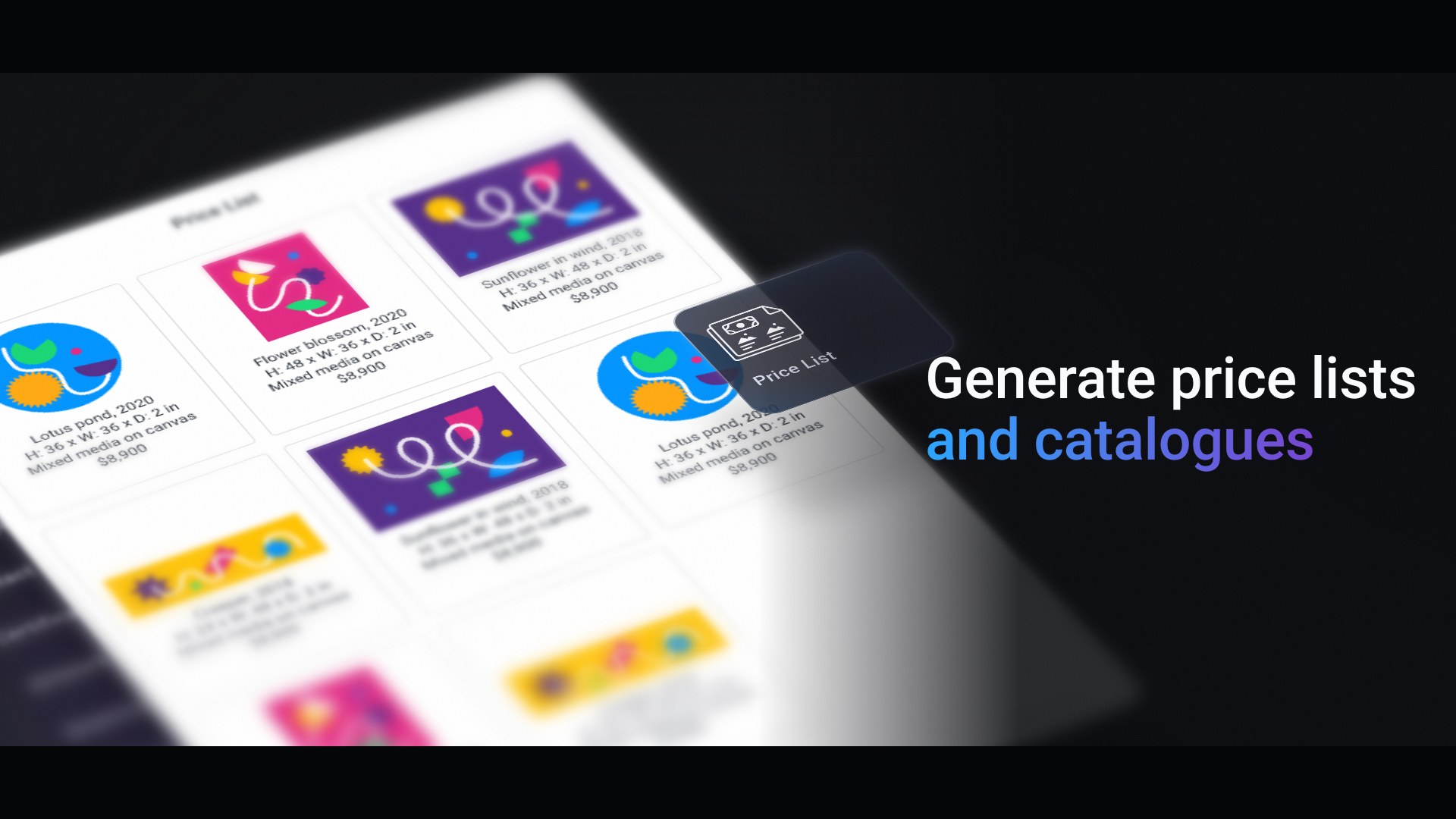
| Price List | A show, an art fair, a buyer | Image, title, artist, medium, size, price |
| Catalogue | A presentable selection of works | As the price list, plus the About-Work description |
| Inventory Sheet | Storage, insurance, a handover | As the price list, plus location and inventory code |
| Certificate of Authenticity | Going with a sold work | Image, title, artist, medium, size, Certificate No (the inventory code), your special instructions (no price) |
| Artwork Labels | Wall labels | Title, year, artist, medium, size, price, plus the QR code or image if chosen |
| Contact Labels | Shipping and mailing | Name, address, city, state, zip code, country and mobile numbers |
No report prints an artwork’s status, material or tags.
After You Generate
- History tab: every report you’ve made, with View and Download in its ⋮ menu.
- Google Drive: the PDF is named with a report number, the type, your file name and the date, like “RPT-00045 Catalogue – Spring show – 18 Sep 2026.pdf”.
- The final PDF may look slightly different from the preview because of formatting, though the details are the same.
- Need another format for the same works? Start a new report and choose the same artworks: labels for the wall, a price list for the desk.
If Something Goes Wrong
| What you see | What to do |
|---|---|
| “File name is required” | Enter a file name. AWWRT’s suggestion is fine to keep. |
| “Choose at least one artwork” | Click Choose artworks, tick at least one and click PROCEED. |
| A detail is missing on the report | It isn’t saved on the artwork. Fill it in on the artwork’s page, then make the report again. |
| A sold work shows a price | Reports don’t print status. Leave sold works out of price lists. |
| A tile says Pro | That report isn’t in your plan. |
| A contact label has no address | That contact has no address saved. Add it on the contact’s page. |
| Drive is full and the report won’t open | Report screens stay closed while Drive is full. Free up space, then try again. A report you’d already started still saves, and its PDF is added once there’s space. |
| Drive is disconnected | You can still make reports. The PDF is added to Drive when you reconnect. |
| “Could not reach the server. Check your connection and try again.” | Check your internet connection and click GENERATE again. |
Example Scenario
A photography gallery gets ready for an international art fair. The manager goes to Reports → Price List, names the file after the fair, and ticks the eighteen editioned photographs heading to the booth. They check the preview to make sure the titles, artists and prices look right, then generate the PDF.
Next, they make Artwork Labels with Label and QR code for those same eighteen prints. Both PDFs sit in Drive, ready for the team to print before install.
FAQ
Where is my report saved, and what’s it called?
As a PDF in your Google Drive, named with a report number, the type, your file name and the date. It’s also listed on the History tab.
Why does a tile say Pro?
That report isn’t in your plan. All reports are open during a trial.
Can I delete a report?
Not in AWWRT. Reports stay on the History tab.
Can a price list pull the works from my exhibition?
No. Even under Create for exhibitions, you choose the artworks yourself.
Does the certificate show the price?
No. It shows the artwork’s details and its inventory code as the certificate number.
What’s an Inventory Sheet?
A record sheet of chosen artworks, with their location and inventory code. It’s the same report some people call a tear sheet.
I made a report with a mistake. Can I replace it?
Make a new one. Reports can’t be deleted, so both stay in History.
If I change my currency or unit later, do old reports update?
No. Each PDF is made once and keeps what it showed on the day.
Next Steps
(Underlined below as placeholders: link to the live articles only in the final version.)
- Workflow: Preparing an Exhibition in AWWRT: price lists and labels in the run-up to a show.
- How to Use an Artwork’s QR Code: what visitors see when they scan a label.
- How to Describe an Artwork: Creation Date, Dimensions and About the Work: the About-Work text the catalogue prints.
Before you start, if you haven’t yet: How to Link Google Drive · How to Set Up Your Account Settings · How to Add an Artwork.
Final Takeaway
Fill in your artworks once, then choose, preview, generate. Every report comes straight from your records, ready to print.