How to Bulk Upload Artworks in AWWRT
Quick Answer
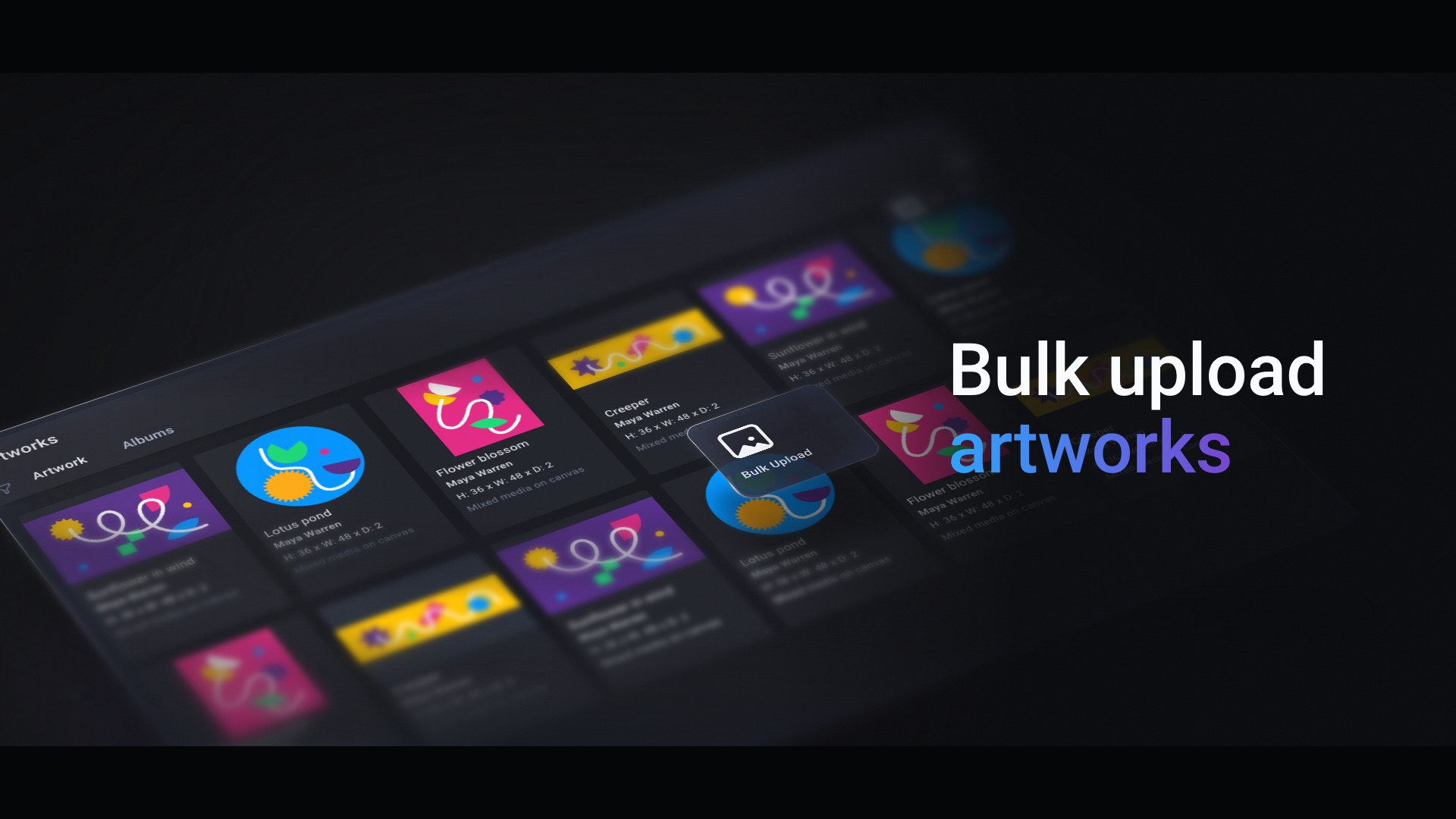
A whole series to add and no time to do it one by one? Bulk Upload does it in one pass. Click ADD ARTWORK, choose Bulk Upload, and upload up to 15 images. Fill in the details they share once, then adjust each artwork’s own details and click SUBMIT.
Before You Start
- Use it when works share most of their details. A series in the same medium and year, a batch from one artist, or your back catalogue when you’re getting started. Each image becomes its own artwork. For a single piece, use Individual Artwork instead.
- Group similar works into one batch. Everything you enter on Common details is copied to every artwork. The more the works have in common, the less you change per card.
- Sort out titles and years first. Each artwork gets its own inventory code and QR code from its title and year when you submit, and the code never changes afterwards.
- Tags apply to the whole batch. They’re set once on Common details; you can’t set them per artwork here.
- Galleries: add the artist first. The artist is picked from your contacts on each card.
Keep the following ready:
- Google Drive linked
- Up to 15 images (JPEG, PNG, WEBP or SVG)
- What the works share: artist, medium, status, year, material, tags
- Each artwork’s title, size and price
- The artist in your contacts (galleries)
Step-by-Step Guide
Step 1: Click  at the top of the side menu.
Step 2 (Add artworks): Under Choose Format, select Bulk Upload. The steps change to Add artworks → Common details → Individual details.
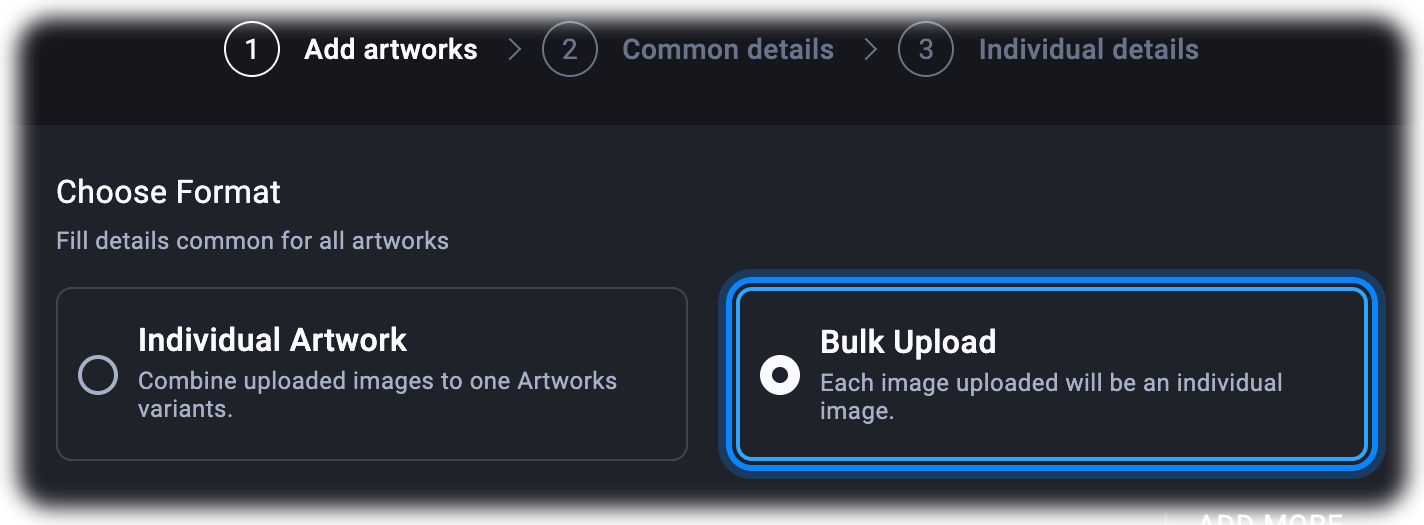
Step 3: Click  and pick your images, or drag and drop them onto the box on a computer. You can pick several at once.
- Up to 15 images, in JPEG, PNG, WEBP or SVG.
- To add more, click ADD MORE. To remove one, click its bin icon.
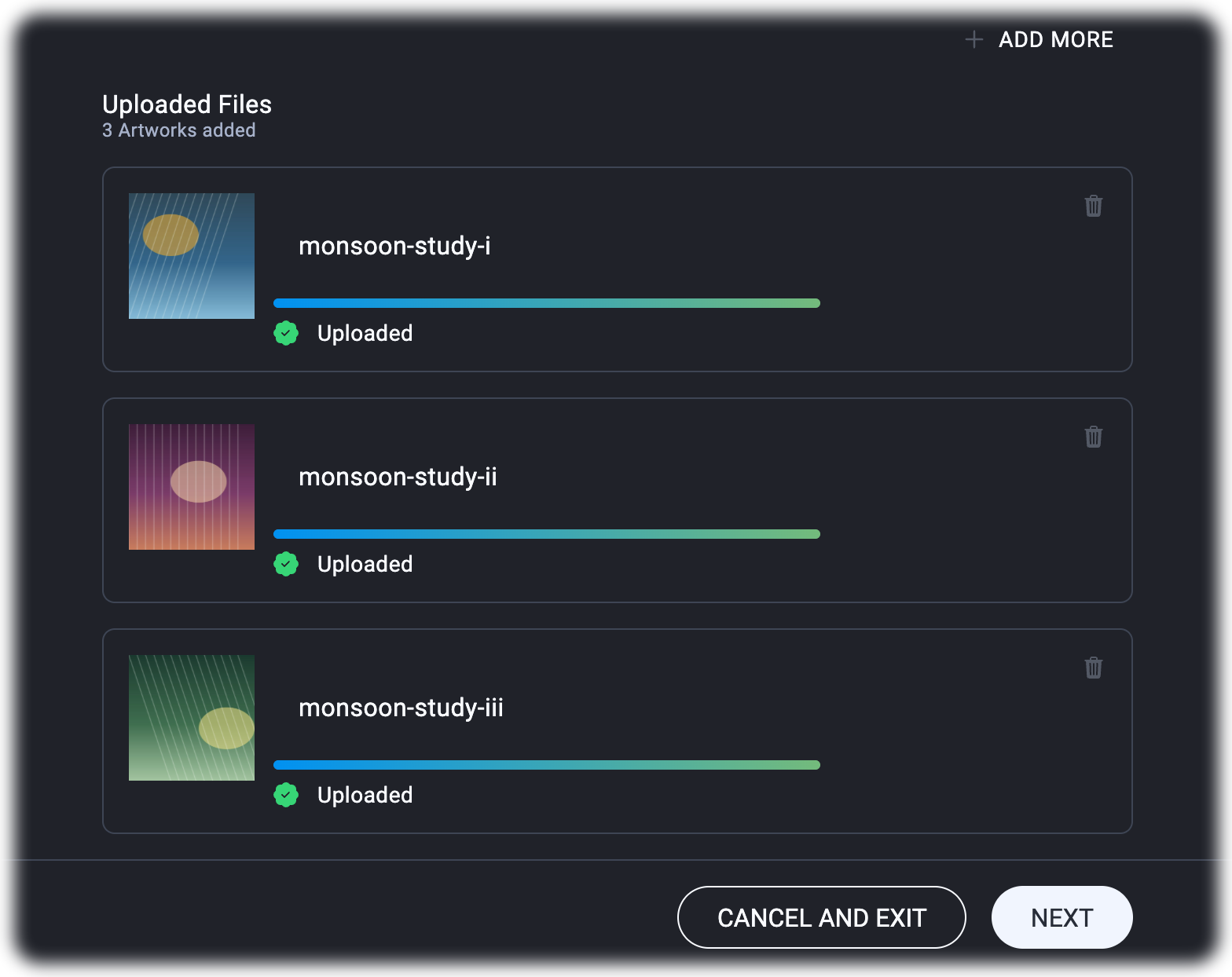
Step 4: Click  .
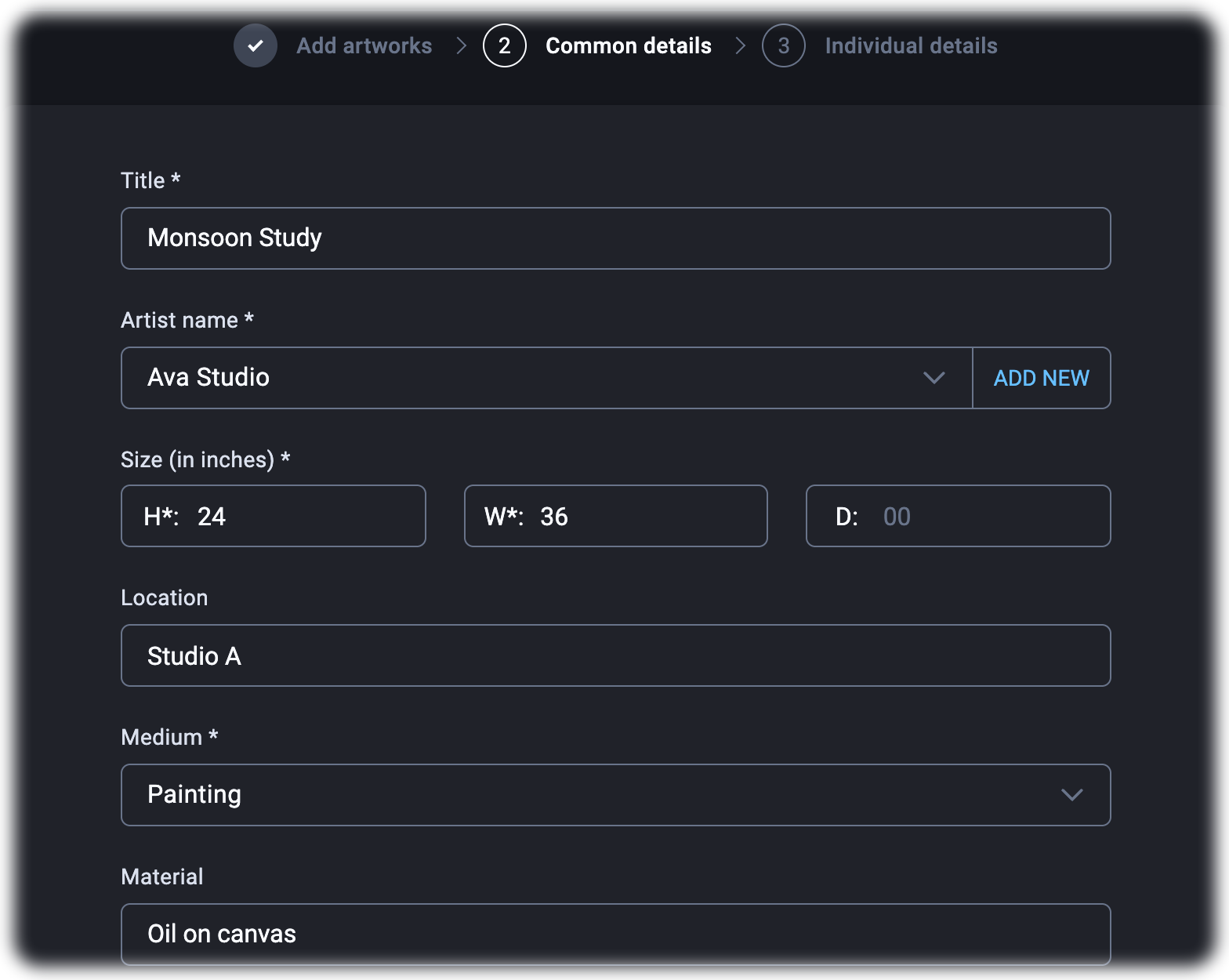
Step 5 (Common details): Fill in what all the artworks share. It’s the same form as a single artwork:
- Title *, Artist name *, Size * (H and W), Medium *, Status *, Year * and Price * are required.
- Location, Material, Month, Day, Depth and Tags are optional.
- Sizes are numbers only, like 24. The unit comes from Settings → Preferences.
Every artwork starts with these values. You’ll change the ones that differ in the next step, so if titles or prices vary, just enter something to start from.
Step 6: Click .
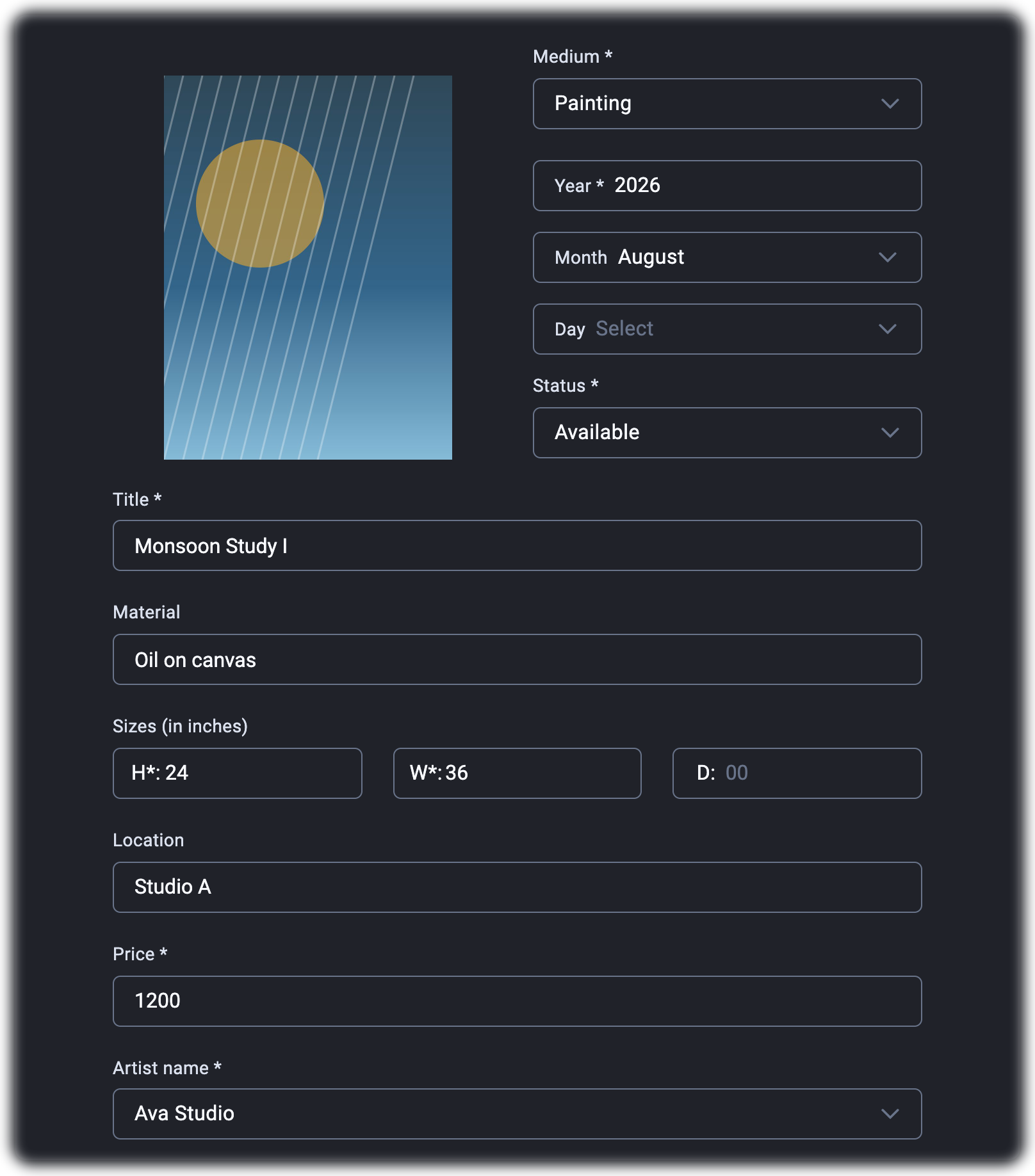
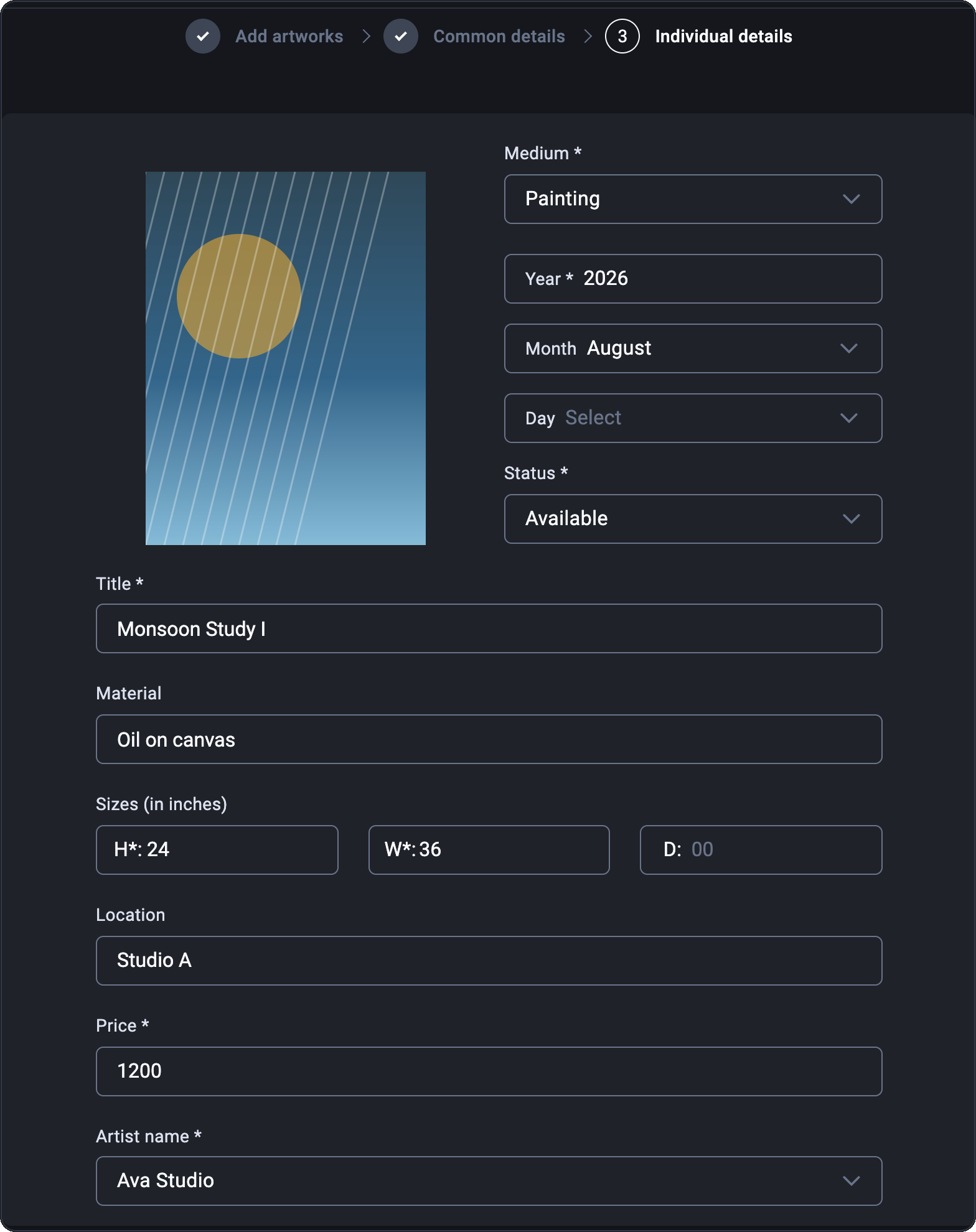
Step 7 (Individual details): Each image now has its own card with the common details filled in. Change whatever is different for that artwork, usually the title, size and price. Each card has:
- Medium, Creation date (Year, Month, Day) and Status
- Title and Material
- Sizes (height, width, depth), Location and Price
- Artist name
Step 8: Click  . AWWRT saves all the artworks together, shows “Artworks Successfully Created” and takes you back to Artworks. Use
 to change an earlier step, or
 to leave without saving.
Key Fields Explained
Common vs Individual Details
| Detail | Set on Common details | Change per artwork |
|---|---|---|
| Title, artist, size (H, W, D), price | ✓ | ✓ |
| Medium, material, status | ✓ | ✓ |
| Year, month, day | ✓ | ✓ |
| Location | ✓ | ✓ |
| Tags | ✓ | – (edit the artwork later) |
| Image | – | One per artwork, from step 1 |
After You Submit
- Every image is now its own artwork in Artworks, just as if you’d added each one with Individual Artwork.
- Each has its own inventory code and QR code, made from its title and year.
- Complete each artwork’s page one by one, including creation details, dimensions, price and editions, maintenance, and files. There’s no bulk edit afterwards.
- A material you typed on a card is added to your materials list, ready to pick next time.
If Something Goes Wrong
| What you see | What to do |
|---|---|
| “Upload at least one image” | Upload at least one image before clicking NEXT. |
| “You can add up to 15 images” | Remove images with the bin icon, or split the collection into batches. |
| “file name: only JPEG, PNG, WEBP and SVG images” | Save that image as JPEG or PNG and upload it again. |
| An image is marked Upload failed | Read the reason under Uploaded Files, which is often “Google Drive is not connected”. Link Drive in Settings, then upload again. |
| After SUBMIT, the page scrolls to a card and a field turns red | That artwork has a missing or invalid detail. Fix it and click SUBMIT again. |
| “The artworks could not be saved” | None of the batch was saved. Read the reason, fix it and click SUBMIT again; your entries are still there. |
Example Scenario
A contemporary ceramics gallery takes in twelve vessels from one artist on consignment. The registrar picks Bulk Upload and uploads all twelve photos. On Common details, they choose the artist, set the medium to Sculpture and material to “Glazed stoneware”, pick On consignment, enter the year, and tag them with the show’s title. They also type in a working title, size and price so the required fields are filled.
On Individual details, they swap out those working placeholders for each vessel’s real title, height, width, depth and price, then click SUBMIT. You type the shared details once, and every piece still gets its own name and measurements.
FAQ
How many artworks can I upload at once?
Up to 15 per batch.
Does each image become a separate artwork?
Yes. In Bulk Upload, every image is its own artwork, with its own inventory code and QR code.
Can I give each artwork a different price?
Yes. Change the price on each card in Individual details.
What if one card has a mistake?
SUBMIT won’t save until it’s fixed. AWWRT scrolls to the first card that needs attention.
If one artwork has a problem, are the others saved?
No. The batch is saved all together or not at all. Fix the problem and submit again.
I uploaded the wrong image. Can I remove it?
Yes. On the first step, click the image’s bin icon. If you’ve moved on, click BACK to get there.
Can I edit all the artworks at once afterwards?
No. After submitting, each artwork is edited on its own page.
Next Steps
(Underlined below as placeholders: link to the live articles only in the final version.)
- How to Describe an Artwork: Creation Date, Dimensions and About the Work: complete each artwork’s page.
- How to Set an Artwork’s Price and Editions
- How to Find and Edit Artworks, Contacts, Exhibitions and Records: filter by tag to find a batch again.
- How to Create a Report: a price list or labels for the whole batch.
Before you start, if you haven’t yet: How to Link Google Drive · How to Add a Contact · How to Add an Artwork.
Final Takeaway
Enter what’s shared once, adjust what’s different, submit once. That puts a whole series in AWWRT, each with its own code and QR.